Splitting video used to be a small step in post-production, but today it can define the speed of an entire editing workflow. Whether you are cutting long interviews into social clips, trimming webinar recordings, preparing YouTube shorts, or separating scenes for a larger project, the right video splitter can save hours. Adobe Premiere Pro remains one of the most powerful choices, but it is not the only platform worth considering if speed, simplicity, and collaboration matter.
TLDR: The best video splitter platforms combine fast cutting tools, timeline precision, export presets, and smooth performance. Adobe Premiere Pro is ideal for professional editors, while tools like DaVinci Resolve, Final Cut Pro, CapCut, Clipchamp, and VEED offer faster or simpler workflows for different users. If your main goal is speed, choose a platform that matches your content type, hardware, and publishing destination.
Why Video Splitter Tools Matter for Faster Editing
A video splitter is more than a basic trim feature. In modern editing, splitting allows you to isolate mistakes, remove pauses, rearrange scenes, create multiple deliverables, and adapt one long video into several short clips. For creators, marketers, educators, and businesses, this means working faster without sacrificing quality.
The best platforms make splitting feel effortless. You should be able to scrub through footage, make frame-accurate cuts, delete unwanted sections, and export in the right format without bouncing between multiple apps. A smooth split-and-export workflow can turn a two-hour editing session into a twenty-minute task.

1. Adobe Premiere Pro
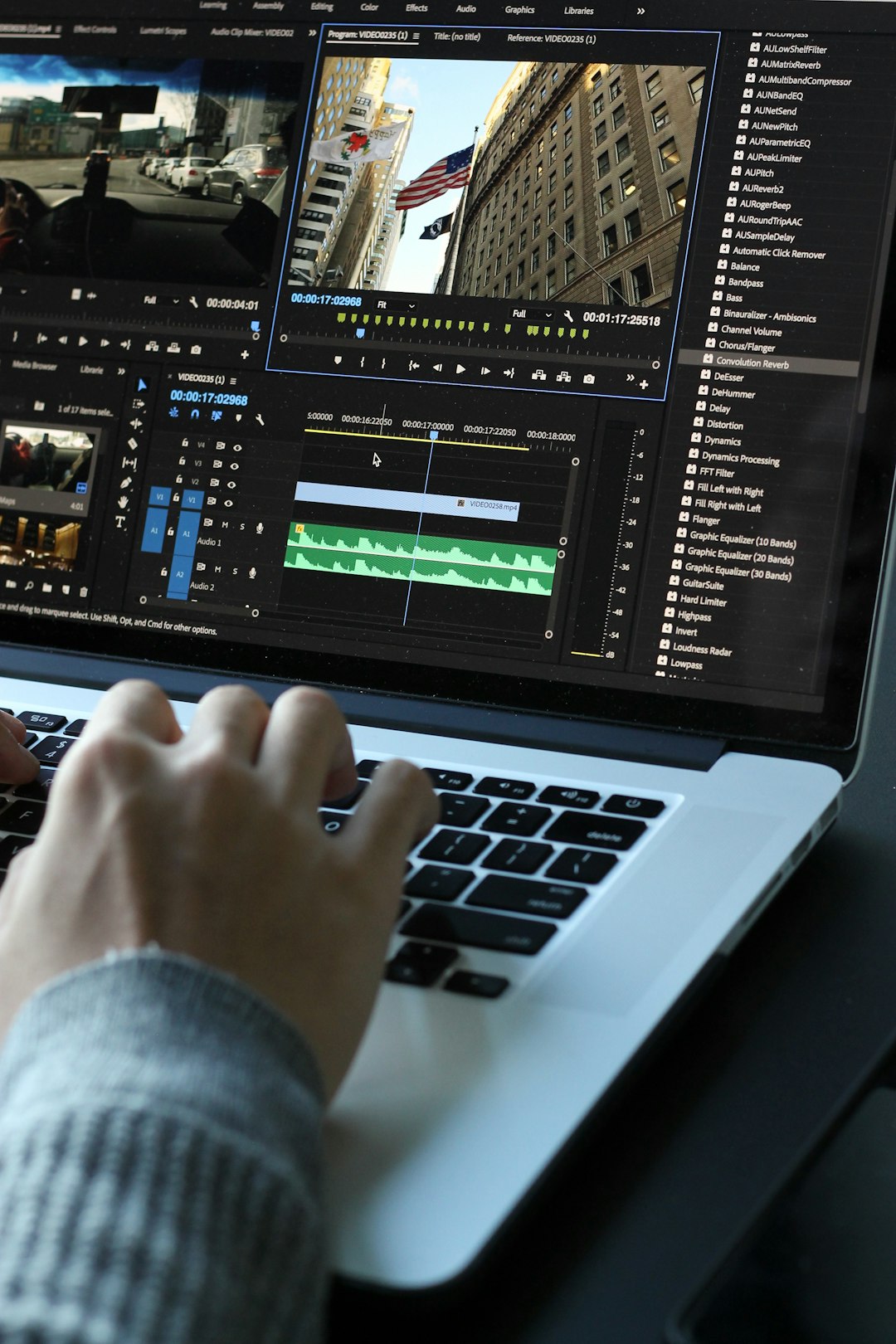
Adobe Premiere Pro is the industry standard for many professional editors, production studios, YouTubers, and agencies. Its splitting tools are precise, flexible, and deeply connected to a full editing ecosystem. The Razor Tool, keyboard shortcuts, nested sequences, markers, and ripple delete functions make it easy to cut footage quickly and cleanly.
Premiere Pro is especially useful when splitting is only one part of a larger workflow. If you also need color correction, advanced audio mixing, motion graphics, multicam editing, or integration with After Effects, Premiere Pro gives you a complete professional environment.
- Best for: professional editors, agencies, filmmakers, and advanced YouTube creators
- Standout feature: frame-accurate timeline editing with powerful shortcut customization
- Workflow advantage: integrates smoothly with Adobe After Effects, Audition, Photoshop, and Media Encoder
The downside is that Premiere Pro can feel heavy for simple splitting tasks. It also requires a subscription and performs best on capable hardware. If you only need quick cuts for social media, a lighter platform may be faster.
2. DaVinci Resolve
DaVinci Resolve has become one of the strongest alternatives to Premiere Pro, especially because its free version is remarkably powerful. It includes professional editing, color grading, audio post-production, and visual effects tools in one application.
For splitting videos, DaVinci Resolve offers a fast timeline, blade edit mode, keyboard shortcuts, and a dedicated Cut Page designed for speed. The Cut Page is particularly useful when working with long footage because it helps editors move quickly through clips, trim content, and assemble rough cuts without feeling buried in complex panels.
- Best for: editors who want professional tools without an immediate subscription cost
- Standout feature: the Cut Page for rapid trimming and assembly
- Workflow advantage: excellent color grading and all-in-one post-production tools
DaVinci Resolve can have a learning curve, but once you master its interface, it becomes extremely efficient. It is a great choice for creators who need a platform that can grow with their skills.
3. Final Cut Pro
Final Cut Pro is one of the fastest video editing platforms for Mac users. Its magnetic timeline is different from traditional track-based editing, but many editors love it because clips automatically close gaps and stay connected. This makes splitting, deleting, and rearranging scenes very fast.
If you regularly edit on a MacBook or iMac, Final Cut Pro is optimized beautifully for Apple hardware. It handles high-resolution footage smoothly, especially when working with Apple ProRes formats. For video splitting, the blade tool, range selection, and keyboard shortcuts make repetitive clipping tasks quick and responsive.
- Best for: Mac users, content creators, vloggers, and independent filmmakers
- Standout feature: magnetic timeline for fast clip management
- Workflow advantage: excellent performance on Apple devices
The main limitation is platform exclusivity. Final Cut Pro is only available for macOS, so Windows users will need to look elsewhere.
4. CapCut
CapCut has quickly become a favorite among short-form video creators. It is available on mobile, desktop, and web, making it convenient for quick splitting and editing across devices. If you create TikTok videos, Instagram Reels, YouTube Shorts, or quick promotional clips, CapCut is built for speed.
Splitting clips in CapCut is simple: move the playhead, tap or click split, remove unwanted sections, and add transitions, captions, music, or effects. It is less intimidating than professional tools, yet still powerful enough for polished social content.
- Best for: social media creators, influencers, marketers, and beginners
- Standout feature: fast short-form editing with captions, templates, and effects
- Workflow advantage: works across mobile, desktop, and browser-based editing
CapCut is not ideal for complex film projects or advanced multi-layered editing, but for fast splitting and publishing, it is one of the most efficient choices available.
5. Clipchamp
Clipchamp is a browser-based video editor owned by Microsoft, and it is particularly useful for users who want simple editing without installing heavy software. It works well for trimming, splitting, rearranging, and exporting videos for presentations, social media, training materials, and basic marketing content.
The interface is clean and beginner-friendly. You can drag a clip onto the timeline, place the playhead where you want a cut, split the clip, and remove or move sections. It also includes templates, stock media, text tools, and screen recording features.
- Best for: beginners, business users, educators, and Windows users
- Standout feature: simple browser-based editing with Microsoft integration
- Workflow advantage: quick access without a complex professional editing setup
Clipchamp is best for lightweight projects. If you are working with huge files, heavy color correction, or detailed audio editing, a desktop editor will usually be more reliable.
6. VEED
VEED is an online video editing platform focused on speed, accessibility, and social-ready content. It is especially helpful for teams and creators who want to split videos, add subtitles, clean up audio, and export clips without learning advanced editing software.
One of VEED’s biggest advantages is its automatic subtitle feature. If your workflow involves splitting interviews, podcasts, webinars, or tutorials into shorter clips, captions can be generated quickly and edited in the browser. This makes it useful for repurposing long-form content into smaller, more engaging pieces.
- Best for: marketers, podcasters, educators, and remote teams
- Standout feature: browser-based editing with automatic subtitles
- Workflow advantage: fast repurposing of long videos into short clips
Because VEED runs online, upload speed and internet connection quality matter. Still, for quick edits and collaborative workflows, it can dramatically reduce friction.
7. iMovie
iMovie remains one of the easiest free options for Apple users. It is not as advanced as Final Cut Pro, but it is effective for basic splitting, trimming, and arranging clips. If you are editing school projects, family videos, quick YouTube uploads, or simple business clips, iMovie can do the job with very little learning time.
The splitting process is straightforward: select a clip, position the playhead, and choose split. From there, you can delete sections, add transitions, insert titles, and export in common formats. Its simplicity is the main benefit.
- Best for: beginners and casual Apple users
- Standout feature: clean, simple interface
- Workflow advantage: free and easy to use on Mac, iPhone, and iPad
iMovie is not suitable for advanced professional workflows, but it is excellent for quick, uncomplicated edits.
8. Filmora
Wondershare Filmora sits between beginner-friendly tools and professional editing platforms. It provides a familiar timeline, easy splitting tools, templates, transitions, effects, screen recording, and audio features. Many creators choose Filmora because it feels simpler than Premiere Pro while still offering enough control for polished videos.
The split function is easy to access, and the software includes helpful tools for removing silence, enhancing audio, and adding motion elements. This makes it appealing for creators who produce tutorials, product videos, reaction content, and social media clips.
- Best for: intermediate creators, educators, and small businesses
- Standout feature: balance of simplicity and creative effects
- Workflow advantage: faster learning curve than many professional editors
Filmora may not offer the same advanced control as Premiere Pro or DaVinci Resolve, but it is often faster for everyday editing tasks.
9. Descript
Descript approaches video editing differently. Instead of focusing only on the timeline, it lets you edit video by editing text. When you upload a video, Descript transcribes the audio. You can then cut sections by deleting words or sentences from the transcript.
This is incredibly useful for podcasts, interviews, webinars, online courses, and talking-head videos. If you need to split a long conversation into topic-based clips, Descript can feel much faster than traditional timeline editing.
- Best for: podcasters, interview editors, educators, and course creators
- Standout feature: text-based video editing
- Workflow advantage: quickly remove pauses, filler words, and unwanted sections
Descript is not the first choice for cinematic editing or complex visual sequences, but for spoken content, it is one of the most efficient tools available.
10. Online Video Cutter Tools
Sometimes you do not need a full editor at all. Tools such as online video cutters and browser-based splitters are useful when you simply want to cut a file into smaller parts, trim the beginning or end, or extract a short segment. These platforms are usually designed for speed rather than advanced editing.
They are ideal when you need a one-time solution and do not want to install software. However, they may have file size limits, fewer export options, and privacy considerations if you are uploading sensitive footage.
- Best for: quick one-off edits
- Standout feature: fast access from a browser
- Workflow advantage: no installation required
How to Choose the Right Video Splitter Platform
The best platform depends on what you edit, how often you edit, and where your videos will be published. A professional editor working on client projects may need Premiere Pro, DaVinci Resolve, or Final Cut Pro. A social media manager may move faster with CapCut, VEED, or Clipchamp. A podcaster may save hours with Descript.
Before choosing, consider these factors:
- Speed: Can you split, delete, rearrange, and export clips quickly?
- Precision: Do you need frame-accurate cutting or simple rough trimming?
- Device: Are you editing on desktop, mobile, tablet, or browser?
- File size: Can the platform handle long or high-resolution footage?
- Export presets: Does it support formats for YouTube, TikTok, Instagram, or client delivery?
- Collaboration: Do you need team comments, cloud access, or shared projects?
- Learning curve: Do you want full control or a fast, simple interface?
Final Thoughts
Adobe Premiere Pro is still one of the best video splitter platforms for professional workflows, but faster does not always mean more advanced. In many cases, the quickest tool is the one that removes unnecessary steps. DaVinci Resolve is excellent for professional power without a high entry cost, Final Cut Pro is ideal for Mac-based speed, CapCut dominates short-form content, and Descript transforms spoken video editing into a text-based process.
If your workflow involves frequent splitting, repurposing, and exporting, test a few platforms with the same sample video. Notice how long it takes to import, cut, adjust, and export. The right choice should feel natural, reduce repetitive work, and help you move from raw footage to finished content with less friction. In the end, the best video splitter is the one that keeps your creative momentum going.