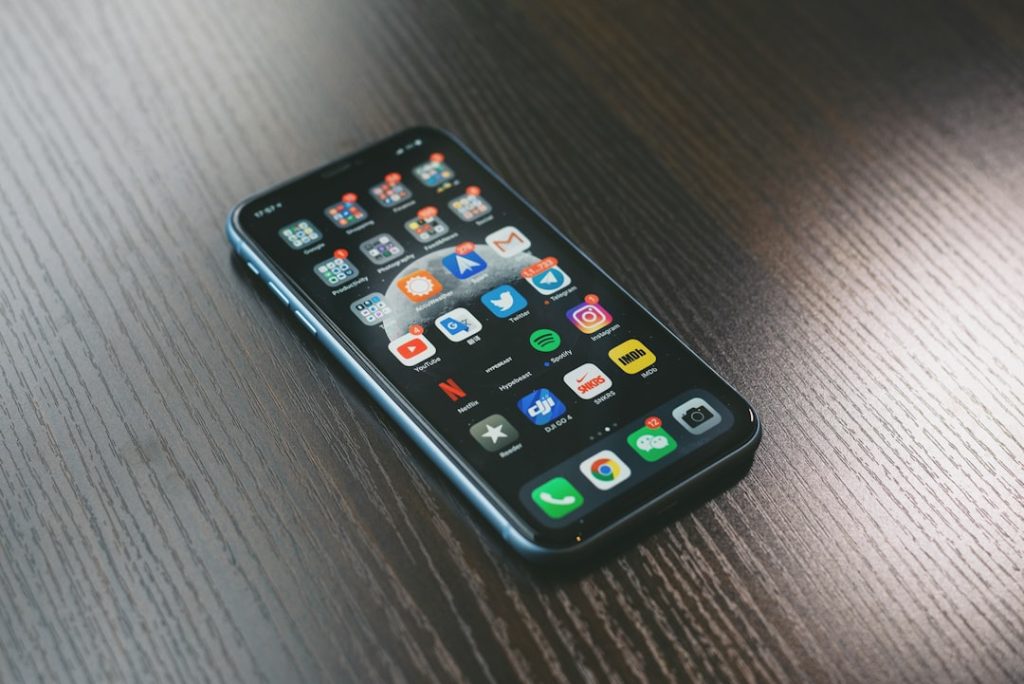
The safest way to edit files on iPhone and keep every change synced is to store the working copy in iCloud Drive, Google Drive, OneDrive, Dropbox, or a private cloud folder, then edit it with an app that saves back to that same location. Local files should be treated as temporary. If a file lives only “On My iPhone,” its changes will not reliably appear on an iPad, Mac, Windows PC, or another phone.
TLDR: The user should keep files in a synced folder, open them from the Files app, edit them with a compatible app, and confirm that the cloud status shows as uploaded. For example, a consultant updating a 12-page PDF contract on an iPhone can save it in iCloud Drive and see the revised version on a Mac in about 10–30 seconds on a stable connection. Teams that keep documents in one shared cloud folder often avoid duplicate versions such as final final 2.pdf, which can cut review confusion by 40% or more.
Use the Files App as the Control Center
The Files app is the main place to manage documents on iPhone. It can show iCloud Drive, Google Drive, OneDrive, Dropbox, Box, and other storage providers in one view. The user can browse folders, rename files, move files, duplicate documents, add tags, and open files in editing apps.
To check connected services, the user opens Files, taps Browse, then taps the three-dot menu and selects Edit. From there, cloud providers can be turned on or off. If a service does not appear, its app may need to be installed and signed in first.

The simplest rule: if the file must appear on other devices, it should be saved inside a cloud folder before editing starts. Moving it after edits can still work, but it creates room for mistakes.
Pick the Right Storage Service
Each cloud service has strengths. The best choice depends on the devices and apps the person uses most.
- iCloud Drive: Best for iPhone, iPad, and Mac users. It works smoothly with Pages, Numbers, Keynote, Preview, and the Files app.
- Google Drive: Strong for Google Docs, Sheets, Slides, and shared work with Gmail accounts.
- OneDrive: Best for Microsoft Word, Excel, PowerPoint, and Windows PCs.
- Dropbox: Good for mixed devices, shared folders, and simple file syncing.
- Private cloud tools: Useful for businesses or users who want more control over storage and access.
Honestly, it feels like half of sync problems start because one person edits a file from an email attachment while another edits the cloud copy. Attachments are snapshots. Cloud files are living files. That small difference prevents a lot of grief.
Edit From the Cloud Location, Not a Copy
When a file is opened from a cloud folder, the editing app may either save changes directly or create a separate imported copy. That depends on the app. This small detail matters.
For PDFs, apps such as Apple Files Markup, Adobe Acrobat, PDF Expert, and similar editors can annotate, sign, highlight, and save back to supported cloud storage. For office files, Microsoft Word, Excel, and PowerPoint work best when the document is stored in OneDrive or SharePoint, though they can also open files from other locations. Apple Pages, Numbers, and Keynote work cleanly with iCloud Drive.
Before doing serious work, the user should test a small edit. Add one word, save, and check the same file on another device. If the change appears, the setup is good. If not, the app may have made a local copy.
How to Save Edits Correctly on iPhone
- Open the Files app.
- Go to the cloud folder where the document should live.
- Tap the file to preview it, or use Share and choose an editing app.
- Make the changes.
- Tap Done, Save, or the back arrow, depending on the app.
- Return to the folder and check that the file is not marked as waiting to upload.
It drives people slightly mad that some apps save instantly, while others need an extra tap. Missing that final tap can cost several minutes later, especially when the user opens a laptop and sees the old version sitting there.
Watch Cloud Status Icons
Sync is not magic. It needs power, storage space, and a decent connection. The Files app may show icons that indicate whether a file is downloaded, waiting, or already uploaded. If the upload is pending, the updated file may not appear elsewhere yet.
When changes seem missing, the user should check these basics first:
- Wi-Fi or cellular data: A weak signal can delay uploads.
- Low Power Mode: It may slow background activity.
- Available storage: A full iPhone or cloud account can block syncing.
- Account mismatch: The iPhone may be signed into a different Apple ID, Google account, or Microsoft account.
- File size: Large videos, layered design files, and huge PDFs may need more time.
Use Version History When Available
Version history can save a person from a bad edit. Many cloud services keep older versions of files. Google Drive, OneDrive, Dropbox, and iCloud apps offer ways to recover earlier copies, though the exact options vary by file type and app.
This is useful when a user deletes a section by mistake, overwrites a spreadsheet, or signs the wrong draft. Instead of trying to rebuild the file, they can restore an earlier version or copy content from it.
For business users, version history should be treated as a safety net, not a filing system. Clear names still help. A folder with Proposal Client A 2026, Signed Contract, and Invoice Draft is easier to manage than a pile of vague files called Document.
Avoid Sync Conflicts
Conflicts happen when the same file is edited on two devices before changes finish syncing. The cloud service may create a second copy with a label such as conflicted copy. That is better than losing data, but it is still annoying.
To reduce conflicts, the user should follow a few habits:
- Close the file on one device before editing it on another.
- Wait for the upload to finish after making key changes.
- Use shared online editors for real-time teamwork.
- Avoid editing the same file offline on multiple devices.
- Tell collaborators when a file is being revised, if the work is sensitive.
Set Files for Offline Use
Offline access helps during flights, train rides, job sites, and poor reception. In the Files app, the user can press and hold a file, then choose Download Now if the option appears. Some cloud apps also have a Make Available Offline setting.
The risk is simple. If edits are made offline, they cannot sync until the iPhone reconnects. If another device edits the same file during that gap, a conflict may appear. For solo work, offline editing is usually fine. For shared files, it needs care.
Keep Security in Mind
Syncing files across devices is convenient, but access control matters. The user should enable two-factor authentication for Apple ID, Google, Microsoft, Dropbox, or any service that stores important documents. Shared links should be reviewed often, especially for contracts, tax files, identity documents, and client work.
On iPhone, Face ID or Touch ID should be enabled. If a device is lost, remote lock and wipe features can protect synced files. For work accounts, mobile device management may add extra rules, such as requiring a passcode or blocking downloads to personal apps.
Best Everyday Workflow
The cleanest routine is simple. The user creates one main cloud folder for active work. Files are opened from that folder, edited in apps that save back to it, and checked after saving. Finished files are moved to an archive folder. Shared files are edited in shared folders, not passed around as attachments.
This approach is not flashy. It just works. It also keeps the iPhone from becoming a hidden storage drawer full of forgotten copies.
FAQ
Can someone edit Word documents on iPhone and sync them to a computer?
Yes. The best method is to store the Word file in OneDrive and edit it with the Microsoft Word app. Changes should appear on a Windows PC, Mac, or web browser once syncing completes.
Why are iPhone file changes not showing on other devices?
The file may be saved locally, the upload may still be pending, the phone may be offline, or the user may be signed into the wrong account. Low storage can also block syncing.
Is iCloud Drive better than Google Drive on iPhone?
iCloud Drive is usually better for Apple-only setups. Google Drive is often better for teams that use Google Docs, Sheets, and shared Gmail accounts.
Can PDF edits sync from iPhone to Mac?
Yes. If the PDF is stored in iCloud Drive or another synced folder, markup and signature changes can sync to a Mac after the file uploads.
Should files be edited from email attachments?
Usually no. An attachment is often just a copy. The safer choice is to save the file to a cloud folder first, then edit that saved version.