
Choose your recording device based on the job first, not the megapixel count. A phone can record a sharp tutorial, a mirrorless camera can produce polished interviews, and a cinema camera can handle demanding color work. The best setup is the one that gives you clean video, reliable audio, enough storage, and a workflow that does not waste half your day.
TLDR: For most creators, a modern smartphone or mirrorless camera, a good microphone, stable lighting, and fast storage will beat an expensive camera used poorly. A 10-minute 4K video can use anywhere from 4 GB to 20 GB, depending on bitrate and codec, so storage planning matters. For example, a small business filming two 30-minute training videos per week may need 200 GB to 500 GB of working storage each month. Start simple, then upgrade the weakest part of your setup.
What Counts as a Video Recording Device?
A video recording device is any tool that captures moving images and stores them as a digital file or signal. That includes phones, webcams, action cameras, camcorders, DSLR and mirrorless cameras, cinema cameras, drones, screen recorders, and capture cards.
The real question is not “Which camera is best?” It is “What are you recording, where will it be watched, and how much control do you need?” A podcast studio, a wedding shoot, a Twitch stream, and a security system all need different gear.
Main Types of Video Recording Devices
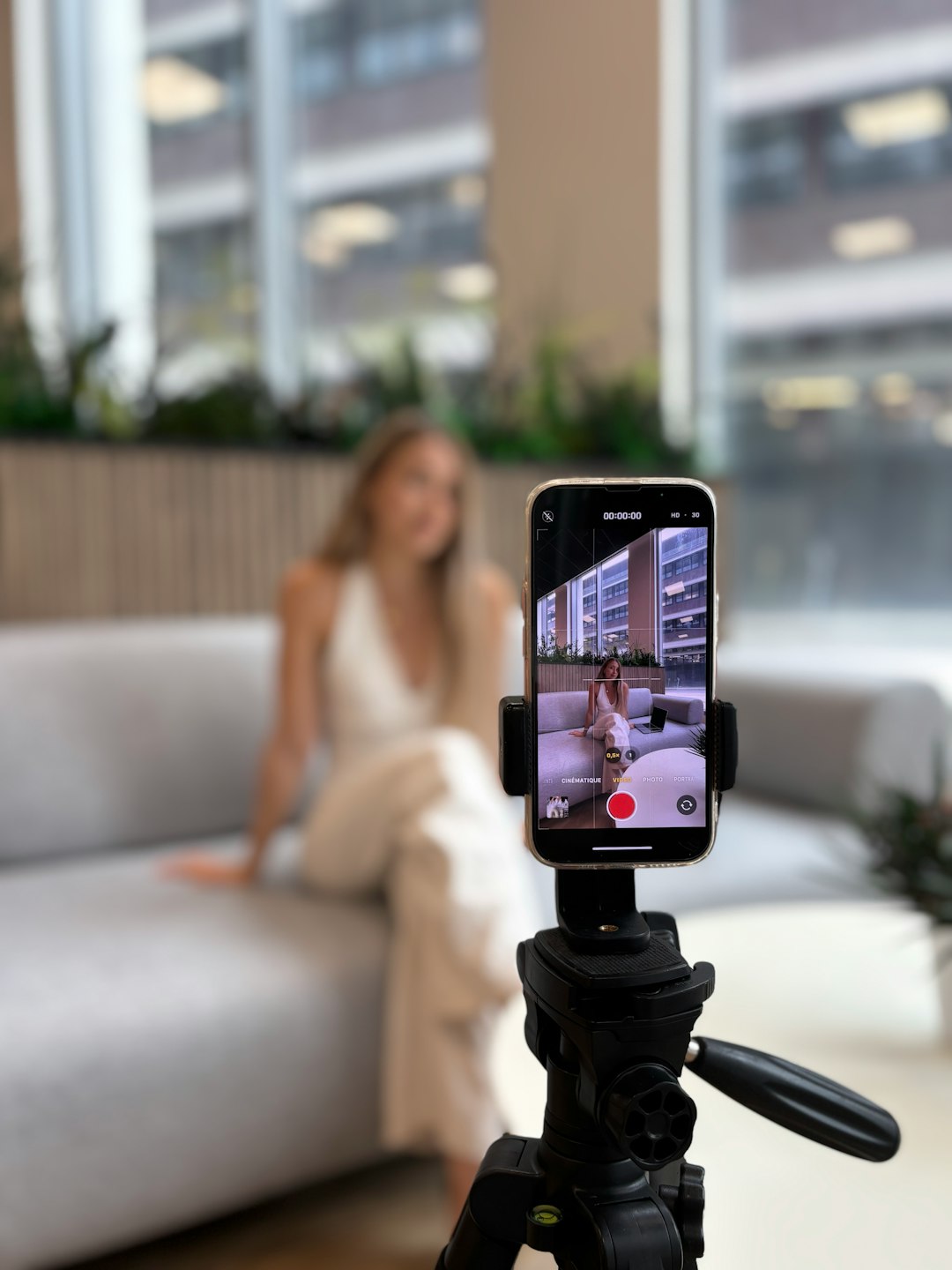
- Smartphones: Great for quick content, social media, travel clips, and behind-the-scenes video. Newer phones shoot crisp 4K, offer stabilization, and work with external microphones.
- Webcams: Best for meetings, webinars, live classes, and basic streaming. They are simple, cheap, and often limited in low light.
- Action cameras: Small, rugged, and built for movement. Use them for sports, motorcycles, water, helmets, and wide-angle shots.
- Camcorders: Still useful for long events. They offer long zoom ranges, easy handling, and fewer overheating problems.
- DSLR and mirrorless cameras: Popular for YouTube, interviews, short films, product videos, and weddings. They offer strong image quality and lens options.
- Cinema cameras: Built for advanced productions. They offer high bitrates, raw recording, pro audio inputs, and better color control.
- Drones: Used for aerial views, real estate, travel, inspections, and scenic openings.
- Capture cards and recorders: Used to record or stream signals from cameras, game consoles, computers, and switchers.
Camera Features That Actually Matter
Marketing loves big numbers. Some of them matter. Some are noise.
Resolution tells you how many pixels are in the image. Common options are 1080p, 4K, and 8K. For most online video, 4K is a sweet spot because it looks sharp and lets you crop in during editing. 8K is useful for high-end work, but it eats storage and slows computers down. Honestly, it feels like overkill for most talking-head videos.
Frame rate controls motion. Use 24 fps for a film-like look, 30 fps for standard online video, and 60 fps for sports, gaming, or smooth motion. Higher frame rates like 120 fps are useful for slow motion.
Sensor size affects low-light performance, depth of field, and image style. Larger sensors usually produce cleaner video and blurrier backgrounds. Smaller sensors are easier to keep in focus and often appear in phones, webcams, and action cameras.
Lens choice is huge. A sharp lens with the right focal length can make a modest camera look far better. For interviews, many creators use a 24mm to 35mm lens on wider shots and a 50mm to 85mm lens for tighter shots.
Capture Equipment: The Gear Between Camera and Computer
Capture equipment records or transfers video signals. It matters most for livestreaming, gaming, multi-camera shoots, and studio setups.
- USB capture cards: Simple tools for connecting a camera or game console to a computer. Good for streaming and calls.
- HDMI recorders: External devices that record a clean feed from a camera. Many also provide larger monitoring screens.
- Video switchers: Used to cut between multiple cameras in real time. Great for podcasts, events, worship services, and live shows.
- Screen recorders: Software used for tutorials, courses, demos, gaming, and presentations.
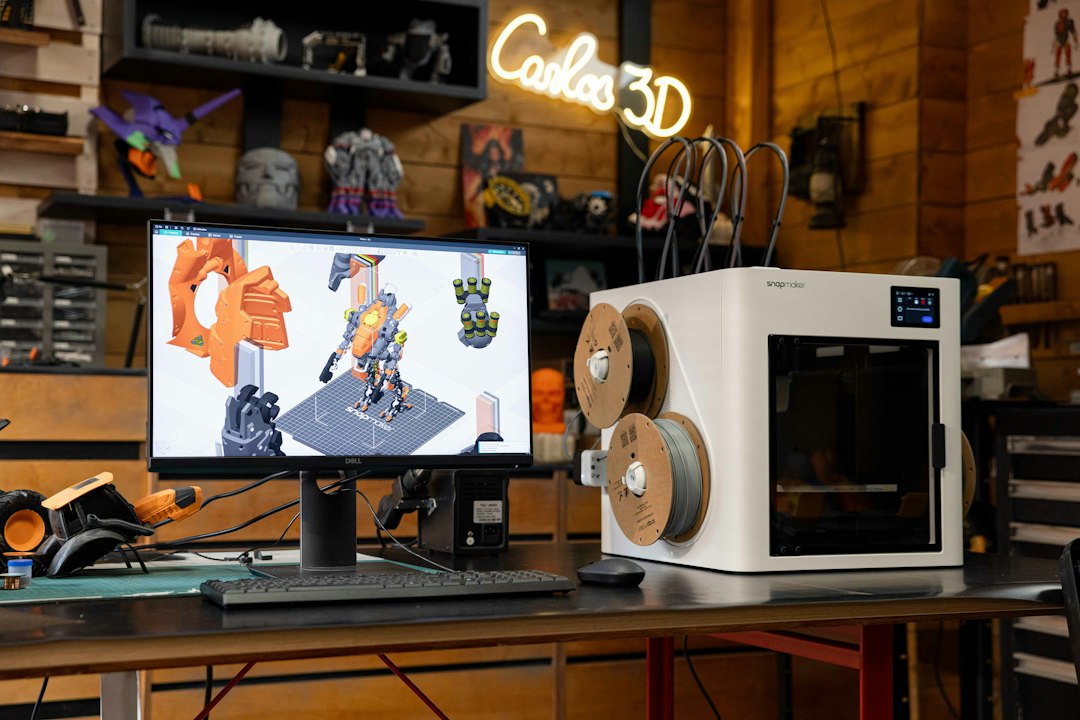
The catch is that software setup can be annoying. Some capture cards work instantly. Others need drivers, firmware, and settings changes. Expect to waste time on audio sync if the camera, computer, and software are not set to matching frame rates.
Audio Is Half the Recording
Bad video can be forgiven. Bad audio gets closed fast. A clean voice recording often improves the whole project more than a camera upgrade.
Use a lavaliere microphone for interviews, training videos, and presentations. Use a shotgun microphone when the subject is in front of the camera. Use a USB or XLR microphone for podcasts, voiceovers, and desk recordings.
Watch the room, too. Echo ruins clarity. Soft furniture, curtains, rugs, and acoustic panels help. Keep the microphone close to the speaker. That one fix solves a shocking number of audio problems.
Storage: The Boring Part That Saves the Shoot
Video files are large. Storage speed and capacity matter as much as size.
- SD cards: Common in mirrorless cameras and camcorders. Look for V30, V60, or V90 ratings for video.
- CFexpress cards: Faster and pricier. Used for high-bitrate 4K, 6K, 8K, and raw recording.
- External SSDs: Great for direct recording and editing. They are faster than hard drives and easier to carry.
- Hard drives: Better for backup and archive storage. Cheaper per terabyte, but slower.
- NAS systems: Useful for teams that need shared storage and backups.
As a rough guide, 1080p footage may use 1 GB to 5 GB for 10 minutes. 4K footage may use 4 GB to 20 GB for 10 minutes. High-end raw video can use much more. Always bring extra cards. Always back up before formatting. It drives me crazy that so many lost projects come down to one reused card with no copy.
Recording Quality: What Makes Video Look Good?
Quality comes from several pieces working together. Resolution is only one piece.
- Bitrate: Higher bitrate usually means more detail and fewer blocky artifacts. It also means larger files.
- Codec: H.264 is common and easy to share. H.265 is more efficient but can be harder to edit. ProRes and DNxHR are editing-friendly but larger.
- Color depth: 8-bit is fine for simple work. 10-bit gives more room for color grading.
- Chroma subsampling: 4:2:0 is common. 4:2:2 keeps more color detail and helps with green screen and grading.
- Lighting: Good light makes even cheaper cameras look better. Poor light makes expensive cameras struggle.
- Stability: Tripods, gimbals, and optical stabilization reduce shaky footage.
Best Setups by Use Case
For YouTube and courses: Use a mirrorless camera or quality phone, a lav microphone, two soft lights, and an external SSD. Record in 4K at 24 or 30 fps.
For streaming: Use a webcam or mirrorless camera with a capture card, a USB or XLR mic, and a wired internet connection. Set the stream to 1080p for reliability unless your upload speed is strong.
For events: Use camcorders or mirrorless cameras with long battery options. Bring tripods, extra cards, and at least one backup audio recorder.
For business meetings: Use a good webcam, a simple desk light, and a clear microphone. The upgrade from laptop mic to external mic is often more noticeable than the upgrade from 1080p to 4K.
For filmmaking: Use a camera with 10-bit recording, interchangeable lenses, manual controls, and strong monitoring tools. Add external audio, neutral density filters, and plenty of storage.
Buying Tips Before You Spend
- Check recording limits. Some cameras stop after a set time or overheat.
- Check ports. HDMI, USB-C, headphone, and microphone ports can change the whole setup.
- Check autofocus. If you film yourself, reliable face tracking is a lifesaver.
- Check battery life. Long recordings need dummy batteries, USB power, or large spares.
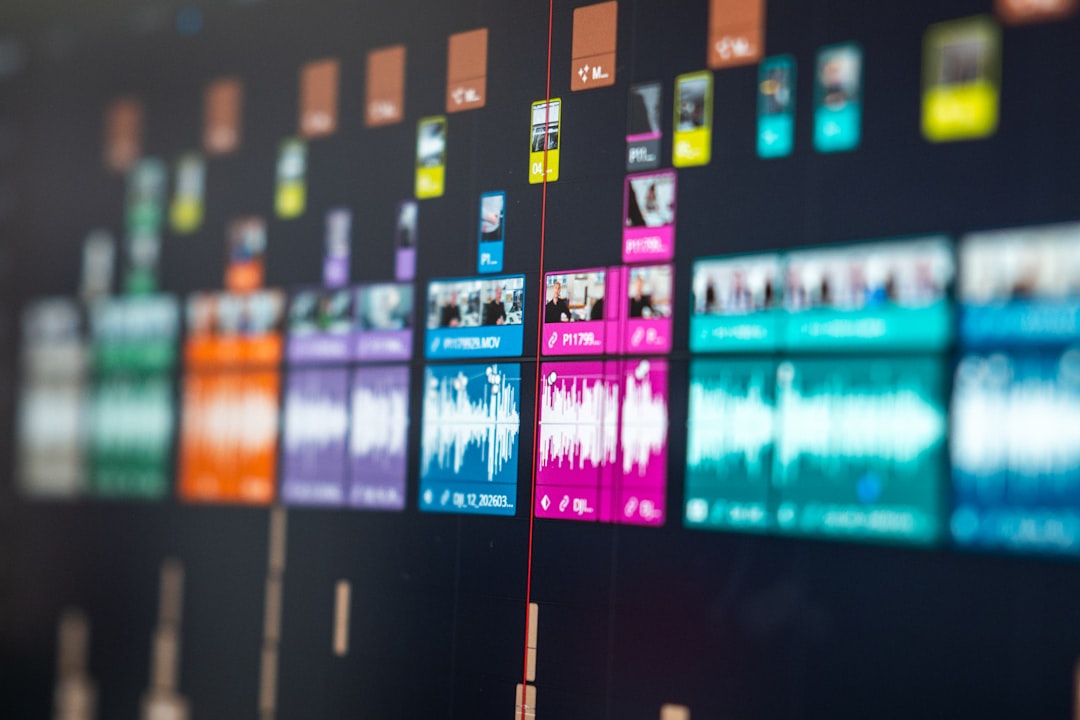
- Check editing needs. High-quality files may require a faster computer.
The best video recording setup is balanced. Spend on sound, light, storage, and support gear before chasing specs. A clear 1080p video with clean audio beats a noisy 4K clip every time. Pick the device that fits the project, test it before the real shoot, and keep your workflow simple enough to repeat without stress.