
If Meta Ads shows no ads, check delivery status, billing, and date filters first. Most “no ads” problems are not scary. They are usually caused by a tiny switch, a tired credit card, a rejected ad, or a filter hiding your work like a magician with trust issues. Meta says ads can fail to deliver because of review, rejection, budget, bid, audience, or account issues [source: Meta].
TLDR: If you see no ads in Meta Ads Manager, first clear filters and check the date range. Then check Delivery, Account Quality, and Billing. For example, a shop spending $50 per day may get 0 impressions for 12 hours because an old $500 account spending limit was reached. Remove or raise the limit, and delivery can start again once Meta processes it.
First, define “no ads”
“No ads” can mean two different things.
- Ads Manager is blank. You cannot see campaigns, ad sets, or ads.
- Ads exist, but nothing is showing. You see 0 impressions, 0 reach, and 0 spend.
These are very different problems. A blank screen is often a filter or permission issue. Zero delivery is usually a setup, payment, or approval issue. It drives me a little nuts that one tiny date filter can make a whole account look empty. But yes, it happens all the time.
Image not found in postmeta1. Your date range is hiding the ads
This is the silly one. It is also very common.
Meta Ads Manager may show “no ads” because your date range is set to a time when nothing was running. Maybe you are viewing “Yesterday.” Maybe the campaign starts tomorrow. Maybe someone clicked “Last 7 days” and nobody noticed.
Fix it:
- Set the date range to Lifetime.
- Clear all filters.
- Check if deleted or archived items are hidden.
- Refresh Ads Manager.
Quick win: If your ads suddenly appear after switching to Lifetime, you did not break anything. Ads Manager was just being annoying.
2. The campaign, ad set, or ad is turned off
Meta Ads has three main levels. Campaign. Ad set. Ad. If one level is off, the whole chain can stop.
You may have the ad turned on, but the ad set is off. Or the campaign is off. This feels unfair. But Meta follows the top level first.
Fix it:
- Check the switch at the Campaign level.
- Check the switch at the Ad Set level.
- Check the switch at the Ad level.
- Look at the Delivery column for clues.
3. The ad is still in review
New ads need approval. Edited ads often need approval again. Sometimes review is fast. Sometimes it feels like your ad was sent into space.
If the status says In Review, Meta has not fully approved it yet. No approval means no delivery.
Fix it:
- Wait a bit if the ad was just published.
- Avoid making repeated edits while it is in review.
- Check Account Quality for warnings.
- If review takes too long, request help from Meta support.
4. The ad was rejected
A rejected ad will not run. Simple. Painful. Often vague.
Common reasons include restricted claims, before and after images, finance wording, health promises, personal attributes, or poor landing pages. For example, “Do you hate your belly fat?” can cause trouble because it points at a personal attribute.
Fix it:
- Open the rejected ad.
- Read the policy reason.
- Edit the copy, image, video, or landing page.
- Submit it again.
- If you think Meta got it wrong, request a review.
Keep copy gentle. Say “Support your fitness goals” instead of “Fix your body.” Meta likes soft shoes and quiet voices.

5. Your payment method failed
No money, no ads. Meta is very clear about that part.
If your card expires, gets declined, or hits a bank limit, delivery may stop. Sometimes the warning is obvious. Sometimes it hides in Billing like a gremlin.
Fix it:
- Go to Billing and Payments.
- Check for failed charges.
- Add a backup payment method.
- Pay any outstanding balance.
- Ask your bank if the charge was blocked.
6. You hit an account spending limit
This one fools people because the campaign looks fine. The ads are approved. The budget is active. Yet spend is frozen.
An account spending limit is a cap across the ad account. If the cap is reached, Meta stops spending until you raise it, reset it, or remove it.
Fix it:
- Open Billing.
- Find Account Spending Limit.
- Raise it, reset it, or remove it.
7. Your budget is too low
Meta needs enough budget to enter auctions and test delivery. A tiny budget can cause very slow delivery, especially with expensive audiences.
If your ad set has a $1 daily budget and you ask for purchases, Meta may barely move. It is not broken. It is underfed.
Fix it:
- Raise the daily budget.
- Use a cheaper goal, such as traffic or leads, if needed.
- Broaden the audience.
- Give the ad set time to gather data.
8. Your bid or cost cap is too strict
Manual bidding can stop delivery if your cap is too low. Meta may want $8 per result. You set a $2 cap. Meta shrugs and spends nothing.
Fix it:
- Remove the bid cap for testing.
- Raise the cost cap.
- Compare past cost per result before setting limits.
9. Your audience is too small
A tiny audience can choke delivery. This happens with narrow interests, small custom audiences, heavy exclusions, or small cities.
For example, a retargeting ad set with only 300 people may not have enough users available today. Add exclusions and it gets even smaller.
Fix it:
- Broaden the age range.
- Expand locations.
- Remove extra interests.
- Reduce exclusions.
- Test broad targeting.
10. Your conversion event is too rare
If you optimize for purchases but your store gets only one purchase per week, Meta has very little signal. It may struggle to deliver well.
Fix it:
- Try optimizing for Add to Cart or Landing Page Views first.
- Check that your pixel or Conversions API is working.
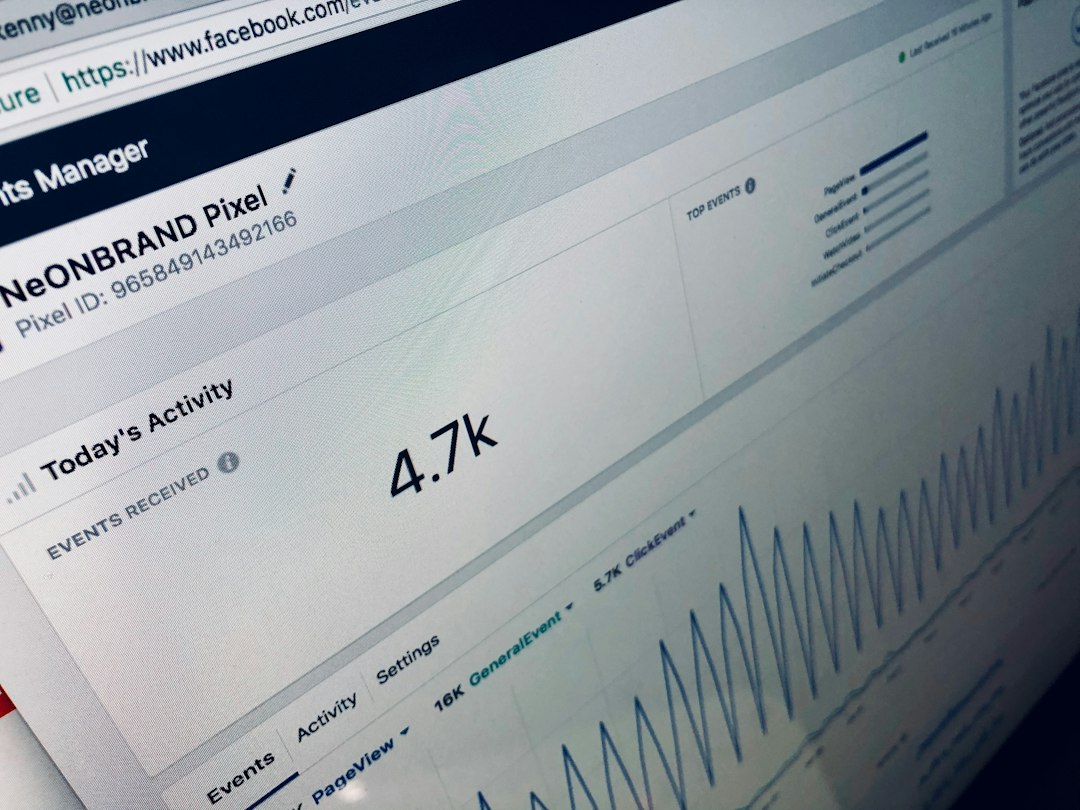
- Use Events Manager to test events.
Fast checklist before you panic
- Set date range to Lifetime.
- Clear all filters.
- Check campaign, ad set, and ad switches.
- Read the Delivery column.
- Check Account Quality.
- Check Billing.
- Look for spending limits.
- Review audience size.
- Remove strict bid caps.
- Test with a simple campaign.
The simple way to fix most “no ads” problems
Start with the boring stuff. Filters. Dates. Switches. Billing. Approval. These fix a shocking number of cases.
Then check the setup. Budget. Audience. Bids. Optimization event. If one of those is too tight, Meta may show nothing because it has nowhere to go.
Best rule: make the campaign easy to deliver first. Use a fair budget. Keep the audience wide. Avoid strict caps. Use a clean ad. Once delivery starts, then tighten things slowly.
Meta Ads may feel like a vending machine that sometimes eats your coins. But most zero delivery issues have a clear cause. Find the blocker, fix it, and let the ads breathe.