Apple Messages is the safer choice for simple iPhone message scheduling, while Scheduled is better when you need broader automation, reminders, or business-style texting. With iOS 18, Apple lets users schedule iMessages up to 14 days ahead using Send Later [source: Apple]. That is enough for birthday notes, meeting reminders, and polite follow-ups. It is not enough if you need SMS automation, recurring campaigns, or cross-platform workflows.
TLDR: Use Apple Messages if you want to schedule a blue-bubble iMessage to one person, such as “Happy birthday at 8:00 AM tomorrow.” Use Scheduled if you need more control, such as preparing 40 client reminders for next week or setting up repeat follow-ups. Apple’s option is built in and private, but limited. Scheduled gives more workflow options, though full automation may depend on paid features, permissions, or third-party sending systems.
What Apple Messages Does Well
Apple’s Send Later feature is clean and easy. You open Messages, write an iMessage, tap the plus button, choose Send Later, pick a time, and confirm. The message sits in the conversation until it sends.
This is ideal for personal use. You do not need another app. You do not need a new account. You do not need to trust a third party with your contacts or message content.
Best uses for Apple Messages:
- Birthday and anniversary messages
- Simple reminders to family or friends
- Follow-ups to coworkers who also use iMessage
- Messages you want to write now but send during work hours
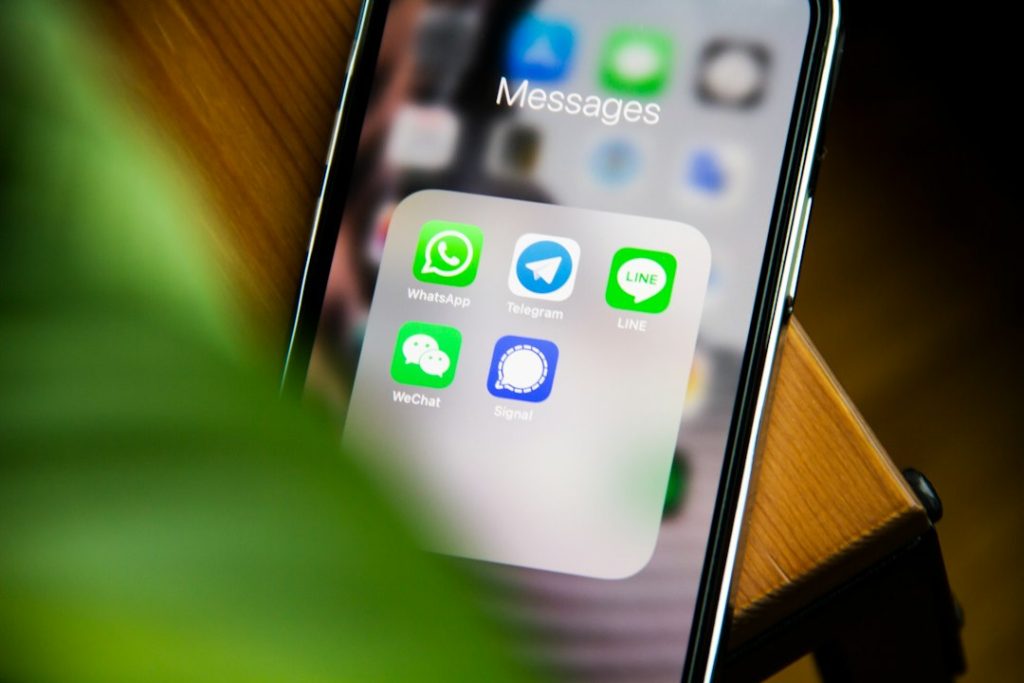
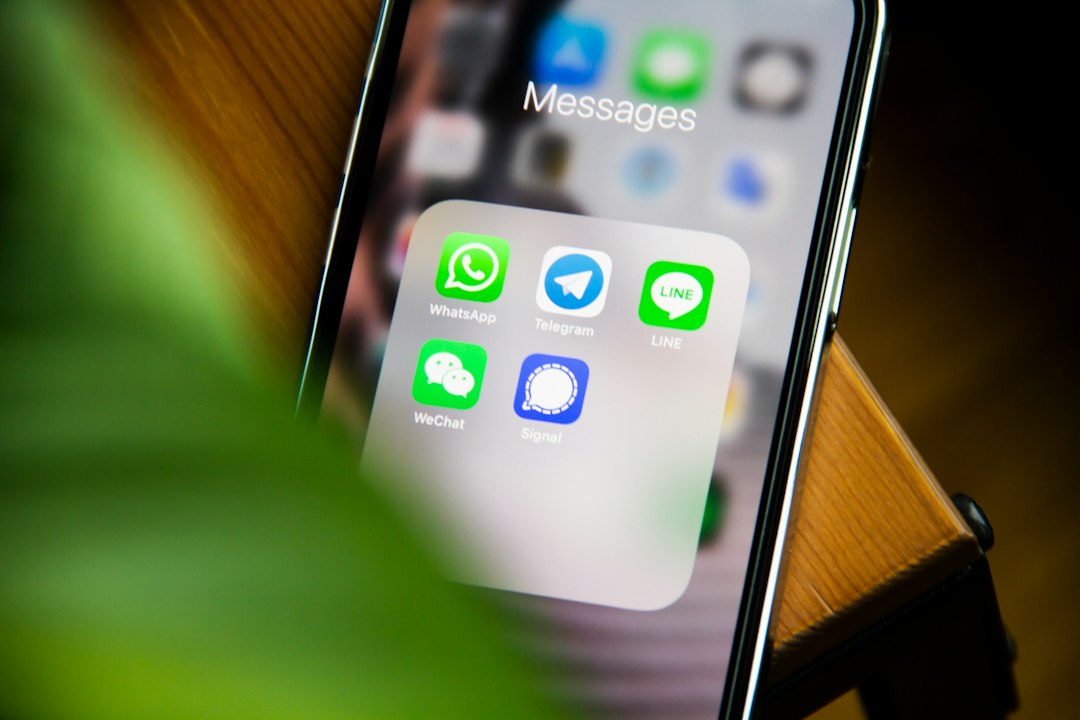
The privacy angle is strong. Apple Messages uses Apple’s own system, and iMessage supports end-to-end encryption. If your main concern is secure personal communication, that matters. If you care about secure chat tools more broadly, this guide to encrypted messaging platforms like Telegram is also worth reading.
Where Apple Messages Falls Short
The annoying part is obvious fast. Send Later works for iMessage, not regular green-bubble SMS. So if the person uses Android, or if iMessage is off, your neat plan may not work.
There is also no serious campaign management. No recurring templates. No team inbox. No bulk list handling. No customer tags. For many people, that is fine. For sales, recruiting, coaching, clinics, salons, or repairs, it feels too thin.
It drives me a little crazy that something as basic as “send this SMS next Friday” still feels harder than it should on iPhone. Apple solved the simple version, but only inside its own messaging lane.
What Scheduled App Tries to Solve
Scheduled is made for people who want more than a one-off iMessage. The app is commonly used to plan texts, WhatsApp messages, Messenger notes, email reminders, and business follow-ups. Depending on the plan and setup, it can act as a reminder tool or support automated sending through supported channels.
The big benefit is planning. You can prepare messages in batches. You can create templates. You can reduce the chance of forgetting follow-ups. That matters if texting is part of your work.
Scheduled is stronger for:
- Client appointment reminders
- Sales follow-ups after calls
- Recruiting messages
- Repeat reminders for classes, lessons, or events
- Teams that need a shared texting process
The Automation Question
This is where buyers should slow down. Apple does not let every app silently send normal SMS messages from your personal number whenever it wants. That is a system limit, not just an app choice.
Because of that, many scheduling apps work in one of two ways. First, they remind you when it is time to send, then you tap to confirm. Second, they use a separate sending service for full automation. That may mean different pricing, different sender IDs, or extra setup.
So before paying, check these points:
- Will the message send automatically, or will I need to tap send?
- Will it send from my iPhone number or another number?
- Does it support SMS, iMessage, WhatsApp, or email?
- Can I cancel or edit messages before they go out?
- What happens if my phone is offline?
Expect to waste time on setup if you need real automation. Not hours, usually. But more than the 10 seconds it takes to schedule an iMessage in Apple Messages.
Privacy and Trust
For personal messages, Apple gets the edge. Fewer moving parts usually means fewer privacy worries. Your message stays inside the Apple ecosystem, and you are not handing your contact list to another service just to send “See you at 6.”
Scheduled may still be a good fit, but you should read its privacy policy first. This is especially true if you handle client names, phone numbers, medical reminders, billing prompts, or legal appointment details.
A serious rule: if a message contains sensitive personal data, use the simplest safe method that works. Do not add extra software unless the workflow truly needs it.
Which One Should You Use?
Pick Apple Messages if your needs are simple. It is free, built in, and reliable for iMessage users. It is the right tool for most personal scheduling.
Pick Scheduled if texting is part of your job. It makes more sense when you need templates, reminders, repeat workflows, or team habits. Just confirm how sending works before you build your process around it.
Final Verdict
Apple Messages is best for private, simple, one-to-one scheduling. It is clean and safe, but narrow. Scheduled is better for organized messaging workflows, especially when missed follow-ups cost money or trust.
If you only schedule a few texts each month, stay with Apple. If you send dozens of planned messages per week, test Scheduled with a small group first. That will show you quickly whether the extra control is worth the extra setup.