Clearing your Google Search history is one of those small digital housekeeping tasks that can make a big difference. Whether you want more privacy, fewer personalized suggestions, cleaner search results, or simply a fresh start, Google gives you several ways to delete your search activity on both mobile devices and computers.
TLDR: You can clear your Google Search history from your Google Account’s My Activity page, from the Google app on mobile, or from your browser history on a PC. Deleting Google Search history removes searches saved to your Google Account, while clearing browser history removes local records stored in Chrome, Safari, Firefox, or another browser. For stronger privacy, you can also turn on auto-delete or pause Web & App Activity.
Understanding What “Google Search History” Really Means
Before deleting anything, it helps to know what kind of history you are clearing. Many people use the phrase Google Search history to mean several different things, but Google actually stores activity in more than one place.
The most important type is your Google Account search history. This is saved under Web & App Activity and may include searches you made while signed in, websites visited through Google results, voice searches, Google app activity, and interactions with Google services.
Then there is your browser history. This is stored locally in browsers such as Chrome, Safari, Microsoft Edge, or Firefox. It records websites you visited, including Google search result pages. Clearing your browser history does not always delete the search history saved in your Google Account.
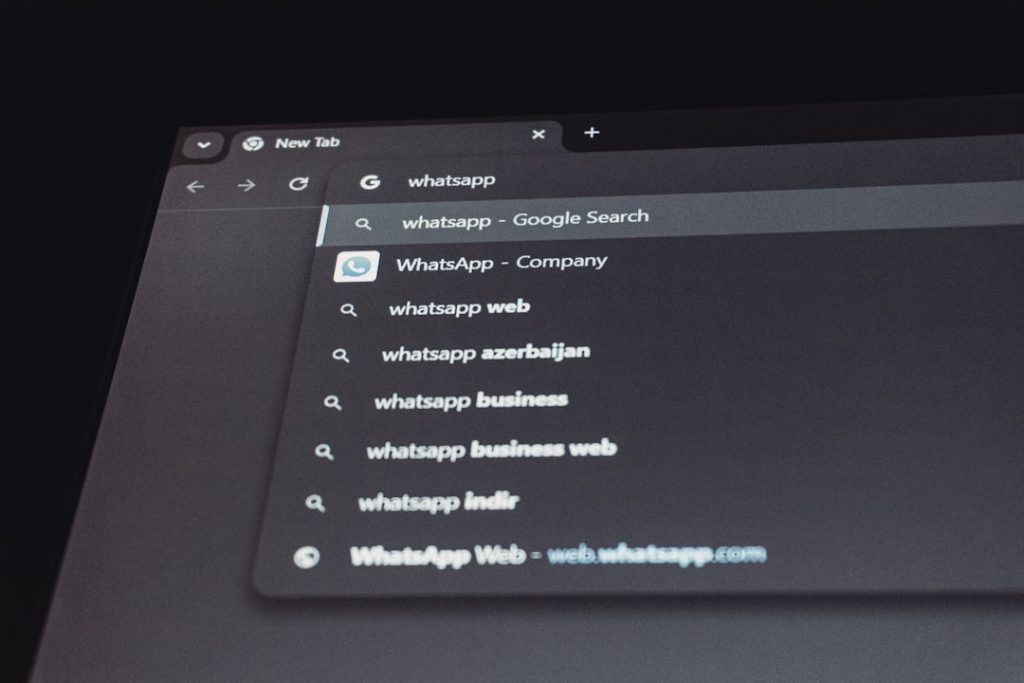
Finally, there are search suggestions and autocomplete predictions. Some suggestions come from your saved activity, while others come from popular searches, bookmarks, or local browser data. If you want the cleanest possible reset, you may need to clear both your Google Account activity and your browser history.

How to Clear Google Search History on Mobile
If you use an iPhone, iPad, or Android phone, there are several easy ways to delete your Google Search history. The most direct method is through the Google app or your Google Account settings.
Clear Search History Using the Google App
The Google app is often the fastest option on mobile, especially if you regularly search from the app’s search bar.
- Open the Google app on your phone or tablet.
- Tap your profile picture or initials in the top-right corner.
- Select Search history.
- You may be asked to verify your identity.
- Tap Delete.
- Choose one of the available options:
- Delete today
- Delete custom range
- Delete all time
- Auto-delete
- Confirm your choice when prompted.
If you only want to remove recent searches, Delete today is convenient. If you want a full reset, choose Delete all time. For a more controlled cleanup, use Delete custom range and select the exact dates you want to remove.
Clear Individual Searches on Mobile
Sometimes you do not want to wipe everything. You may only want to remove a specific search term from your account activity.
- Open the Google app.
- Tap the search bar.
- Look for the recent search you want to remove.
- Touch and hold the search term.
- Tap Delete or confirm removal when asked.
This is useful when you want to keep your general search personalization but remove a few specific items from your visible search suggestions.
Clear Google Search History Through a Mobile Browser
You can also manage your search activity from any mobile browser, including Chrome, Safari, Firefox, or Samsung Internet.
- Open your browser and go to myactivity.google.com.
- Sign in to your Google Account if needed.
- Tap Delete near the activity controls.
- Select a time period, such as Last hour, Last day, All time, or Custom range.
- Choose the Google products you want to include, or keep the default selection.
- Confirm deletion.
The My Activity page is powerful because it lets you review and filter activity before deleting it. You can search within your activity, filter by date, or filter by Google service.
How to Clear Google Search History on a PC or Mac
On a desktop or laptop, the process is just as simple. The main difference is that you will usually manage everything from a web browser.
Delete Search History from Your Google Account
This method works on Windows, macOS, Linux, and Chromebooks. It does not matter whether you use Chrome, Edge, Safari, or Firefox.
- Open your preferred web browser.
- Go to myactivity.google.com.
- Sign in to your Google Account.
- Click Delete.
- Select your preferred time range:
- Last hour
- Last day
- All time
- Custom range
- Choose which Google services to include, if prompted.
- Click Next, then confirm by clicking Delete.
Once deleted, this activity is removed from your Google Account. However, keep in mind that Google may still retain some limited information for security, fraud prevention, legal compliance, or service maintenance, depending on its policies.

Delete Specific Search Items on a Computer
If you prefer a more selective approach, you can delete individual searches instead of removing everything.
- Visit myactivity.google.com.
- Scroll through your activity or use the search and filter tools.
- Find the item you want to remove.
- Click the X or the three-dot menu next to the item.
- Select Delete.
This is a good option if you use Google personalization and do not want to erase months or years of useful history. It is also helpful if you are cleaning up shared-device searches or removing sensitive topics.
How to Clear Browser History Related to Google Searches
Deleting your Google Account history is only part of the job. If you used a browser, your searches may still appear in local browser history. To fully clean up your tracks on a device, clear the browser history too.
Clear Google Chrome History on PC
- Open Google Chrome.
- Click the three-dot menu in the top-right corner.
- Select History, then History again.
- Click Clear browsing data.
- Choose a time range, such as Last 24 hours or All time.
- Check Browsing history.
- Optionally check Cookies and other site data and Cached images and files.
- Click Clear data.
Tip: Clearing cookies may sign you out of websites, so only select that option if you are comfortable logging in again.
Clear Chrome History on Mobile
- Open the Chrome app.
- Tap the three-dot menu.
- Tap History.
- Select Clear browsing data.
- Choose the time range.
- Make sure Browsing history is selected.
- Tap Clear data.
Clear Safari History on iPhone or iPad
- Open the Settings app.
- Scroll down and tap Safari.
- Tap Clear History and Website Data.
- Choose the time range if your device offers the option.
- Confirm your choice.
This removes Safari browsing history, cookies, and other website data from the device. If Safari is synced through iCloud, it may also clear history across other Apple devices signed in to the same Apple ID.
Clear Browser History in Microsoft Edge or Firefox
The process is similar in most browsers. Look for a menu labeled History, Privacy, or Clear browsing data. Select the time range, choose browsing history, and confirm deletion.
- In Microsoft Edge, go to Settings > Privacy, search, and services > Clear browsing data.
- In Firefox, go to Settings > Privacy & Security > Cookies and Site Data or History.
How to Set Google Search History to Auto-Delete
If you do not want to manually clear your history again and again, Google’s auto-delete feature is one of the best privacy tools available. It automatically deletes activity after a selected period.
- Go to myactivity.google.com.
- Click or tap Web & App Activity.
- Select Auto-delete.
- Choose an auto-delete period, such as 3 months, 18 months, or 36 months.
- Confirm your selection.
For privacy-conscious users, 3 months is a practical choice. It keeps some short-term personalization while preventing years of searches from accumulating in your account.

How to Pause Google Search History
If you want to stop Google from saving future searches to your account, you can pause Web & App Activity. This does not delete existing history, but it prevents new activity from being stored in the same way.
- Visit myactivity.google.com.
- Open Web & App Activity.
- Click or tap Turn off.
- Choose whether to simply turn it off or turn it off and delete existing activity, if offered.
- Review the information and confirm.
Pausing activity can reduce personalization in Google Search, Maps, YouTube, and other services. For example, you may see less relevant recommendations or have to re-enter searches more often. Still, if privacy matters more than convenience, it is worth considering.
Using Incognito or Private Browsing for Future Searches
Another way to reduce saved history is to use Incognito Mode in Chrome or Private Browsing in other browsers. These modes prevent your browser from saving local history, cookies, and form data after you close the private window.
However, private browsing is not a complete invisibility tool. Your internet provider, employer, school, websites you visit, and some network administrators may still be able to see activity. Also, if you sign in to your Google Account while using Incognito, some activity may still be associated with your account depending on your settings.
For better privacy, combine private browsing with paused Web & App Activity, regular history cleanup, and careful account management.
What Happens After You Delete Google Search History?
After deletion, your removed searches should no longer appear in your Google Account activity. You may also notice changes in search suggestions, recommendations, and personalized results. Google may feel a little less “tailored” to your habits, which can be either refreshing or inconvenient depending on how you use it.
Deleting history does not remove bookmarks, downloaded files, saved passwords, or emails. It also does not erase information from websites you visited. If you searched for a store, clicked its website, and created an account there, clearing Google history will not delete that store account or its records.
Quick Privacy Checklist
For a thorough cleanup, follow this simple checklist:
- Delete Google Account search activity from myactivity.google.com.
- Clear browser history on each device you use.
- Remove individual suggestions from the Google app if needed.
- Turn on auto-delete to keep future history under control.
- Pause Web & App Activity if you do not want searches saved.
- Use private browsing for searches you do not want stored locally.
- Check all devices, especially shared phones, tablets, and family computers.
Common Mistakes to Avoid
A common mistake is clearing only the browser history and assuming everything is gone. If you were signed in to Google, your searches may still be saved to your account. Another mistake is deleting account activity but forgetting about a shared computer’s browser history, where search pages may still appear.
It is also important to check which Google Account you are using. Many people have multiple accounts for work, school, and personal use. If you delete history from one account but searched using another, the activity may still exist in the other account.
Final Thoughts
Clearing your Google Search history on mobile and PC is simple once you know where the information is stored. For the best results, delete your activity from your Google Account and clear the browser history on each device. If you want a more private setup going forward, enable auto-delete, pause Web & App Activity, and use private browsing when appropriate.
Search history can be useful, but it should not feel permanent or out of your control. With a few minutes of cleanup and the right settings, you can make Google work for you while keeping your digital footprint more manageable.