A GIF should be inserted as an inline image, not as a file attachment, so the animation appears inside the email body where readers can see it right away. The sender should keep the file small, place the key message in the first frame, and test the email in Gmail, Outlook, Apple Mail, and mobile inboxes before sending.
TLDR: A GIF can be added to an email by using the image insert tool in Gmail, Outlook, Apple Mail, or an email marketing platform, then checking that it appears inline. The safest GIF is usually under 1 MB, with a clear first frame for Outlook users who may not see animation. For example, a retail team using a 650 KB product GIF in a sale email may see more clicks than with a static banner, but only if the GIF loads quickly. Testing matters because even a strong design can fail if one major inbox freezes the animation.
Why Use a GIF in an Email?
A GIF can show motion without asking the reader to press play. That makes it useful for product previews, limited offers, app walkthroughs, countdown-style graphics, and simple how-to moments.
It can also make a crowded inbox feel less dull. A short animation can point attention to a button, reveal several products, or show a before-and-after result. Still, the GIF should support the message. If it is only decoration, it may slow the email and annoy the reader.
Honestly, it feels like some email builders make this harder than it should be. A GIF may look perfect in the editor, then load three seconds late on a phone. That delay can kill the whole effect.
Step-by-Step: How to Insert a GIF in an Email
1. Choose or Create the GIF
The sender should start with a GIF that has a clear goal. It may show a product feature, a short greeting, a sale banner, or a software action.
- Keep it short: Two to six seconds usually works well.
- Use fewer frames: Fewer frames mean a smaller file.
- Make the first frame useful: Some inboxes show only that frame.
- Avoid flashing: Fast flashing can hurt readability and accessibility.
The first frame should include the main offer, product, or call to action. If the animation fails, the email should still make sense.
2. Optimize the File Size
Large GIFs load slowly. A heavy file can also make an email feel clunky on mobile data. A good target is under 1 MB. For very simple animations, 300 KB to 700 KB is even better.
To reduce file size, a designer can:
- Crop unused space.
- Reduce image width to match the email layout.
- Limit colors when possible.
- Remove extra frames.
- Lower the frame rate.
Most email layouts use images between 600 and 1200 pixels wide. For a full-width email banner, 600 pixels wide is still common. Retina-friendly designs may use larger source files, but the file size must stay under control.
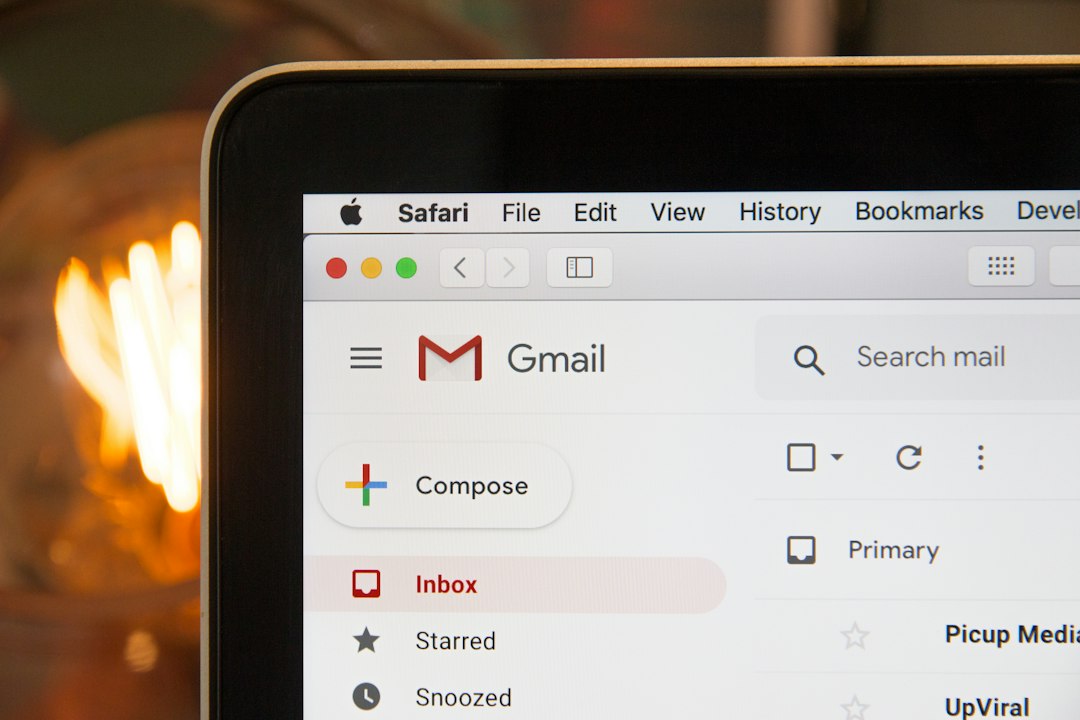
3. Insert the GIF in Gmail
- Open Gmail and select Compose.
- Place the cursor where the GIF should appear.
- Click the Insert photo icon.
- Upload the GIF from the computer or select it from a saved source.
- Make sure it appears inside the message body, not as an attachment.
- Resize it if needed by selecting the image and choosing a display size.
- Send a test email before sending the final version.
Gmail usually supports animated GIFs well. The sender should still test on mobile Gmail because image scaling can change how the email looks.
4. Insert the GIF in Outlook
- Open a new email in Outlook.
- Place the cursor in the email body.
- Select Insert, then Pictures.
- Choose the GIF file.
- Confirm that the GIF appears inline.
- Send a test to Outlook desktop, Outlook web, and mobile if possible.
Outlook is the tricky one. Some Windows desktop versions show only the first frame of an animated GIF. Outlook on the web and newer versions may play the animation, but behavior can vary by setup. This is why the first frame must carry the core message.
5. Insert the GIF in Apple Mail
- Open Apple Mail and start a new message.
- Drag the GIF into the body of the email, or use the attachment/image option.
- Place it where the animation should appear.
- Send a test message to confirm sizing and playback.
Apple Mail generally handles animated GIFs well. It is often more forgiving than Outlook. Still, a sender should check the email on both desktop and iPhone if the audience includes many Apple users.
6. Insert the GIF in an Email Marketing Platform
Most email platforms include an image block. The sender can upload the GIF into the media library, place it in the email, add alt text, and link it to a landing page.
The sender should check:
- Image hosting: The platform should host the GIF reliably.
- Alt text: The text should describe the key message.
- Link target: The GIF can link to a product page, video, or offer.
- Mobile preview: The GIF should not shrink into unreadable text.
Compatibility Tips for Major Email Clients
GIF support is common, but not perfect. The biggest issue is animation playback. Some clients play the GIF smoothly. Others freeze it on the first frame.
- Gmail: Usually supports animated GIFs on web and mobile.
- Apple Mail: Usually supports animation on Mac, iPhone, and iPad.
- Yahoo Mail: Usually supports animated GIFs.
- Outlook.com: Often supports animation.
- Outlook desktop for Windows: Some versions may show only the first frame.
The safest rule is simple: design the first frame like a static ad. It should include the main visual, message, and context. If the GIF says “50% off” only in frame four, some readers may never see the offer.
Best Practices for GIFs in Email
- Use one main GIF: Several GIFs can slow the email and distract readers.
- Place it high: A GIF near the top gets more attention.
- Keep text readable: Tiny animated text is hard to read on phones.
- Add a link: A clickable GIF can send readers to the next step.
- Use alt text: Some users block images by default.
- Avoid endless chaos: A looping GIF should feel smooth, not frantic.
- Test dark mode: Transparent areas or light text may look odd.
Accessibility also matters. Rapid flashing can trigger discomfort for some readers. A calm animation is better. The sender should also avoid putting the only critical message inside the animation, since screen readers may not explain it fully.
Common Mistakes to Avoid
The most common mistake is attaching the GIF instead of inserting it inline. That forces the reader to open a file, which hurts engagement. Another mistake is using a huge GIF that loads after the reader has already moved on.
Expect to waste time on testing if the audience uses Outlook heavily. A GIF that works in Gmail may freeze in Windows Outlook. That is frustrating, but it is normal. The workaround is a strong first frame and a clean fallback message.
FAQ
Can a GIF be embedded directly in an email?
Yes. A GIF can be inserted as an inline image in the email body. This is different from attaching the GIF as a separate file.
What is the best GIF size for email?
A good target is under 1 MB. Smaller is better, especially for mobile readers. Many effective email GIFs sit between 300 KB and 700 KB.
Do GIFs work in Outlook?
Some Outlook versions play animated GIFs. Others, especially older Windows desktop versions, may show only the first frame. The first frame should always work as a fallback image.
Should a GIF replace a video in email?
A GIF can preview a video, but it should not replace full video content. A common approach is to use a GIF as a clickable teaser that links to the full video.
Is it better to use a GIF or a static image?
A GIF is better when motion explains something or attracts useful attention. A static image is better when the message is simple, loading speed matters more, or the audience uses inboxes with weak animation support.