
Launching a self-hosted WordPress site is one of the most practical ways to build a professional website you truly control. Unlike hosted website builders, a self-hosted WordPress setup gives you ownership over your files, database, design, plugins, monetization options, and long-term growth. The process may sound technical at first, but once you break it into clear steps, it becomes surprisingly manageable.
TLDR: To set up a self-hosted WordPress site, you need a domain name, web hosting, WordPress installation, a theme, essential plugins, and basic security settings. Most modern hosting providers make installation simple with one-click WordPress tools. After setup, customize your site, create important pages, configure backups, and start publishing content. The result is a flexible website that you own and can expand as your goals grow.
1. Understand What “Self-Hosted WordPress” Means
Before you begin, it helps to understand the difference between WordPress.org and WordPress.com. A self-hosted WordPress site uses the free software from WordPress.org, which you install on your own hosting account. You choose the hosting company, manage the site, install any compatible plugins, and customize everything from the design to the code.
This is different from a hosted platform where much of the technical setup is handled for you, but your flexibility may be limited. With self-hosted WordPress, you get maximum control, but you are also responsible for updates, security, backups, and performance. Fortunately, good tools make these responsibilities easier than they sound.
2. Choose a Domain Name
Your domain name is your website’s address, such as example.com. It should be easy to remember, simple to spell, and relevant to your brand, business, blog, or project. A strong domain name can make your site look more trustworthy and professional from the start.
When choosing a domain, keep these tips in mind:
- Keep it short: Shorter names are easier to type and remember.
- Avoid confusing spelling: Numbers, unusual words, and complicated phrases can lead to mistakes.
- Use a familiar extension: A .com domain is still the most recognized, though alternatives like .net, .org, or niche extensions can work too.
- Think long-term: Choose something that still makes sense if your site expands.
You can register a domain through a domain registrar or through your hosting provider. Many hosting companies offer a free domain for the first year as part of a hosting package.
3. Select a Reliable Web Hosting Provider
Web hosting is the service that stores your website files and makes them available online. For a beginner, shared hosting is usually affordable and simple. As your traffic grows, you can upgrade to managed WordPress hosting, VPS hosting, or cloud hosting.
When comparing hosting providers, look for:
- One-click WordPress installation
- Free SSL certificate for secure HTTPS browsing
- Good uptime, ideally 99.9% or higher
- Fast customer support through chat, email, or phone
- Automatic backups or easy backup tools
- Scalable plans so your site can grow
Do not choose hosting based only on the cheapest price. A slow or unreliable host can hurt your visitors’ experience and affect search engine performance. A dependable host is one of the smartest investments you can make early on.

4. Connect Your Domain and Hosting
If you buy your domain and hosting from the same company, this step may already be handled. If you buy them separately, you need to point your domain to your hosting server. This is usually done by updating the domain’s nameservers.
Your hosting provider will give you nameserver values, often looking something like ns1.hostexample.com and ns2.hostexample.com. Log in to your domain registrar, find the DNS or nameserver settings, and replace the existing values with the ones from your host.
After saving the changes, it can take anywhere from a few minutes to 24 hours for the update to fully spread across the internet. This process is called DNS propagation. During this time, your domain may not work consistently for everyone, which is normal.
5. Install WordPress
Most popular hosting companies offer a simple WordPress installer inside their control panel. Look for options such as WordPress Installer, Softaculous, Install WordPress, or Website Setup Wizard.
The installation process usually asks for:
- Your domain name
- Site title
- Admin username
- Admin password
- Admin email address
Take your admin login seriously. Do not use admin as your username, and choose a strong password with a mix of letters, numbers, and symbols. Your WordPress dashboard is the control center of your website, so it needs to be protected from the beginning.
Once WordPress is installed, you can usually access your dashboard by visiting:
yourdomain.com/wp-admin
Log in with the username and password you created during installation.
6. Configure Basic WordPress Settings
After logging in, spend a few minutes adjusting your basic settings. Go to Settings in the WordPress dashboard and review each section.
Start with Settings > General. Confirm your site title, tagline, email address, timezone, date format, and language. Your tagline can be changed later, but it is worth setting something clear and relevant.
Next, go to Settings > Permalinks. Choose Post name as your permalink structure. This creates cleaner URLs such as yourdomain.com/sample-post instead of URLs full of numbers and symbols. Clean URLs are better for visitors and search engines.
You should also visit Settings > Reading to decide whether your homepage should display your latest posts or a static page. Blogs often use the latest posts option, while business websites usually use a static homepage.
7. Install a WordPress Theme
A theme controls the appearance of your WordPress site. It affects your layout, typography, colors, headers, footers, and overall visual style. WordPress includes default themes, but you can install thousands of free and premium themes.
To install a theme, go to Appearance > Themes > Add New. Browse the available themes, preview the ones you like, and click Install followed by Activate.
Choose a theme that is:
- Responsive: It should look good on phones, tablets, and desktops.
- Lightweight: Avoid bloated themes that slow down your site.
- Well reviewed: Check ratings and update history.
- Compatible with popular plugins: Especially page builders, SEO tools, and ecommerce plugins if needed.
A common beginner mistake is choosing a theme only because the demo looks impressive. Instead, focus on speed, readability, customization options, and support. You can always improve the design later, but a slow foundation is harder to fix.
8. Add Essential Plugins
Plugins add features to your WordPress site without requiring you to write code. You can use plugins for contact forms, SEO, backups, security, analytics, ecommerce, image optimization, and much more.
To add a plugin, go to Plugins > Add New, search for the tool you want, click Install Now, and then click Activate.
For a new self-hosted WordPress site, consider installing plugins in these categories:
- Security: Helps protect against suspicious logins, malware, and common attacks.
- Backups: Creates copies of your site files and database.
- SEO: Helps optimize titles, descriptions, sitemaps, and search visibility.
- Caching: Improves page loading speed by storing optimized versions of pages.
- Contact forms: Lets visitors send messages through your website.
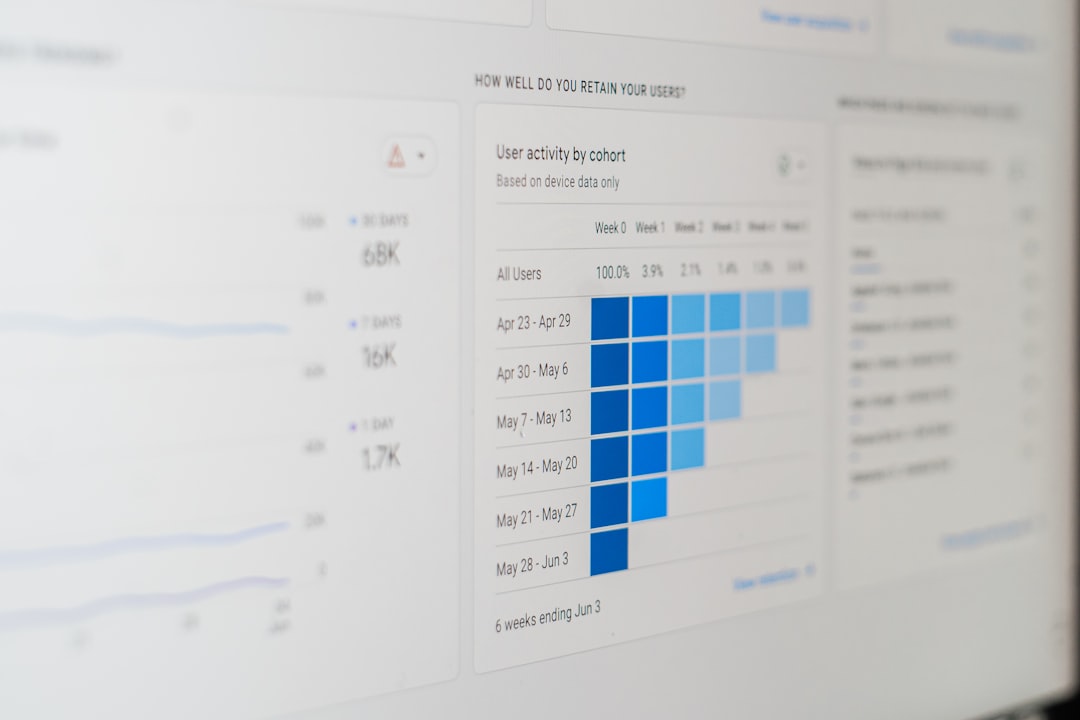
- Analytics: Tracks visitors, page views, traffic sources, and user behavior.
Be selective with plugins. Installing too many can slow down your site or create conflicts. A good rule is to install only what you truly need and delete anything inactive or unnecessary.
9. Set Up SSL and Site Security
An SSL certificate enables HTTPS, which encrypts data between your site and its visitors. Most hosts include free SSL certificates, and many activate them automatically. If yours does not, check your hosting control panel for an SSL option or contact support.
Once SSL is enabled, make sure your WordPress Address and Site Address under Settings > General begin with https://. You may also need to use a plugin or hosting tool to force all traffic to the secure version of your site.
Basic security steps include:
- Using a strong admin password
- Enabling two-factor authentication if available
- Keeping WordPress, themes, and plugins updated
- Deleting unused themes and plugins
- Limiting login attempts
- Creating regular backups
Security is not a one-time task. Think of it as routine maintenance, like locking the doors and checking the smoke alarm in a house.
10. Create Important Pages
Before publishing lots of posts, create the core pages your visitors expect. These pages help your site feel complete and trustworthy.
- Home: Introduces your site and guides visitors to key content.
- About: Explains who you are, what you do, and why the site exists.
- Contact: Provides a form, email address, or other ways to reach you.
- Privacy Policy: Explains how you collect and use visitor data.
- Services or Products: Useful if your site supports a business.
- Blog: Displays your articles if you plan to publish regular content.
To create a page, go to Pages > Add New. Add a title, write your content, and click Publish. You can organize your navigation menu under Appearance > Menus or through the Site Editor, depending on your theme.
11. Customize Your Site’s Appearance
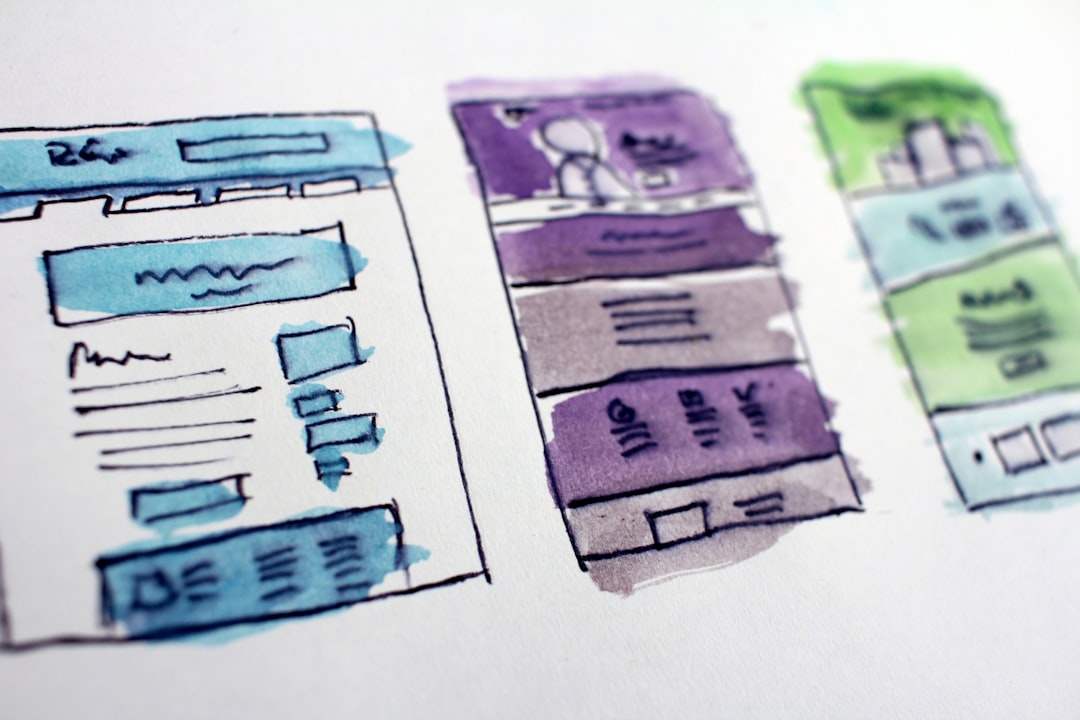
Now the fun part begins: making the site feel like yours. Go to Appearance > Customize or use the block-based Site Editor if your theme supports it. You can adjust colors, fonts, logos, menus, homepage sections, widgets, and footer content.
Keep the design clean and focused. Use readable font sizes, consistent colors, and plenty of white space. Your website should guide visitors naturally, not overwhelm them with too many buttons, animations, or competing sections.
12. Configure Backups and Updates
Backups are your safety net. If your site breaks, gets hacked, or loses data, a recent backup can save hours or even days of work. Ideally, your backup system should store copies both on your server and in an external location such as cloud storage.
Set backups to run automatically. A small blog might need weekly backups, while an active ecommerce site may need daily or real-time backups. Always test that your backup tool can restore the site properly; a backup is only useful if it works when needed.
WordPress also needs regular updates. Updates often include security fixes, bug fixes, and performance improvements. Before major updates, make a backup. Then update WordPress core, plugins, and themes from the dashboard.
13. Improve Speed and Performance
Website speed matters. Visitors are impatient, and search engines tend to prefer faster pages. Start by choosing good hosting and a lightweight theme, then improve performance with caching, image compression, and minimal plugins.
Useful performance practices include:
- Compressing images before uploading them
- Using a caching plugin
- Removing unused plugins and themes
- Keeping your database clean
- Using a content delivery network if your audience is global
Test your site with speed analysis tools and pay attention to large images, slow scripts, and server response time. Small improvements can add up quickly.
14. Publish Your First Content
With the technical foundation in place, it is time to publish. If you are creating a blog, write your first post under Posts > Add New. If you are building a business site, refine your homepage and service pages first.
Good content should be useful, clear, and written for real people. Use headings, short paragraphs, images, lists, and internal links to make it easy to read. Do not worry about making everything perfect before launching. A website grows through consistent improvement.
15. Launch and Maintain Your Site
Before sharing your site publicly, review it carefully. Test your contact form, check menu links, view the site on mobile, proofread important pages, and confirm that HTTPS is working. Also make sure your backup, security, and analytics tools are active.
After launch, your job shifts from setup to maintenance. Keep publishing, monitor performance, update software, review analytics, and improve pages based on what visitors need. A self-hosted WordPress site is not just a one-time project; it is a platform you can shape over time.
Setting up a self-hosted WordPress site is a rewarding process because every step gives you more control over your online presence. Once your domain, hosting, theme, plugins, security, and content are in place, you have a flexible foundation for a blog, portfolio, business site, online store, or community. Start simple, stay organized, and build steadily. Your website does not need to be perfect on day one; it only needs to be live, useful, and ready to grow.