Streaming your favorite movies and series should feel effortless, yet many Samsung TV users encounter glitches, freezing screens, or missing features simply because the Netflix app is outdated. Keeping Netflix updated on your Samsung Smart TV ensures optimal performance, improved security, and access to the latest features. Whether you’re binge-watching a new series or enjoying a weekend movie night, a properly updated app makes all the difference.
TLDR: Updating Netflix on your Samsung TV ensures smoother streaming, fewer bugs, and access to new features. Most Samsung TVs update apps automatically, but you can also manually update through the Smart Hub. Checking your internet connection, updating your TV firmware, and restarting your device can fix many update issues. Follow the five essential tips below to enjoy seamless Netflix streaming without interruptions.
Below are five essential tips to help you update Netflix on your Samsung TV quickly and effectively.
1. Check If Auto-Update Is Enabled
Most modern Samsung Smart TVs come with an automatic app update feature. This means your Netflix app may already be updating in the background without you even noticing. However, it’s always a good idea to confirm that this feature is turned on.
Here’s how you can check:
- Press the Home button on your Samsung remote.
- Navigate to Apps.
- Select the Settings icon (usually found in the upper right corner).
- Look for Auto Update and make sure it is enabled.
When auto-update is turned on, your TV will automatically download and install updates for Netflix and other apps whenever they become available. This saves time and ensures you’re always running the newest version.
Pro Tip: Leave your TV connected to the internet even when not in use so it can complete updates in the background.
2. Manually Update Netflix Through Smart Hub
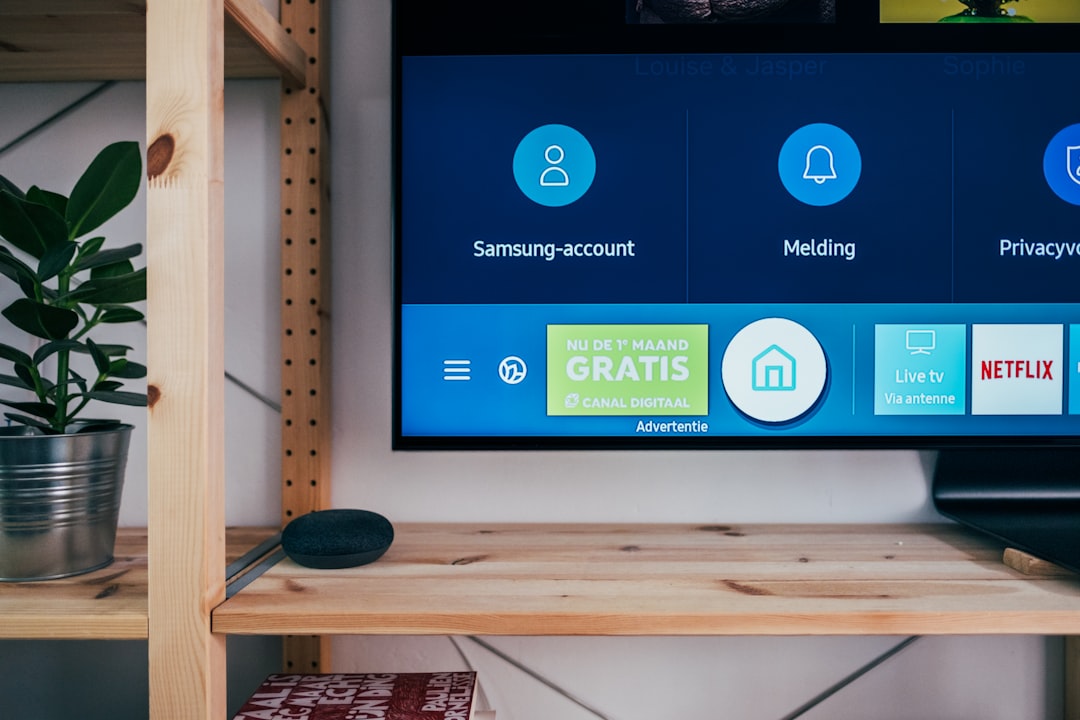
If automatic updates are disabled or Netflix isn’t working properly, you may need to update the app manually. Thankfully, Samsung makes this process straightforward through the Smart Hub interface.
Follow these steps to manually update Netflix:
- Press the Home button on your remote.
- Select Apps.
- Click the Settings gear icon.
- Find Netflix in your app list.
- If an update is available, select Update.
If you don’t see an “Update” option, it means the app is already up to date. In that case, any streaming issues may be caused by something else, such as your internet connection or outdated TV firmware.
Why manual updates matter:
- Fix performance bugs
- Resolve compatibility problems
- Improve streaming quality
- Unlock new features and interface improvements
Manual updates are especially helpful if you notice Netflix crashing, freezing, or failing to load properly.
3. Update Your Samsung TV Firmware
Sometimes the issue isn’t the Netflix app at all. Instead, your TV’s firmware may be outdated. Firmware updates improve system performance, enhance compatibility with apps, and fix known bugs.
Here’s how to check for a Samsung TV firmware update:
- Press the Home button.
- Go to Settings.
- Select Support.
- Choose Software Update.
- Select Update Now.
If an update is available, your TV will download and install it. The TV may restart during the process, which is completely normal.
Important: Do not turn off your TV while a firmware update is in progress. Interrupting the update can cause system errors.
Firmware updates often include:
- Performance optimizations
- Security patches
- Improved app stability
- Enhanced streaming compatibility
Keeping both your Netflix app and TV firmware updated ensures the best possible streaming experience.
4. Check Your Internet Connection
Even if Netflix is fully updated, a weak or unstable internet connection can cause streaming issues that feel like update problems. Before assuming the app needs reinstalling, verify your connection.
To test your internet connection on a Samsung TV:
- Press Home.
- Go to Settings.
- Select General.
- Choose Network.
- Click Network Status.
This screen will show whether your TV is properly connected to your router and the internet.
For seamless streaming, Netflix recommends:
- 3 Mbps for SD quality
- 5 Mbps for HD streaming
- 15 Mbps or higher for 4K Ultra HD
If your speed is insufficient, consider:
- Rebooting your router
- Moving your router closer to the TV
- Using a wired Ethernet connection
- Limiting other devices on the network
A stable connection not only allows updates to download successfully but also prevents buffering interruptions during playback.
5. Reinstall Netflix if Problems Persist
If updating doesn’t resolve the issue, reinstalling Netflix can often solve deeper glitches. This process refreshes the app entirely, clearing corrupted data that may be causing problems.
Here’s how to reinstall Netflix:
- Press Home.
- Go to Apps.
- Select Settings.
- Highlight Netflix.
- Choose Delete.
- Return to the Apps store and search for Netflix.
- Click Install.
After reinstalling, log back into your Netflix account and test streaming again.
Note: Some older Samsung TV models may not allow built-in apps like Netflix to be deleted. In such cases, resetting the Smart Hub may be your best option:
- Go to Settings.
- Select Support.
- Choose Device Care (or Self Diagnosis depending on model).
- Select Reset Smart Hub.
Bonus Tips for a Flawless Netflix Experience
Beyond updating the app, there are a few additional steps you can take to optimize your viewing experience.
Restart Your TV Regularly
Power cycling your TV can clear temporary glitches. Simply turn off the TV, unplug it for 30–60 seconds, then plug it back in and restart.
Keep Storage Space Available
If your TV’s internal storage is nearly full, it may struggle to install updates. Delete unused apps to free up space.
Sign Out and Back In
Occasionally, account-related issues can affect performance. Logging out of Netflix and signing back in can refresh your session.
How Often Should You Update Netflix?
Fortunately, you don’t need to manually check for updates every day. With auto-update enabled, Netflix updates are handled automatically. However, it’s wise to:
- Check for updates if you notice playback issues
- Verify your TV firmware every few months
- Manually update after a major Netflix feature announcement
Streaming platforms frequently release improvements, including enhanced subtitles, better recommendation systems, and upgraded streaming codecs for higher video quality. Staying updated ensures you benefit from these enhancements.
Common Problems and Quick Fixes
- Netflix won’t open: Restart your TV or reinstall the app.
- App keeps crashing: Update firmware and check internet speed.
- Black screen: Power cycle your TV.
- Update option missing: The app is already current.
Most Netflix issues stem from outdated software or temporary connection hiccups. Fortunately, they’re usually easy to fix with the steps outlined above.
Final Thoughts
Updating Netflix on your Samsung TV is one of the simplest yet most effective ways to maintain a smooth and enjoyable streaming experience. Whether through automatic updates, manual installation, firmware upgrades, or internet optimization, these five essential tips help eliminate common problems before they disrupt your viewing.
Technology should enhance entertainment—not complicate it. By taking a few minutes to ensure everything is updated and running efficiently, you’ll enjoy uninterrupted movie nights, crystal-clear visuals, and access to Netflix’s latest features.
So grab your remote, check your updates, and get back to streaming your favorite shows without missing a single scene.