There’s nothing more frustrating than wrapping up a gaming session, closing your favorite title, and suddenly watching your PC freeze, reboot, or crash entirely. You weren’t even doing anything demanding anymore—so what just happened? If your computer keeps crashing after closing games, you’re not alone. This issue can stem from hardware strain, driver conflicts, background processes, or even power delivery problems that only appear once the game shuts down.
TL;DR: If your PC crashes after closing games, the most common culprits are outdated graphics drivers, overheating components, unstable overclocks, corrupted system files, or power supply inconsistencies. Start with simple fixes like updating drivers and monitoring temperatures before moving to hardware checks. Most of the time, the issue is software-related and can be resolved without replacing components. Follow the nine causes and fixes below to pinpoint the problem.
Why Does Your PC Crash After Closing a Game?
When you close a game, your system goes through a rapid transition. CPU and GPU usage drop sharply, memory reallocates, and background services resume full activity. This shift can expose hidden instability that wasn’t obvious while the game was running.
Below are the nine most common causes and how to fix each one.
1. Outdated or Corrupted Graphics Drivers
Graphics drivers are heavily engaged while gaming. When you exit a game, the GPU transitions from high-load 3D rendering back to desktop rendering. If the driver installation is unstable, this transition can trigger a crash.
How to Fix:
- Download the latest driver directly from NVIDIA, AMD, or Intel.
- Use a clean installation option if available.
- For stubborn issues, use a driver removal utility in safe mode before reinstalling.
Pro Tip: Avoid relying solely on automatic driver updates from your operating system.
2. Overheating Components
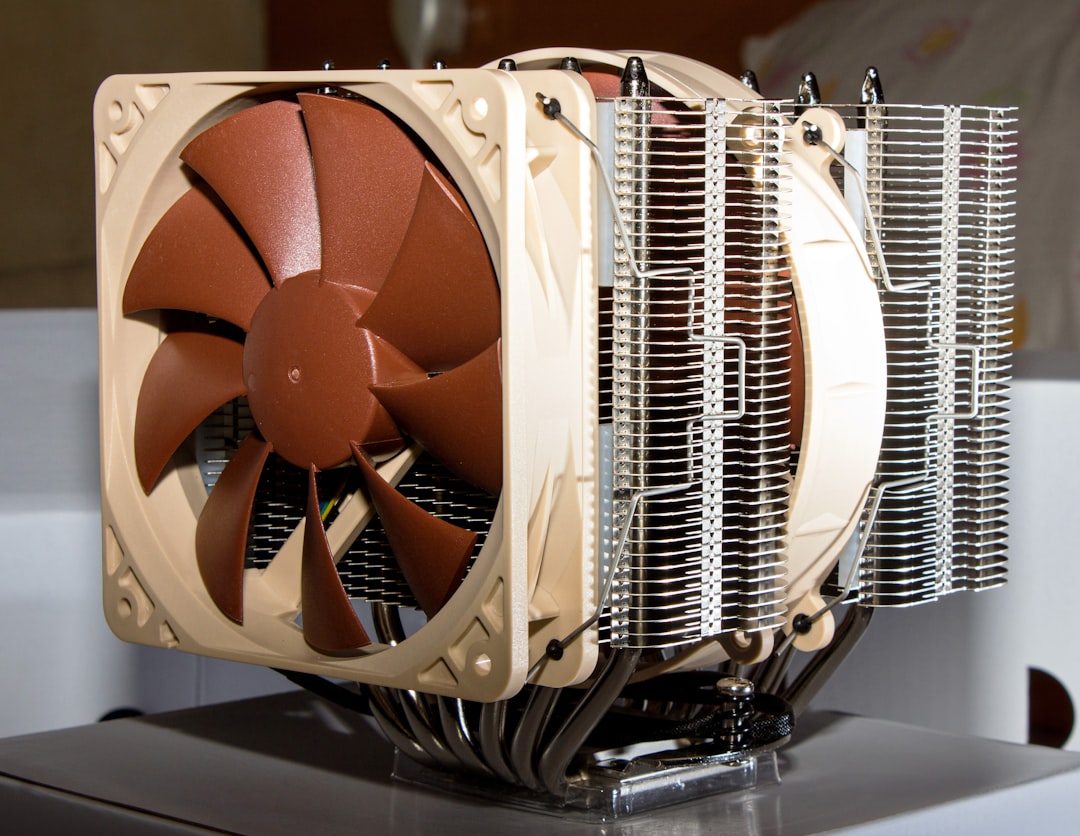
It may sound counterintuitive, but overheating can cause crashes after closing games. As the system cools down, fan curves adjust and voltage levels drop. If your cooling system isn’t functioning properly, unstable temperature swings can cause shutdowns.
How to Fix:
- Monitor CPU and GPU temperatures with hardware monitoring software.
- Clean dust from fans and heatsinks.
- Reapply thermal paste if your system is older than two years.
- Adjust fan curves in BIOS or firmware software.
3. Unstable Overclocking
If you’ve overclocked your CPU or GPU, instability may not show up under load—but during transitions between load states.
Closing a game causes rapid voltage and frequency adjustments. An unstable overclock may crash during this moment.
How to Fix:
- Revert all overclocks to factory settings.
- Test stability using benchmarking tools.
- If stable at stock speeds, reapply a milder overclock.
Important: Even RAM overclocking (like XMP profiles) can cause this issue.
4. Insufficient or Failing Power Supply
Power supplies don’t just matter during intense gameplay. When your system transitions from high draw to idle, voltage regulation matters just as much.
A failing PSU can produce inconsistent voltage drops, triggering crashes.
How to Fix:
- Check system stability under various loads.
- Ensure your PSU wattage matches your hardware.
- Replace older or lower-quality power supplies if necessary.
5. Background Applications Clashing
When you exit a game, background apps like overlays, recording tools, RGB managers, or system monitoring programs resume full operation. Conflicts between these applications can lead to crashes.
Common offenders:
- Game overlays
- Streaming software
- GPU tuning utilities
- Third-party antivirus programs
How to Fix:
- Disable startup apps one by one.
- Turn off in-game overlays.
- Temporarily disable antivirus software for testing.
6. Corrupted System Files
Operating system corruption can surface when games release allocated memory or close system-level processes.
How to Fix:
- Run built-in system file checks through command-line utilities.
- Install pending system updates.
- If necessary, perform a repair installation of your operating system.
These repairs often resolve crashes that appear mysterious or inconsistent.
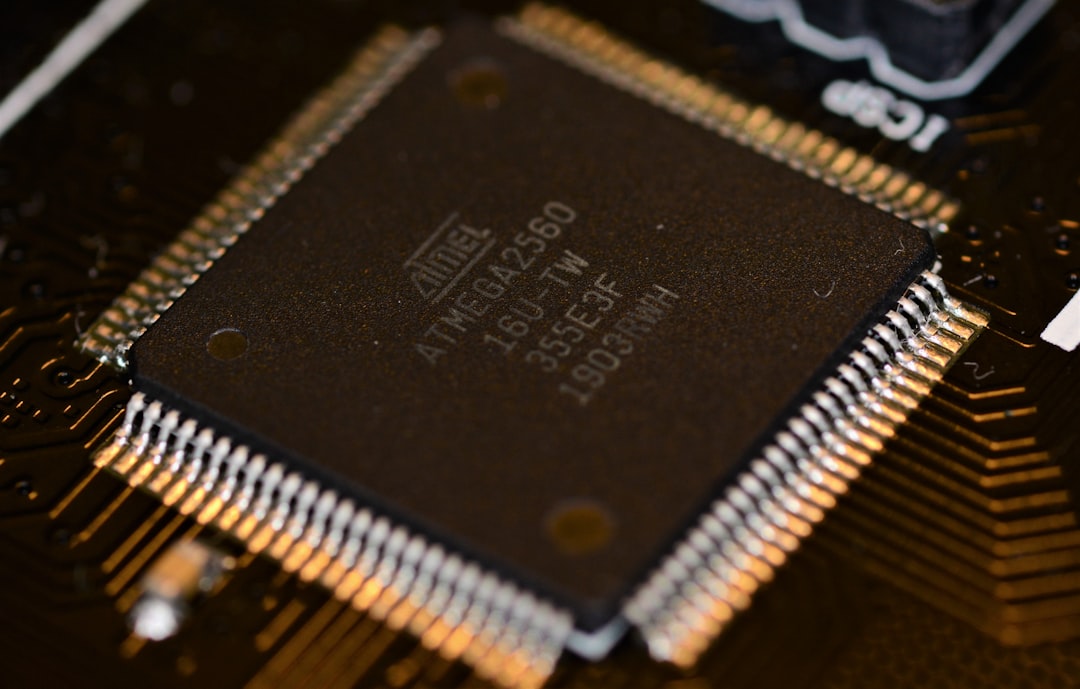
7. RAM Instability or Faulty Memory
Games use large amounts of RAM. When closing them, your system rapidly frees and reallocates memory. If a RAM module is faulty, this transition can trigger a crash.
How to Fix:
- Run a memory diagnostic test.
- Reseat RAM sticks.
- Test each module individually.
- Disable XMP temporarily to test stability.
8. Storage Drive Errors
If your game is installed on a failing SSD or HDD, closing it may prompt read/write operations that expose drive instability.
Warning signs include:
- Long shutdown times
- Game files constantly needing repair
- Strange clicking sounds (HDDs)
How to Fix:
- Check drive health using storage utilities.
- Scan for bad sectors.
- Replace aging drives.
9. BIOS or Firmware Issues
An outdated BIOS can cause compatibility issues, especially with newer GPUs or CPUs. Power state transitions—like those that occur after gaming—can trigger system crashes.
How to Fix:
- Check your motherboard manufacturer’s website.
- Update BIOS carefully by following official instructions.
- Reset BIOS settings to default if issues began after tweaking.
Caution: BIOS updates should be done carefully to avoid interruption.
Quick Comparison: Causes and Fixes
| Cause | Typical Symptoms | Primary Fix | Difficulty Level |
|---|---|---|---|
| Outdated GPU Drivers | Crash to desktop, black screen | Clean driver reinstall | Easy |
| Overheating | Sudden shutdown, loud fans | Clean PC, improve cooling | Easy-Medium |
| Overclock Instability | Crash during load transitions | Revert to stock speeds | Easy |
| PSU Problems | Random reboots | Upgrade PSU | Medium |
| Background App Conflicts | Freeze after exiting | Disable overlays | Easy |
| System File Corruption | Blue screen errors | Run system repairs | Medium |
| Faulty RAM | Memory-related errors | Run memory diagnostics | Medium |
| Storage Errors | File corruption warnings | Check disk health | Medium |
| Outdated BIOS | Hardware compatibility issues | Update BIOS | Advanced |
Step-by-Step Troubleshooting Strategy
If you’re unsure where to begin, follow this efficient order:
- Update GPU drivers.
- Disable overlays and background apps.
- Monitor temperatures.
- Revert overclocks.
- Run system and memory diagnostics.
- Check storage health.
- Inspect power supply and consider BIOS update.
This progression moves from easiest and most common fixes to more advanced troubleshooting.
When Should You Be Concerned?
If crashes escalate from happening only after closing games to occurring during normal tasks, you may be facing deeper hardware failure. Repeated blue screen codes, persistent freezing, or random restarts during idle time signal more serious instability.
In such cases, consider professional hardware testing or replacement of aging components.
Final Thoughts
PC crashes after closing games are usually caused by system transitions rather than the games themselves. The sudden shift from high performance to idle exposes weaknesses in drivers, cooling, power delivery, or memory stability.
The good news? Most cases are fixable without replacing expensive hardware. Start simple, move methodically, and test changes one at a time.
With the right approach, you’ll get back to smooth gaming sessions—and even smoother shutdowns—without that dreaded post-game crash.