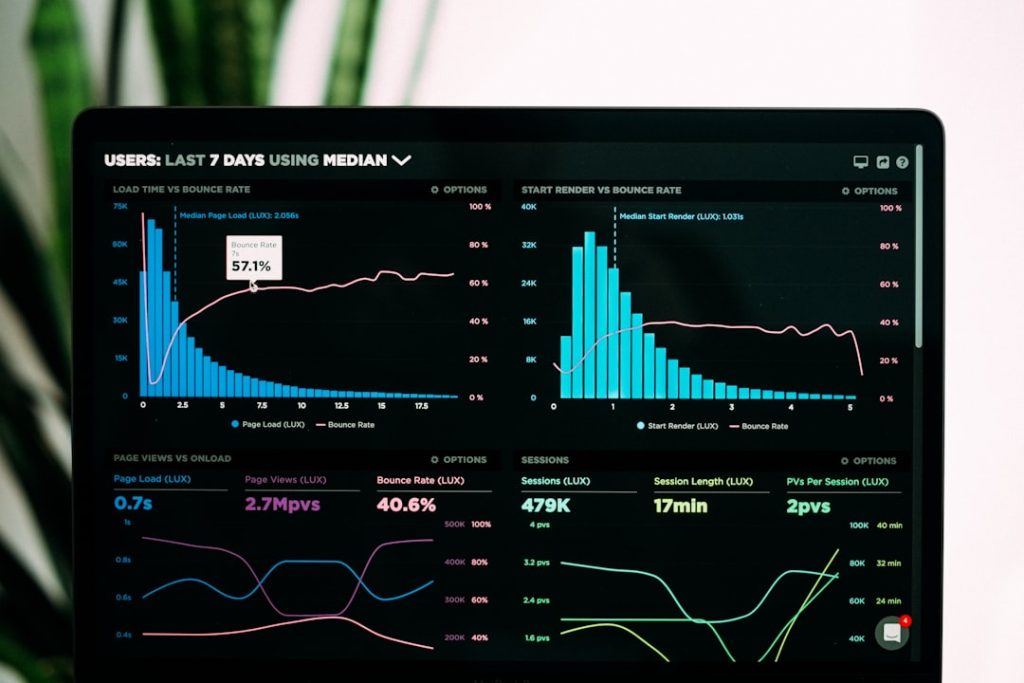
Managing a jobsite is easier when cameras, recordings, alerts, and project visuals are all available from one secure dashboard. TrueLook is widely used for construction camera monitoring, giving teams a centralized way to view live feeds, review time-lapse progress, document work, and support site security without needing to be physically present every hour of the day.
TLDR: TrueLook login typically starts with visiting the official TrueLook web portal or opening the mobile app, then signing in with your authorized email and password. Once inside, users can monitor live cameras, review recordings, create time-lapse clips, and manage access based on project roles. For example, a project manager overseeing 4 active jobsites and 18 cameras could check progress in minutes instead of driving between locations, potentially reducing routine site travel by 40% or more. If login fails, the most common fixes are resetting the password, confirming your account invitation, or contacting your company’s TrueLook administrator.
Understanding the TrueLook Login Process
The TrueLook login process is designed for quick access while still protecting sensitive jobsite data. Since construction cameras may capture workers, materials, equipment, deliveries, and site activity, account security is an important part of the platform.
To access your account, you generally need to:
- Go to the official TrueLook login portal or open the TrueLook mobile app.
- Enter the email address associated with your account.
- Type your password carefully, paying attention to capitalization and special characters.
- Complete any additional security steps if your organization requires them.
- Select the correct project or camera group from your dashboard.
If your company uses a centralized identity system, you may also see options such as single sign-on or company-managed authentication. In that case, your login credentials may be the same ones you use for other internal business tools.
Before You Log In: What You Need
Before attempting to sign in, make sure your account has been created or invited by an administrator. Many TrueLook accounts are connected to specific construction companies, owners, architects, subcontractors, or project teams. That means you may not be able to create a public account on your own unless your organization has already set up access.
It helps to have the following ready:
- Your work email address used for the invitation.
- A secure password or access to your password manager.
- Project authorization from your company or site administrator.
- A compatible browser such as Chrome, Edge, Safari, or Firefox.
- A stable internet connection, especially when viewing live HD camera feeds.
For mobile use, install the correct app from your device’s app store and keep it updated. App updates often include performance improvements, security enhancements, and better support for camera playback features.
Common TrueLook Login Problems and Fixes
Even a well-designed login system can run into occasional access issues. Fortunately, most problems are easy to identify.
1. Incorrect Email or Password
If your login fails, first confirm that you are using the same email address associated with your TrueLook invitation. A common mistake is trying a personal email instead of a company email. If you are unsure, search your inbox for the original account invitation or project access message.
2. Forgotten Password
Use the Forgot Password option on the login page. You should receive a reset email if your address is registered. If you do not receive it, check your spam folder or ask your company’s IT team whether automated emails are being filtered.
3. Account Not Yet Activated
Some users receive an invitation but never complete activation. If the invite link has expired, ask your administrator to resend it. This is especially common for subcontractors or external stakeholders who are added mid-project.
4. Browser or Cache Issues
If the portal does not load correctly, try clearing your browser cache or opening the site in a private browsing window. You can also test another browser to determine whether the issue is local to your device.
5. Permission Restrictions
You may be able to log in but not see a specific camera or project. This usually means your role does not include access to that location. Contact the project administrator rather than assuming the camera is offline.
What You Can Do After Logging In
Once inside the TrueLook dashboard, the real value of the platform becomes clear. The login is simply the doorway to a broader set of visual management tools that help teams document progress, improve communication, and respond to site activity.
Live Camera Monitoring
Live viewing is one of the most important features. Users can check current site conditions, verify whether crews are present, confirm deliveries, or monitor weather-related impacts. Depending on the camera setup, some systems may support pan, tilt, and zoom controls, allowing users to focus on specific areas of the jobsite.
This can be especially useful for project executives and owners who want high-level visibility without calling the superintendent for every update. Instead of relying only on written reports, they can see the site for themselves.
Time-Lapse Progress Documentation
TrueLook is known for construction time-lapse capabilities. Cameras can capture images at scheduled intervals and compile them into progress videos. These videos are not just marketing assets; they can also help teams understand sequencing, document milestones, and review how issues developed over time.
A time-lapse video might show foundation work, steel erection, roofing, exterior finishes, or interior buildout. For owners and stakeholders, this creates an engaging visual record of the project from groundbreaking to completion.
Recorded Video and Jobsite Review
Depending on your service configuration, TrueLook may provide access to recorded footage. This is valuable when teams need to review events after they happen. For example, if a material delivery is disputed, recorded camera footage may help confirm when a truck arrived and where materials were placed.
Recorded video can also support safety reviews, incident investigations, and productivity discussions. The goal is not to replace field leadership, but to provide an objective visual record when details matter.
Security Monitoring and Alerts
Construction sites often contain expensive materials, tools, and machinery. Camera monitoring can add another layer of site security, especially after hours. Some setups may include motion-related alerts or scheduled monitoring windows, helping teams identify unusual activity more quickly.
For example, if movement is detected near a storage area at 2:15 a.m., an alert can prompt a review before the next morning. Even when cameras do not prevent every incident, they can help reduce response time and provide evidence for follow-up.
Managing Users and Permissions
TrueLook access is often role-based. That means not every user sees the same cameras, controls, or administrative settings. A senior project manager may have access to multiple jobsites, while a subcontractor may only view one camera or a limited project area.
Common access levels may include:
- Administrators: Manage users, permissions, projects, and camera settings.
- Project managers: View cameras, review recordings, and track progress.
- Owners or clients: Access selected live views and time-lapse updates.
- Subcontractors: View limited areas relevant to their scope of work.
Good permission management keeps the platform useful without oversharing sensitive information. It also makes the dashboard cleaner, since users only see the projects and cameras relevant to them.
Best Practices for Secure Account Access
Because TrueLook may display active construction operations, treat your login credentials seriously. Avoid sharing passwords among team members. Instead, each user should have an individual account so activity and permissions can be managed properly.
- Use a strong, unique password that is not reused on other sites.
- Enable multi-factor authentication if your organization supports it.
- Log out on shared or public computers.
- Remove access promptly when employees or subcontractors leave a project.
- Review user lists regularly during long-running jobs.
Final Thoughts
TrueLook login access is more than a simple sign-in step; it connects project teams to a powerful visual record of the jobsite. From live camera views and time-lapse documentation to recorded footage and security monitoring, the platform can help reduce uncertainty and improve communication across owners, contractors, and field teams.
For the best experience, make sure your account is properly activated, your permissions match your role, and your devices are ready for smooth video viewing. With the right setup, TrueLook becomes a practical daily tool for checking progress, confirming site conditions, and keeping everyone aligned without unnecessary delays or extra site visits.