VMware Horizon is useful for virtual desktops because it gives IT teams one controlled platform to deliver desktops, apps, identity access, profiles, and remote display performance at scale. For organizations with strict security rules, hybrid staff, shared devices, or seasonal users, it can reduce endpoint risk and simplify support. Its value is strongest when desktops must be consistent, recoverable, and centrally managed.
TLDR: VMware Horizon helps teams publish virtual desktops and applications from a data center or cloud while keeping data off local devices. For example, a 500-user call center can refresh non-persistent desktops after each shift and cut manual rebuild work by dozens of hours per month. Features such as Instant Clones, Blast Extreme, App Volumes, and Dynamic Environment Manager make it practical for real production use, not just lab demos.
1. Centralized virtual desktop delivery
The core strength of VMware Horizon is controlled desktop delivery. IT can provide users with Windows or Linux desktops without depending on the condition of each laptop, thin client, or home PC. The desktop runs in the data center, private cloud, or supported cloud environment. The user receives the screen, keyboard, and mouse session.
This model helps with security. Sensitive files stay closer to the server side. Lost laptops become less of a disaster. A contractor can be given access to a desktop without receiving a full corporate device. When access ends, the entitlement can be removed quickly.
It also helps standardization. Finance users can receive one pool. Developers can receive another. Task workers can receive locked-down desktops with only the required tools. That cuts the messy support pattern where every endpoint has a slightly different setup.

2. Instant Clones for fast desktop provisioning
Instant Clones are one of Horizon’s most useful features for large desktop pools. They allow IT to create desktops quickly from a parent image. Instead of building full virtual machines one by one, Horizon can spin up linked desktops that share a common base.
This matters when speed and consistency count. A school lab can refresh desktops overnight. A support center can start the day with clean machines. A healthcare team can remove leftover session data after logoff. The process is repeatable and less error-prone than manual imaging.
The catch is that image discipline matters. If the parent image is messy, every clone repeats that mess. Still, when teams maintain a clean image process, Instant Clones can make desktop rollout feel much less painful.
3. App Volumes for application delivery
App Volumes separates applications from the desktop image. Instead of packing every app into the base image, IT can attach applications to users or groups when they sign in. This helps reduce image sprawl.
For example, accounting software can be assigned only to the finance group. Design tools can go to engineering. A temporary project app can be attached for 60 days and then removed. This is cleaner than building five different desktop images just because teams need different software.
App Volumes also supports faster updates in many cases. IT can update an application package and assign it based on policy. Users get what they need without a full desktop rebuild. That saves time, especially in organizations where app requests never seem to stop.
4. Dynamic Environment Manager for profiles and policies
Dynamic Environment Manager, often called DEM, handles user settings, personalization, and contextual policies. It lets users keep familiar settings across non-persistent desktops. That is a big deal because non-persistent desktops are often reset at logoff.
Without profile control, users complain. Their printer changes. Their application preferences disappear. Their desktop layout feels wrong every morning. It drives me crazy that many VDI complaints come from small profile issues, not from the desktop platform itself.
DEM helps fix that. It can apply settings by user, group, location, device type, or other conditions. A user in the office can receive nearby printers. The same user at home can receive a different policy. This keeps the experience personal while the desktop remains centrally controlled.
5. Blast Extreme display protocol
Blast Extreme is VMware Horizon’s remote display protocol. It is built to deliver responsive sessions across varied networks. That includes office LAN connections, home broadband, and higher-latency links.
Good display performance matters because users judge VDI by feel. If typing lags, calls stutter, or scrolling is rough, trust drops fast. Blast Extreme supports modern codecs and can adjust for bandwidth conditions. It also supports use cases such as video playback, collaboration tools, and multi-monitor setups.
This does not mean every poor network will feel perfect. A weak Wi Fi signal still hurts. But a well-tuned Blast Extreme setup can make virtual desktops feel close to local desktops for many office workloads.
6. Unified Access Gateway for secure remote access
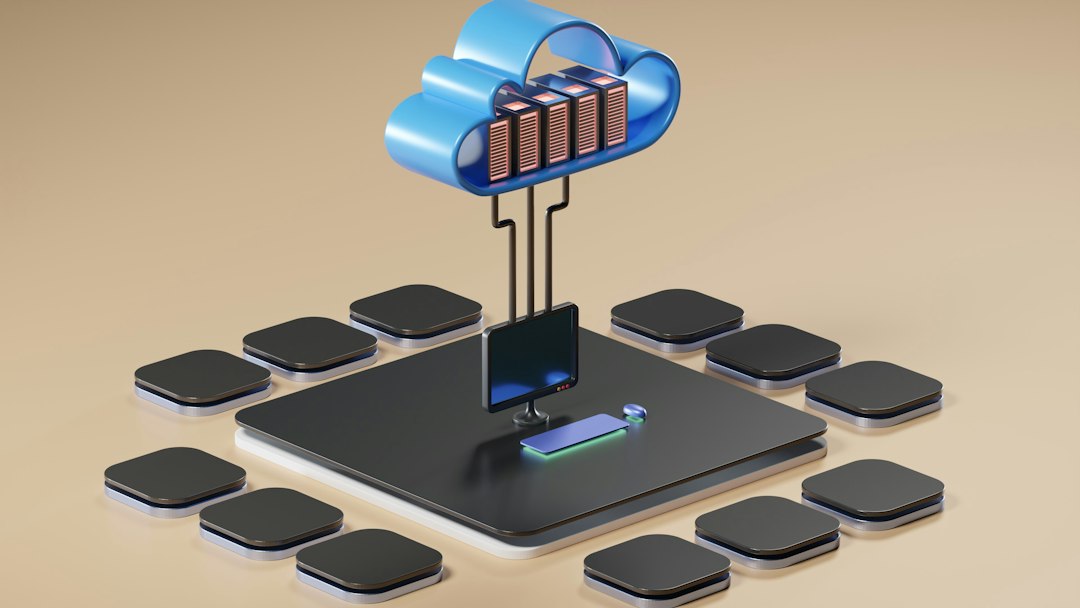
Unified Access Gateway provides secure external access to Horizon desktops and apps. It sits at the edge and helps broker access without exposing core internal systems directly to the internet.
This is useful for remote work and third-party access. Users can connect through a controlled gateway. IT can pair it with multifactor authentication, identity rules, and network segmentation. That creates a stronger access model than opening broad VPN paths for every user.
For many organizations, this is a key reason to choose Horizon. Remote users get the applications and desktops they need. IT keeps tighter control over what is reachable. That balance is hard to maintain with traditional endpoint-heavy setups.
7. Cloud Pod Architecture for scale and availability
Cloud Pod Architecture allows multiple Horizon pods to be joined for brokering and availability. This helps larger organizations serve users across sites and regions. A user can be entitled to resources that are not tied to one single pod.
The benefit is resilience and scale. If a company has data centers in two regions, it can design desktop access with failover in mind. If one site has an issue, users may be directed to resources in another site, depending on the architecture and entitlements.
This feature is more relevant for mid-size and large environments than small deployments. It needs careful planning. Still, for a business with thousands of users, it can reduce single-site risk and improve access control across locations.
8. Monitoring, help desk tools, and session visibility
Horizon includes tools that help IT see what is happening inside the environment. Administrators can review sessions, machine status, login timing, protocol behavior, and other operational data. Help desk staff can assist users with session issues instead of guessing.
This matters because VDI problems can come from many places. Storage latency, profile loading, network delay, authentication errors, or app faults can all look like “my desktop is slow” to the user. Session data helps narrow the cause.
In mature deployments, monitoring also supports capacity planning. If CPU usage peaks every Monday at 9 a.m., IT can plan for it. If login times climb from 25 seconds to 70 seconds after a new security tool is added, the data gives teams a place to start.
Where VMware Horizon fits best
VMware Horizon is a strong fit for organizations that need secure access, managed desktops, and repeatable desktop operations. Common examples include healthcare, finance, education, government, call centers, and engineering teams. It also works well for mergers, contractors, and temporary workforces where device ownership is complicated.
It is not magic. Expect to spend time on image design, storage sizing, identity integration, and user profile planning. Licensing and infrastructure costs also need honest review. A weak design can turn VDI into an expensive complaint machine.
Used well, though, Horizon solves real problems. It reduces endpoint dependency. It speeds desktop recovery. It gives IT a cleaner way to assign apps and policies. Most of all, it gives users a consistent workspace from many locations without spreading business data across every device they touch.