Your Razer Naga Pro is a beast of a mouse. It’s built for long raids, intense FPS battles, and serious productivity. So when the scroll wheel suddenly stops working, it feels like your whole setup just fell apart. Don’t panic. This problem is common. And in most cases, it’s easy to fix.
TLDR: If your Razer Naga Pro scroll wheel isn’t working, it’s usually caused by dust buildup, outdated drivers, firmware issues, or incorrect settings in Razer Synapse. Start with a quick cleaning and a restart. Then update drivers and firmware. If nothing works, the scroll wheel encoder may be faulty and need repair or replacement.
Let’s fix it step by step. Simple. Fast. Stress-free.
First: What Exactly Is the Problem?
“Scroll wheel not working” can mean different things.
- It doesn’t scroll at all.
- It scrolls randomly.
- It scrolls in the wrong direction.
- It skips lines.
- The middle-click works, but not the scroll.
Take a second to test it. Open a long webpage. Scroll slowly. Scroll fast. Press the wheel down.
Knowing the exact issue helps you fix it faster.
Quick Fix #1: Restart Everything
Yes, really.
It sounds simple. But it works more often than you think.
- Unplug the mouse.
- Restart your PC.
- Plug the mouse back in.
If you’re using it wirelessly:
- Turn it off.
- Remove the USB dongle.
- Restart your computer.
- Reconnect everything.
Sometimes Windows or Synapse just glitches. A clean restart wipes that out.
Quick Fix #2: Check Razer Synapse
Razer Synapse controls almost everything about your Naga Pro. If something got misconfigured, your scroll wheel might not behave correctly.
Open Razer Synapse and:
- Select your mouse.
- Go to Customize.
- Check the scroll wheel bindings.
Make sure:
- Scroll Up = Scroll Up
- Scroll Down = Scroll Down
If they’re set to something strange, reset them.
Still not working? Try this:
- Go to Settings.
- Click Reset to Default.
Sometimes a profile gets corrupted. Resetting brings everything back to factory behavior.
Quick Fix #3: Clean the Scroll Wheel
This is the most common fix.
Dust. Crumbs. Skin particles. They sneak inside the scroll wheel gap.
Over time, they block the encoder inside. That’s when scrolling becomes jumpy. Or stops completely.
How to Clean It Safely
- Turn off the mouse.
- Use compressed air.
- Blow short bursts directly into the scroll wheel gap.
- Spin the wheel while blowing.
No compressed air?
- Use a soft brush.
- Or gently use a toothpick (be careful).
Do not pour liquid inside.
If there’s heavy grime:
- Lightly dampen a microfiber cloth with isopropyl alcohol.
- Clean around the wheel edges.
- Let it dry completely before turning it back on.
This alone fixes many scroll problems.
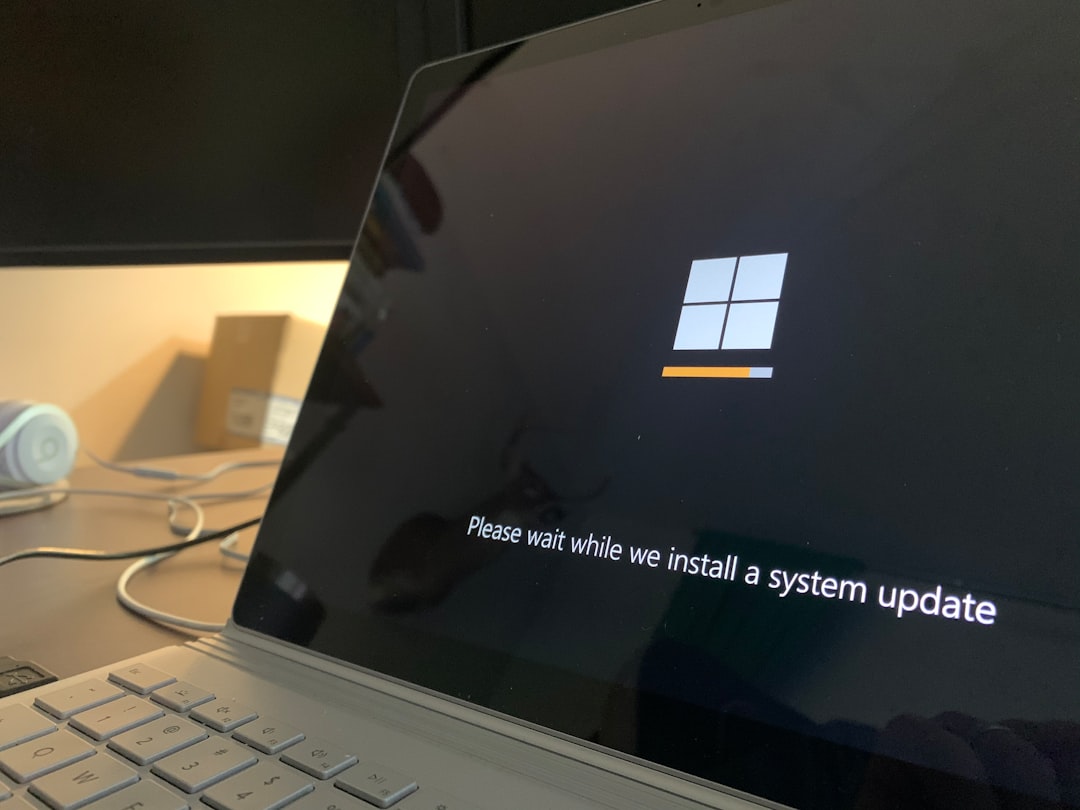
Update Your Drivers
Outdated drivers cause weird behavior.
Especially after a Windows update.
Update Through Device Manager
- Right-click Start.
- Click Device Manager.
- Expand Mice and other pointing devices.
- Right-click your Razer mouse.
- Click Update driver.
Also make sure Razer Synapse itself is updated.
Open Synapse and check for updates manually.
Update the Firmware
This step is often missed.
Firmware controls the hardware directly. If it’s outdated, scroll issues can appear.
Go to the Razer support site and search for:
- Razer Naga Pro firmware update
Download the official updater only.
Follow the instructions carefully.
Important: Keep the mouse plugged in during the update.
Test It on Another Computer
This step tells you something important.
If the scroll wheel works on another PC:
- The problem is software.
If it still doesn’t work:
- The problem is hardware.
This saves you a lot of guessing.
Check Windows Mouse Settings
Windows sometimes changes settings automatically.
Here’s how to check:
- Open Settings.
- Click Bluetooth & Devices.
- Click Mouse.
Look at:
- Scrolling lines at a time
- Inactive window scrolling
Make sure scrolling is enabled.
If it’s set to zero lines, it won’t scroll at all.
Common Causes and Fixes Comparison
| Problem | Most Likely Cause | Difficulty to Fix | Solution |
|---|---|---|---|
| No scrolling at all | Driver or firmware issue | Easy | Update drivers and firmware |
| Jumping or skipping scroll | Dust inside wheel | Very Easy | Clean with compressed air |
| Scrolling wrong direction | Corrupted Synapse profile | Easy | Reset profile |
| Works on one PC only | Software conflict | Medium | Reinstall Synapse |
| Completely dead wheel | Broken encoder | Hard | Repair or replace |
Reinstall Razer Synapse
If nothing so far worked, do a clean reinstall.
- Uninstall Razer Synapse.
- Restart your PC.
- Download the latest version.
- Install it fresh.
This clears corrupted files.
Many scroll wheel issues disappear after this.
Wireless Mode? Check These
The Razer Naga Pro can connect via:
- Razer HyperSpeed Wireless
- Bluetooth
- Wired USB
If your scroll fails wirelessly but works wired:
- Charge the mouse fully.
- Move the dongle closer.
- Avoid USB hubs.
Low battery can cause weird scroll behavior.
Signal interference can too.
When It’s a Hardware Problem
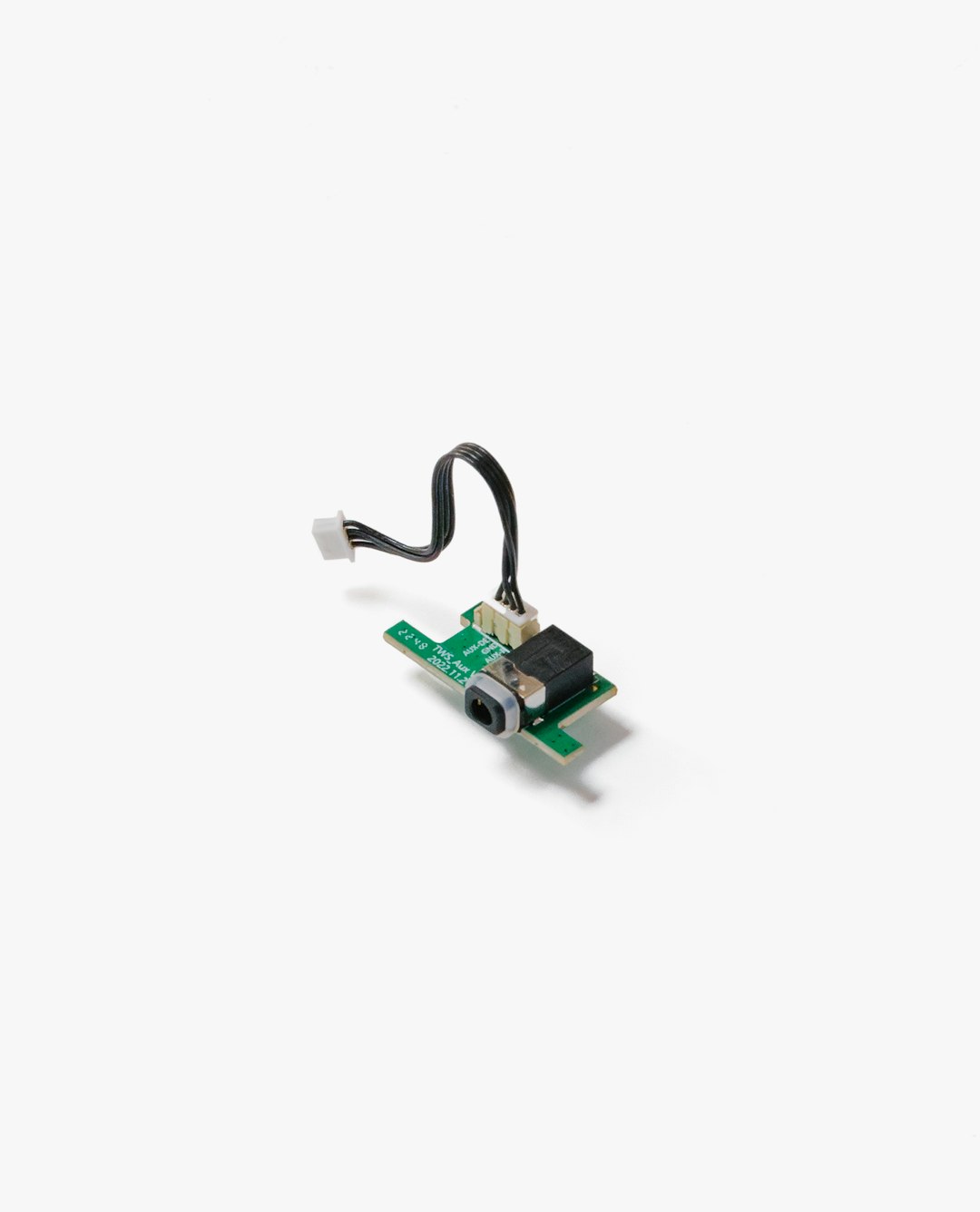
If you’ve tried everything, the scroll encoder may be worn out.
The encoder is a tiny mechanical piece inside the wheel.
Over time, it wears down.
Especially if:
- You scroll aggressively.
- You use it daily for years.
- Dust got inside regularly.
What You Can Do
- Check if it’s still under warranty.
- Contact Razer support.
- Request RMA if eligible.
If not under warranty, you have two choices:
- Replace the encoder (advanced DIY).
- Replace the mouse.
Encoder replacement requires soldering skill.
If you’re not comfortable opening electronics, don’t try it.
How to Prevent This in the Future
Prevention is simple.
- Clean your mouse monthly.
- Keep food away from your desk.
- Use compressed air regularly.
- Keep firmware updated.
- Avoid slamming the scroll wheel.
Small habits. Big difference.
When to Replace Your Naga Pro
Be honest with your mouse.
If:
- It’s 3 to 5 years old.
- The encoder failed twice.
- Buttons are also failing.
It might be time.
Gaming mice work hard. They wear out.
Sometimes replacing is cheaper than repairing.
Final Thoughts
A broken scroll wheel is frustrating.
But it’s rarely the end of your mouse.
Start simple. Restart. Clean it. Update everything.
Most users fix the problem in under 15 minutes.
If it turns out to be hardware, check your warranty before spending money.
Your Razer Naga Pro is built like a tank. A little maintenance goes a long way.
Now go fix that scroll wheel.
And get back to winning.