Screen recording software has become an essential part of modern communication, training, and education. Whether you are producing online courses, onboarding employees, demonstrating software features, or offering technical support, the right tool can dramatically improve the clarity and professionalism of your tutorials. With numerous options available, selecting a reliable and capable screen recording platform requires careful consideration of features, stability, and output quality.
TLDR: Choosing the right screen recording tool is critical for creating clear, professional tutorials. The best options combine reliable performance, high video quality, intuitive editing, and flexible export features. This article explores four trusted tools—Camtasia, OBS Studio, Loom, and ScreenFlow—each suited to different tutorial needs and experience levels. By understanding their strengths and limitations, you can confidently select the one that aligns with your goals.
Why the Right Screen Recording Tool Matters
Tutorial audiences expect clarity, smooth playback, and professional presentation. A poorly recorded video—with low resolution, distorted audio, or distracting interface artifacts—can reduce credibility and make learning more difficult. Reliable tools help ensure:
- High-definition video capture
- Clear audio synchronization
- Minimal performance lag
- Integrated editing capabilities
- Flexible export and sharing options
The ideal screen recorder depends on your technical requirements, budget, and editing preferences. Some platforms prioritize advanced production tools, while others focus on speed and simplicity.
1. Camtasia
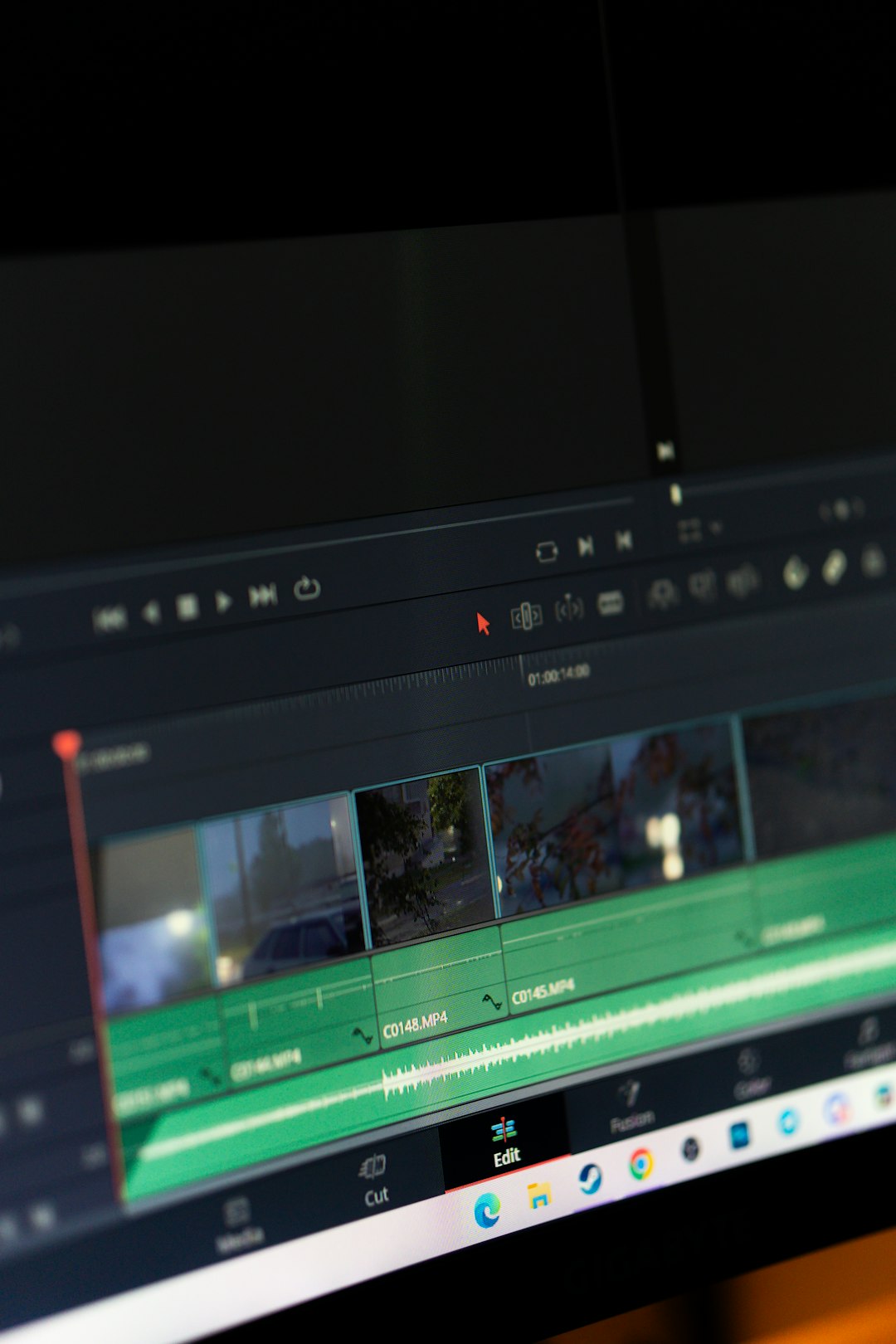
Camtasia has long been considered a professional standard for tutorial creation. Designed specifically for instructional content, it combines screen recording with a powerful built-in video editor, making it an all-in-one solution for many creators.
Key Strengths
- Integrated editing suite: Trim clips, add annotations, transitions, animations, and audio enhancements in one platform.
- Callouts and cursor effects: Highlight mouse movements and on-screen actions for clearer demonstrations.
- Templates and themes: Maintain visual consistency across multiple lessons.
- Interactive elements: Add quizzes and clickable features to engage viewers.
Who It’s Best For
Camtasia is particularly suitable for educators, instructional designers, and corporate trainers who require polished, highly structured tutorials. It is also ideal for businesses that need branded, repeatable content.
Considerations
Unlike some lightweight tools, Camtasia requires a financial investment and may have a modest learning curve for new users. However, its reliability and feature depth often justify the cost for professional users.
2. OBS Studio
OBS Studio (Open Broadcaster Software) is a powerful, open-source recording and streaming platform widely respected for its flexibility and performance. While initially popular among live streamers, it has become a trusted solution for tutorial creators who require granular control over recording settings.
Key Strengths
- Completely free and open-source
- Customizable scenes and sources
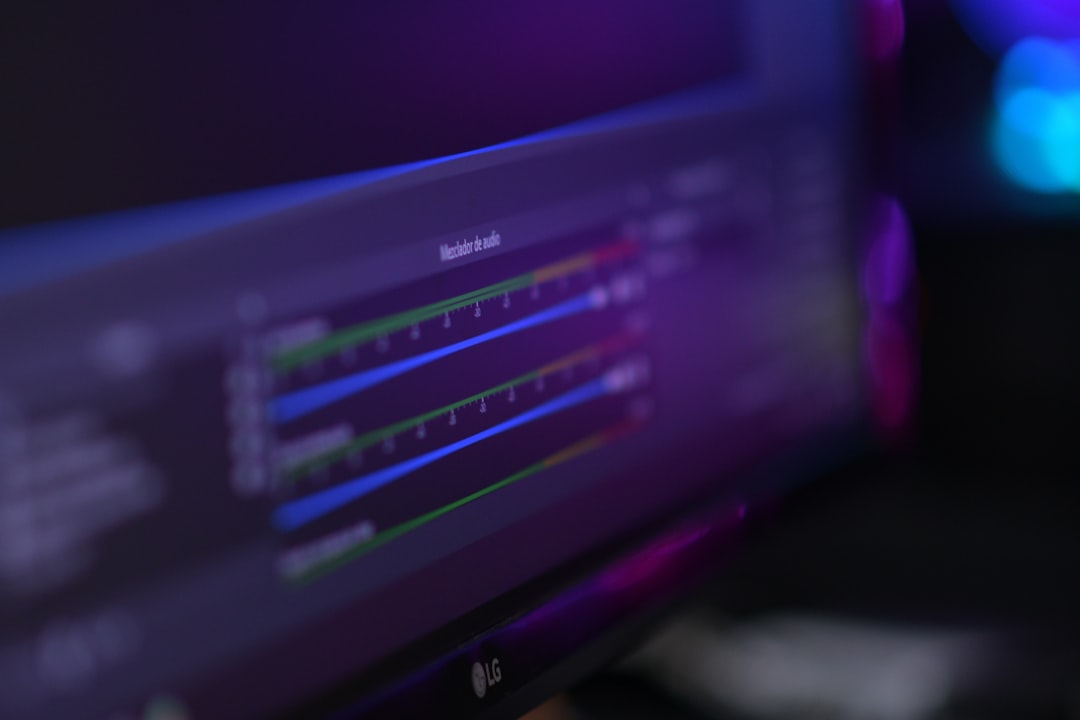
- Advanced audio mixing
- High-performance recording capabilities
OBS allows users to combine multiple sources—such as webcam footage, application windows, slides, and overlays—into a seamless production. This flexibility is especially useful for tech tutorials, coding demonstrations, and product walkthroughs.
Who It’s Best For
OBS Studio is best suited for technically confident users who want precise control over resolution, bitrate, and encoding. Software developers, technical educators, and content creators who value customization will appreciate its capabilities.
Considerations
Unlike Camtasia, OBS does not include built-in advanced editing tools. Users typically need external editing software to refine and enhance recorded content. Additionally, its wide feature set can feel overwhelming to beginners.
3. Loom
Loom emphasizes speed, ease of use, and instant sharing. It is designed for professionals who need to quickly record and distribute tutorials, walkthroughs, or explanatory videos without complex setup.
Key Strengths
- Rapid recording and sharing
- Cloud-based hosting
- Webcam and screen combination
- Automatic link generation
Once recorded, videos are automatically uploaded to the cloud and immediately shareable via a link. This makes Loom particularly effective for internal training, client explanations, or customer support responses.
Who It’s Best For
Loom is ideal for teams, managers, consultants, and customer success professionals who prioritize communication efficiency over advanced production polish.
Considerations
Although Loom offers trimming and minor editing features, it lacks comprehensive post-production tools. It is best viewed as a communication tool rather than a full-scale production suite.
4. ScreenFlow
ScreenFlow is a high-performance screen recording and editing solution designed specifically for macOS users. Known for its polished interface and professional output, it is widely respected in the educational and creative industries.
Key Strengths
- High-quality Retina display recording
- Powerful multi-track editor
- Built-in stock media library
- Smooth motion graphics and text animations
ScreenFlow allows tutorial creators to combine screen recordings, camera footage, graphics, and audio on a refined editing timeline. The result is a visually polished tutorial that meets professional broadcasting standards.
Who It’s Best For
This tool is particularly well-suited for online course creators, marketing professionals, and Apple-based teams who require high-resolution output and sophisticated editing tools.
Considerations
Its primary limitation is platform exclusivity: it is available only for macOS users. Additionally, while intuitive, it requires time to master advanced editing features.
Key Factors to Consider When Choosing a Tool
When selecting a screen recording platform for tutorial creation, consider these core factors:
1. Recording Quality
Ensure the software supports at least 1080p resolution. For professional training programs, 4K compatibility may be beneficial.
2. Audio Management
Clear narration is critical for tutorials. Look for tools that offer noise suppression, separate audio tracks, and adjustable microphone inputs.
3. Editing Requirements
If your workflow involves adding text overlays, annotations, zoom effects, or branded intros, an integrated editor like Camtasia or ScreenFlow may be preferable.
4. Ease of Sharing
For rapid collaboration or client communication, cloud-based tools such as Loom streamline the delivery process.
5. Budget
Free tools such as OBS Studio provide substantial capability, but paid platforms typically reduce friction and improve workflow efficiency.
Final Thoughts
Producing clear, professional tutorials requires more than subject expertise—it demands reliable recording technology. Each of the four tools discussed serves a distinct purpose:
- Camtasia: Comprehensive and instructional-focused with strong editing capabilities.
- OBS Studio: Highly customizable and free, ideal for technical users.
- Loom: Fast, simple, and optimized for quick sharing.
- ScreenFlow: Powerful and polished, tailored for macOS professionals.
The most appropriate choice ultimately depends on your production goals. If your aim is high-end course development, investing in a fully integrated editing platform may be wise. If speed and communication are paramount, a streamlined cloud-based recorder can significantly enhance efficiency.
In all cases, consistency, audio clarity, and thoughtful visual presentation remain the foundation of credible tutorials. By selecting the right screen recording tool and mastering its capabilities, you can create educational content that is both authoritative and engaging.