
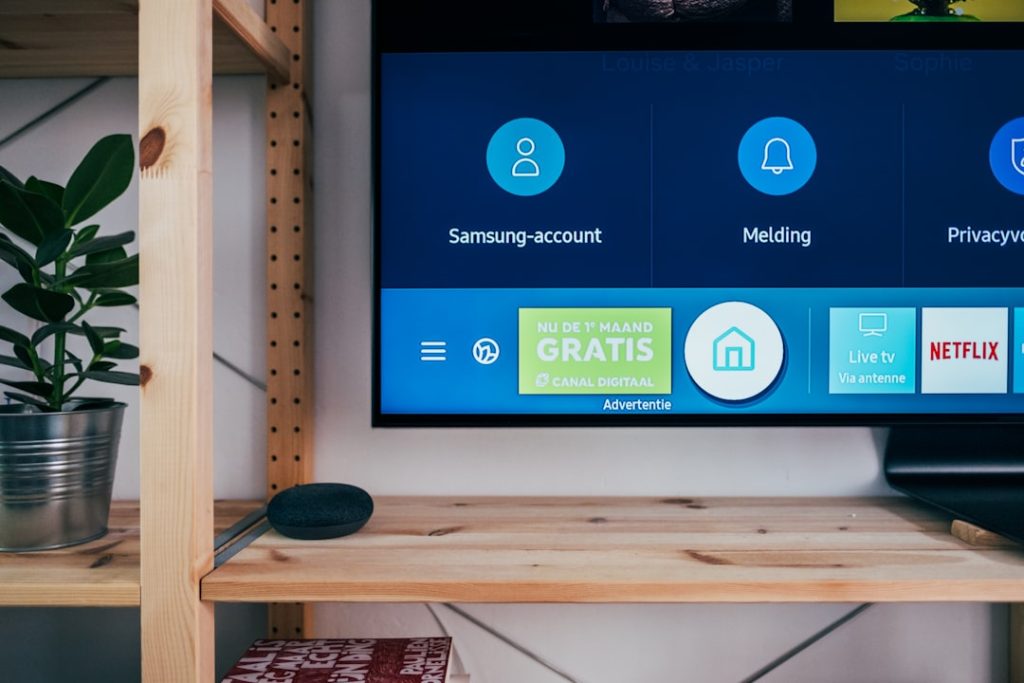
The safest TizenBrew alternatives are official developer tools, automation platforms, and media workflow apps that let you test, organize, and control Samsung TV features without turning your TV into a brittle experiment. Samsung has used Tizen on its smart TVs since 2015, so the best tools are the ones that work with that system instead of fighting it [source: Samsung]. If you want custom app testing, app shortcuts, smart routines, or better media flows, you have solid options.
TLDR: Start with Tizen Studio if you want to test apps, then add SmartThings or Home Assistant if your goal is automation. For example, a home cinema routine can turn on the TV, dim lights to 20%, switch HDMI, and open a media app with one tap. Most users will get 80% of the useful customization from three tools: Tizen Studio, SmartThings, and a media server such as Plex or Jellyfin. TizenBrew is fun for tinkerers, but it is not the only route.
1. Tizen Studio: the official app testing route
Tizen Studio is the first tool to try if you want to build, test, or inspect Samsung TV apps. It is made for developers, but hobby users can still use it to package web apps, run emulators, and install test builds on a TV through developer mode.
The main appeal is control. You can create a simple web app, package it as a .wgt file, and test it on your own Samsung TV. That makes it useful for dashboards, internal tools, family photo boards, and simple web-based launchers.
The annoying part? Certificates. Honestly, it feels like signing a tiny app should take 30 seconds, but the first setup can eat half an evening. Once that is done, though, the workflow becomes much smoother.
- Best for: testing TV apps and web widgets
- Skill level: medium
- Big win: official tools and real TV testing
- Watch out for: certificate setup and device connection errors
2. Samsung TV Extension for Tizen Studio
The Samsung TV Extension adds TV-specific tools to Tizen Studio. Think of it as the piece that makes the general Tizen setup feel more useful for actual television work.
It includes TV profiles, emulator support, and APIs for remote control behavior, media playback, screen layout, and input handling. If your app looks good in a browser but feels awkward with a remote, this extension helps you catch that early.
This is also where you learn a hard truth about TV apps: focus states matter. A button that works fine with a mouse can feel awful with arrow keys. Expect to waste time fixing menus that skip past items or trap the cursor in strange places.
- Best for: app interface testing
- Skill level: medium to advanced
- Big win: better remote-control testing
- Watch out for: emulator behavior that may differ from your real TV
3. SmartThings: easy routines without code
SmartThings is the most practical tool for non-developers. It will not replace TizenBrew for homebrew apps, but it is excellent for TV workflows. You can create routines that link your TV with lights, speakers, sensors, buttons, and other smart home gear.
A simple example: press one smart button, and SmartThings can turn on the TV, set the living room lights to warm white, lower brightness, and start your soundbar. That is real customization, even if it does not feel as nerdy as installing unsigned apps.
It also works well for family setups. You can create a “kids mode” routine that turns on the TV at a set time, adjusts volume, and starts a safe input. No command line. No certificates. No hair-pulling.
- Best for: smart home TV routines
- Skill level: beginner
- Big win: fast automation
- Watch out for: some TV controls vary by model and region
4. Home Assistant: deeper TV automation
Home Assistant is for people who want more control than SmartThings gives them. It can connect Samsung TVs, media players, lights, presence sensors, and voice assistants into one local dashboard.
This is where TV customization starts to feel personal. You can create a “movie night” scene, a “sports mode” scene, or a “workout screen” that turns on a YouTube playlist and sets lighting to bright white. You can also create alerts that show when the TV turns on after a certain hour.
The catch is that setup takes patience. Device discovery can be smooth one day and weird the next. Some Samsung TV features work over local network control, while others need SmartThings cloud support. Still, for serious automation fans, Home Assistant is hard to beat.
- Best for: advanced routines and dashboards
- Skill level: medium
- Big win: flexible automation rules
- Watch out for: model-specific limits
5. Plex, Jellyfin, or Emby: custom media workflows
If your main reason for exploring TizenBrew is better media access, try a media server workflow first. Plex, Jellyfin, and Emby help organize movies, shows, home videos, music, and photos across devices.
Plex is the easiest for most people. Jellyfin is popular with users who prefer open-source software. Emby sits somewhere in the middle, with polished features and a server-first design.
This route is less about modifying the TV and more about improving what appears on it. You get posters, collections, watch progress, user profiles, and cleaner browsing. For a home library with 500 movie files, that can feel like a brand-new TV interface.
- Best for: organized personal media
- Skill level: beginner to medium
- Big win: cleaner browsing and better libraries
- Watch out for: server hardware, transcoding, and app support by region

Which tool should you choose?
If you want to build or test apps, choose Tizen Studio and the Samsung TV Extension. If you want simple routines, use SmartThings. If you want serious automation, use Home Assistant. If you want better media browsing, use Plex, Jellyfin, or Emby.
TizenBrew still has a place for curious users who enjoy unofficial tools. But for most Samsung TV owners, these five alternatives give a better balance of control, safety, and sanity. Start small. Test one workflow. Then build from there.