
Seeing the Facebook message “Content Isn’t Available” can be confusing, especially when a friend sends you a link, you try to open a post, or you revisit something you previously saved. The message is usually not a sign that your account is broken. In most cases, it means Facebook cannot show that specific post, profile, page, group, photo, video, or comment because of privacy settings, deletion, restrictions, or a temporary technical issue.
TLDR: Facebook’s “Content Isn’t Available” message usually appears when the content was deleted, made private, restricted by location or age, posted in a private group, or shared by someone who blocked you. Start by refreshing the page, checking whether you are logged into the correct account, and opening the link in another browser or device. If the content still will not load, the most likely explanation is that you do not have permission to view it or it no longer exists.
What “Content Isn’t Available” Means on Facebook
Facebook uses this message as a general notice when it cannot display something. Unfortunately, the wording is broad, so it does not always tell you the exact reason. The unavailable item may be a simple post, a video, a Marketplace listing, a profile, a group discussion, or a page update.
The message may appear in forms such as:
- “This content isn’t available right now.”
- “This page isn’t available.”
- “The link you followed may be broken.”
- “This content is no longer available.”
Although these messages look similar, the cause can vary. The key is to check whether the issue is on your side, the content owner’s side, or Facebook’s side.
1. Refresh the Page and Try Again
The simplest fix is often the most effective. Facebook can temporarily fail to load content because of a weak internet connection, a browser problem, cached data, or a short-lived server issue.
Try the following first:
- Refresh the page.
- Close and reopen the Facebook app.
- Switch from Wi-Fi to mobile data, or from mobile data to Wi-Fi.
- Restart your phone or computer.
- Wait a few minutes and try the link again.
If the content loads after these steps, the problem was likely temporary. If it does not, continue checking the other causes below.
2. Make Sure You Are Logged Into the Correct Account
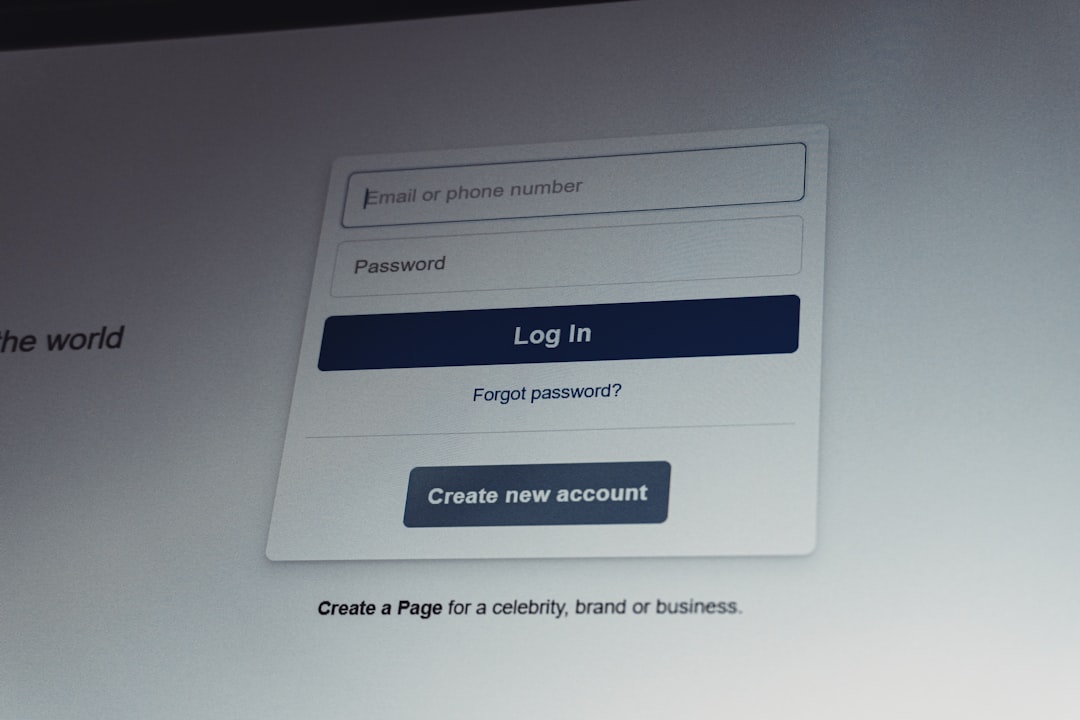
Many Facebook users have more than one account, a business profile, or access to a page through Meta Business tools. If you open a link while logged into the wrong account, Facebook may block access because that account does not have permission to view the content.
This is especially common when opening:
- Private group posts
- Friends-only posts
- Event pages
- Workplace or community content
- Admin-only page materials
Log out and sign back in using the account that should have access. If someone sent you the link, ask which account they expected you to use. This small check often resolves the issue quickly.
3. Check Whether the Post Was Deleted
If the person who created the post deleted it, Facebook cannot show it anymore. The same applies if a page removed a post, a group admin deleted a discussion, or Facebook removed the content for violating platform rules.
You cannot restore someone else’s deleted content. If you need confirmation, ask the person who shared it whether the post is still available. If they deleted it intentionally, the only fix is for them to repost it or send you the information another way.
4. Review Privacy Settings
Privacy settings are one of the most common reasons for the “Content Isn’t Available” message. Facebook allows users to limit who can see posts, photos, videos, stories, and profile information.
A post may be visible only to:
- The poster’s friends
- Specific selected friends
- Members of a private group
- People in a certain location
- People over a certain age
- Admins, moderators, or page managers
If you are not included in the permitted audience, Facebook will not show the content. This is not something you can fix from your side unless the owner changes the privacy setting or adds you to the allowed audience.
If it is your own post and others cannot see it, open the post menu, choose the audience selector, and change it to the appropriate visibility, such as Friends or Public. Be careful with public settings, especially for personal information.
5. Determine Whether You Have Been Blocked
If someone blocks you on Facebook, you will not be able to view their posts, profile, comments, tags, or certain shared content. In some cases, links to their content may produce the unavailable message.
Signs that you may have been blocked include:
- You cannot find the person through Facebook search.
- Old messages remain, but their profile is inaccessible.
- Friends can see the profile or post, but you cannot.
- Links to their content show an error.
However, do not assume blocking immediately. The person may have deactivated their account, changed privacy settings, or deleted the content. If appropriate, you can ask a mutual friend whether the content is still visible to them. Avoid using fake accounts or other intrusive methods to get around someone’s privacy decision.
6. Check Group Membership and Group Rules
Private Facebook groups are a frequent source of unavailable links. If someone shares a post from a private group, only approved members of that group can usually view it. Even if you have the direct link, Facebook will block access unless your account belongs to the group.
You may see the error if:
- You are not a member of the group.
- Your membership request is still pending.
- You were removed or banned from the group.
- The group was archived, paused, or deleted.
- The post was removed by an admin or moderator.
To fix this, visit the group directly and confirm your membership status. If membership is required, submit a request and answer any required questions honestly. If you were removed, you may need to contact the admins, but they are not obligated to restore access.
7. Open the Link in a Browser Instead of the App
Sometimes the Facebook app fails to handle links correctly, particularly when links are opened from Messenger, email, search results, or another social platform. Try copying the link and opening it in a desktop browser such as Chrome, Firefox, Safari, or Edge.
If you are already using a browser, try these steps:
- Open the link in an incognito or private window.
- Clear your browser cache and cookies.
- Disable extensions that block scripts, ads, or tracking.
- Update your browser to the latest version.
- Try a different browser.
Browser extensions can occasionally interfere with how Facebook loads scripts and content. Privacy and ad-blocking tools are useful, but they may sometimes block essential page elements. Temporarily disabling them can help identify whether they are causing the issue.
8. Update or Reinstall the Facebook App
If the issue happens only on your phone, the app may be outdated or corrupted. App bugs can cause posts, videos, comments, or pages to fail even when the same link works elsewhere.
To troubleshoot the app:
- Open your device’s app store.
- Search for Facebook.
- Install any available update.
- Restart your device.
- Try opening the content again.
If updating does not work, uninstall and reinstall the Facebook app. On Android, you may also clear the app cache through your device settings. On iPhone, reinstalling the app is usually the most direct way to clear stored app data.
9. Check for Location, Age, or Regional Restrictions
Some Facebook content is restricted by country, region, or age. This is common for brand pages, political content, alcohol-related pages, streaming media, events, and Marketplace listings.
For example, a page owner may choose to show content only to people in certain countries. Facebook may also restrict access based on local laws, music licensing, or platform policies. If your profile age, location, or account information does not meet the requirements, Facebook may show the content unavailable message.
Make sure your profile information is accurate. However, do not falsify your age or location to access restricted content. Restrictions may exist for legal or safety reasons.
10. Confirm the Link Is Not Broken
Links can break when they are copied incorrectly, shortened improperly, or pasted with missing characters. A single missing symbol can lead to an unavailable page.
To check the link:
- Ask the sender to resend it.
- Make sure the full URL was copied.
- Remove extra punctuation at the end of the link.
- Try opening the content from the original profile, page, or group instead of the shared link.
If the link was found in an old email, article, comment, or search result, the content may simply no longer exist.
11. Check Whether Facebook Is Having an Outage
Facebook occasionally experiences outages or service disruptions. During these periods, posts may not load, images may appear broken, and pages may display errors even though nothing is wrong with your account.
You can verify this by checking whether other Facebook features are failing, asking other users if they have the same issue, or looking at reputable outage reporting websites. If Facebook is experiencing a widespread problem, the only practical solution is to wait until the service is restored.
12. Review Account Restrictions
If Facebook has restricted your account, certain features or content may be unavailable. Restrictions can occur after suspicious activity, policy violations, unusual login attempts, or security concerns.
Check your account status by visiting Facebook’s account support or account quality areas. Look for notices about disabled features, removed content, identity verification, or temporary restrictions. If Facebook asks you to secure your account, follow the official prompts carefully.
Be cautious of emails or messages claiming to fix Facebook restrictions. Scammers often impersonate Facebook support. Always access account settings directly from Facebook rather than clicking suspicious links.
What If It Is Your Own Content?
If other people say your post shows “Content Isn’t Available,” review the post’s audience and location. Make sure it was not posted to a private group, limited list, unpublished page, or restricted audience. If it is on a Facebook Page, confirm that the page is published and that the post was not scheduled, hidden, or removed.
For videos, check whether Facebook muted, blocked, or limited the video because of copyright or policy concerns. For Marketplace listings, confirm that the listing is active and not under review.
When You Cannot Fix It
Sometimes there is no user-side fix. If the content was deleted, restricted, blocked, removed by Facebook, or hidden from your account, refreshing your browser will not restore access. In those cases, the correct conclusion is that you are not authorized to view it or it is no longer available.
The best next step is to contact the person, page, or group admin who shared the content. Ask them to confirm whether the post still exists and whether you should have access. This is more reliable than repeatedly changing device settings when the real issue is permissions.
Final Checklist
- Refresh the page or app.
- Confirm you are logged into the right Facebook account.
- Try another browser, device, or network.
- Check whether the content was deleted or made private.
- Verify group membership or page access.
- Update or reinstall the Facebook app.
- Consider blocking, location limits, age restrictions, or account restrictions.
In most cases, Facebook’s “Content Isn’t Available” message is not caused by a serious technical failure. It is usually the result of privacy controls, deleted content, restricted access, or a temporary loading issue. By working through the steps above in order, you can identify whether the problem is fixable on your device or whether access depends on the content owner or Facebook itself.