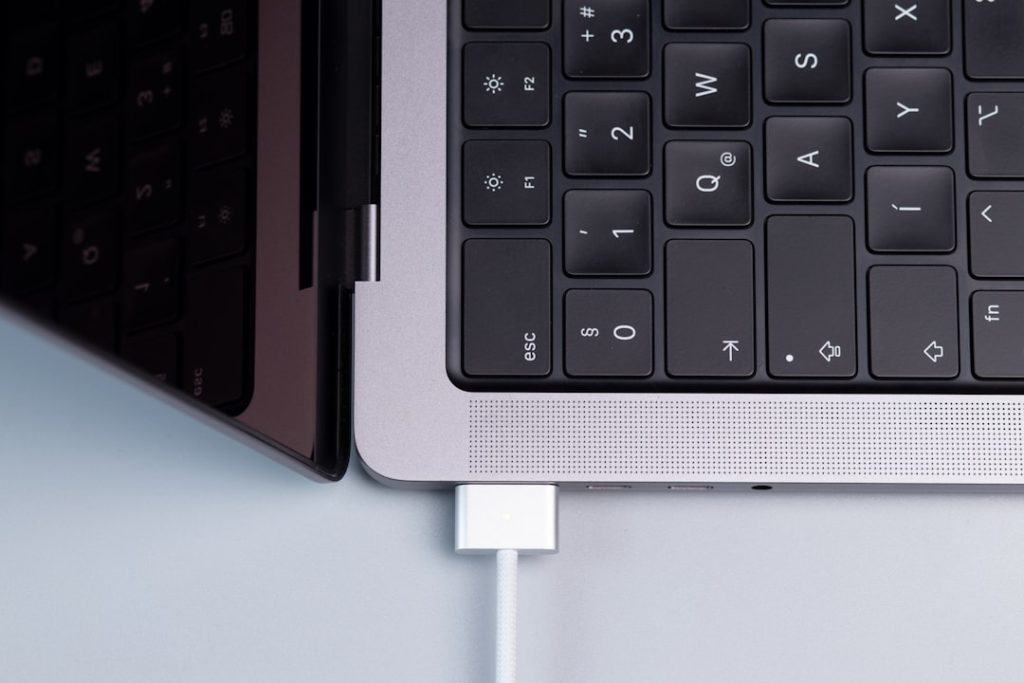
Modern Mac workflows often involve more than one screen, more than one computer, and a need to move seamlessly between local and remote systems. Thunderbolt is central to that discussion because it can provide high-bandwidth display output, fast networking, docking, and peripheral access through a single cable. However, choosing the right macOS remote display or screen sharing solution requires understanding an important distinction: Thunderbolt can carry video and data, but it is not automatically a universal “use this Mac as a monitor” feature.
TLDR: For most professional macOS users, the best Thunderbolt-based screen sharing setup is Apple Screen Sharing over Thunderbolt Bridge when both Macs are nearby. For polished remote access across networks, Jump Desktop and Screens are strong options, while Luna Display and Duet Display are better suited when you want an iPad or another device to act as a secondary display. Thunderbolt improves performance when used for direct networking or docking, but the software you choose determines latency, image quality, security, and usability.
Why Thunderbolt Matters for macOS Remote Display
Thunderbolt is one of the most capable connection standards available on the Mac. It supports high-speed data transfer, external displays, docks, storage devices, and, on supported Macs, extremely fast peer-to-peer networking. For screen sharing, this matters because a wired Thunderbolt connection can reduce latency and increase reliability compared with Wi-Fi.
That said, Thunderbolt should not be confused with the older concept of Target Display Mode. Some older iMacs could once be used as external displays for other Macs, but Apple discontinued that capability years ago. Most modern Macs cannot simply become a Thunderbolt monitor for another Mac by plugging in a cable. Instead, users typically rely on one of three approaches:
- macOS screen sharing over a network connection, including Thunderbolt Bridge.
- Remote desktop software optimized for low latency and secure access.
- Second-display software that turns an iPad, Mac, or other device into an extended display.
1. Apple Screen Sharing over Thunderbolt Bridge
For users with two Macs in the same room, Apple Screen Sharing over Thunderbolt Bridge is one of the most practical and trustworthy options. It uses macOS built-in sharing tools, so there is no third-party account, subscription, or additional remote access service required. When configured properly, it can provide a stable, fast connection between two Macs using a Thunderbolt cable.
To use it, connect the two Macs with a suitable Thunderbolt cable, then enable Screen Sharing or Remote Management in macOS Sharing settings. In Network settings, macOS can create a Thunderbolt Bridge interface, allowing the computers to communicate directly. You can then connect through Finder, the Screen Sharing app, or the local network address.
Best for: office desks, studios, labs, development environments, and users who want a reliable local connection without internet dependence.
Advantages:
- Built into macOS and maintained by Apple.
- Works well over a direct Thunderbolt connection.
- No third-party cloud relay required for local use.
- Good for administration, file access, and routine control.
Limitations:
- Not the same as using one Mac as a hardware monitor.
- Performance depends on resolution, scaling, and system load.
- Less polished than premium remote desktop tools for multi-screen workflows.
2. Apple Remote Management for Professional Environments
Apple Remote Management is closely related to Screen Sharing but is designed for more administrative control. It is commonly used in managed environments, education, IT support, and business settings where Macs need to be observed, controlled, or maintained remotely.
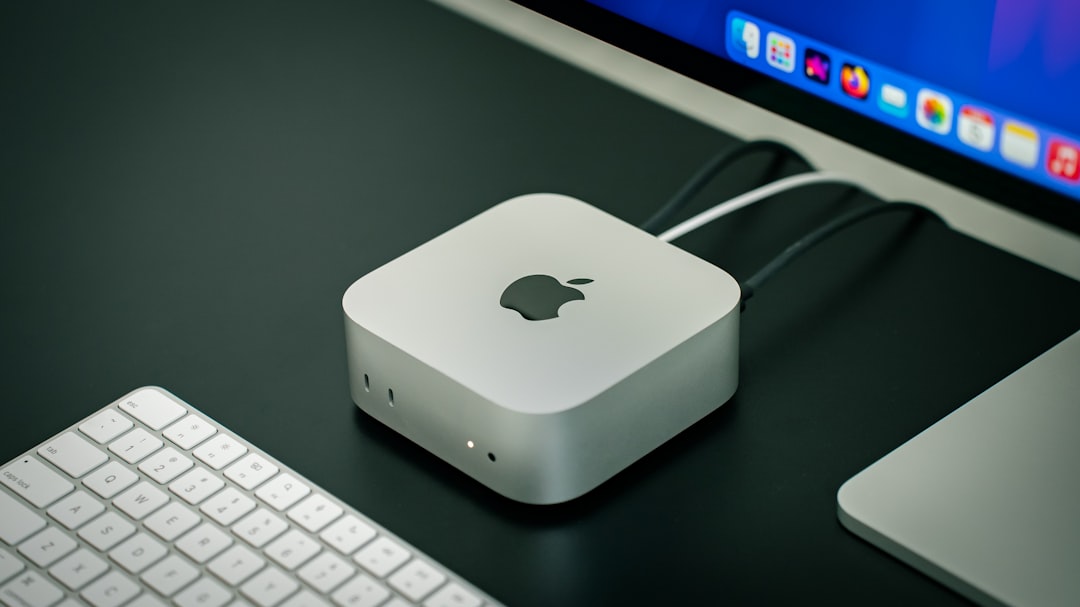
When paired with Thunderbolt networking, Remote Management can be very useful for servicing a Mac that does not have a dedicated monitor attached. This is especially relevant for Mac mini, Mac Studio, and rack-mounted Mac workflows where a user may want to connect directly from a MacBook for setup or troubleshooting.
Best for: IT teams, administrators, classrooms, studios, and controlled internal networks.
For security, administrators should restrict access to specific user accounts, use strong passwords, avoid exposing remote management directly to the public internet, and rely on VPNs or private network connections when remote access is required outside the local environment.
3. Jump Desktop
Jump Desktop is one of the strongest third-party remote desktop solutions for macOS users who need reliable access both locally and over the internet. It supports modern remote desktop protocols and is known for a responsive experience, especially when configured with its Fluid Remote Desktop technology.
Thunderbolt can play a role when Jump Desktop is used on a local direct network between Macs. If both computers are connected through Thunderbolt Bridge or a high-quality Thunderbolt dock with wired Ethernet, the experience can be substantially more stable than consumer Wi-Fi.
Best for: professionals who need remote access from multiple locations, users who value smooth control, and teams supporting Macs outside the office.
Notable strengths:
- Responsive control for everyday Mac work.
- Good support for remote access beyond the local network.
- Works across macOS, iPadOS, Windows, and other platforms.
- Suitable for both attended and unattended access.
Jump Desktop is a serious option when built-in macOS Screen Sharing feels too basic. It is not a replacement for a direct Thunderbolt display connection, but it is often more flexible than trying to force a hardware display workflow that modern Macs do not support.
4. Screens by Edovia
Screens is a polished VNC-based remote desktop application for Apple users. It is particularly appealing to people who want a clean macOS and iPadOS experience without unnecessary complexity. Screens can connect to Macs with Screen Sharing enabled, and it can work well on local networks, VPNs, and properly configured remote setups.
For Thunderbolt users, Screens is useful because it can take advantage of a direct Thunderbolt network connection between two Macs while providing a more refined interface than Apple’s basic Screen Sharing app. It is especially convenient for users who regularly switch between several Macs.
Best for: Mac-focused professionals, consultants, administrators, and users who want a clean remote control interface.
Advantages:
- Excellent Apple ecosystem integration.
- Works with existing macOS Screen Sharing services.
- Good connection organization for multiple machines.
- Suitable for local and remote access with careful configuration.
The main consideration is that VNC-based solutions may not feel as fluid as specialized high-performance remote desktop systems during graphics-heavy work. For administration, writing, coding, and general productivity, however, Screens remains a dependable choice.

5. Luna Display
Luna Display is a different kind of solution. Rather than simply controlling a remote Mac, it is designed to turn another device into a secondary display. Depending on the configuration, it can be used with Macs and iPads to extend or mirror a workspace.
For users who originally hoped to connect two Macs with Thunderbolt and use one as a monitor, Luna Display may be one of the more relevant alternatives. It does not magically enable native Target Display Mode on modern Macs, but it provides a software-and-hardware approach that can achieve a similar practical result for many workflows.
Best for: users who want an extra display using an iPad or another Mac, mobile professionals, and creative workers who need flexible screen arrangements.
Advantages:
- Designed specifically for second-display use.
- Can help repurpose an existing Mac or iPad as a display.
- Useful for portable dual-screen setups.
Limitations:
- Not the same as a native Thunderbolt monitor connection.
- Requires Luna hardware or specific supported configurations.
- Performance depends on network quality and device capability.
6. Duet Display
Duet Display is another well-known option for turning an iPad, Mac, or other supported device into an additional display. It is often used by laptop users who want a portable second screen without carrying a dedicated monitor.
Although Duet is not strictly a Thunderbolt solution, it can fit into a Thunderbolt-centered workstation. For example, a MacBook connected to a Thunderbolt dock may use external displays, storage, and network access while Duet provides an additional software-based screen. In some setups, a wired connection can improve reliability compared with wireless operation.
Best for: travel, temporary workstations, document review, messaging windows, reference material, and lightweight secondary display tasks.
Duet is generally most compelling when portability matters more than perfect color accuracy or ultra-low latency. For video editing, color grading, or fast-motion visual work, a native external display connected over Thunderbolt or HDMI will usually be preferable.
7. AnyDesk and TeamViewer
AnyDesk and TeamViewer are widely used remote support tools. They are not specifically Thunderbolt-oriented, but they are relevant because many users need screen sharing for support rather than for a permanent workstation. These tools are especially useful when the remote Mac is outside the local network or when a technician needs quick access with user permission.
In a Thunderbolt-heavy environment, they may still be used alongside docks, wired networks, and local displays. Their main strengths are convenience, cross-platform compatibility, and support workflows. Their main drawbacks are that they often depend on external services and require careful attention to permissions, licensing, and security settings.
Best for: technical support, occasional access, mixed-platform environments, and helping non-technical users.
How to Choose the Right Solution
The best choice depends on what you mean by remote display. If you want to control one Mac from another in the same room, start with Apple Screen Sharing over Thunderbolt Bridge. It is efficient, private, and already included with macOS. If you need a better interface or frequent remote access, consider Jump Desktop or Screens.
If your real goal is to use another device as an extra monitor, look at Luna Display or Duet Display. These tools are closer to second-display products than traditional remote administration products. For quick support across the internet, AnyDesk and TeamViewer remain practical, provided they are configured securely.
Use the following rule of thumb:
- Fast local Mac-to-Mac control: Apple Screen Sharing over Thunderbolt Bridge.
- Professional remote access: Jump Desktop.
- Elegant Mac and iPad remote control: Screens.
- Using another device as a display: Luna Display or Duet Display.
- Remote support: AnyDesk or TeamViewer.
Security and Reliability Considerations
Screen sharing should be treated as privileged access. A remote display session can expose files, messages, credentials, and administrative settings. For that reason, users should enable only the services they need, restrict access to trusted accounts, and use strong authentication. If remote access is required over the internet, a VPN or reputable remote desktop service is safer than exposing VNC or management ports directly.
For local Thunderbolt use, reliability also depends on cable quality. Use certified Thunderbolt cables, not generic USB-C charging cables, when you need full Thunderbolt capability. Keep macOS updated, verify Sharing permissions after system upgrades, and test your setup before relying on it for client work, live production, or travel.
Final Recommendation
For most Mac users, the most dependable starting point is Apple Screen Sharing over a direct Thunderbolt Bridge connection. It is secure when properly configured, requires no additional purchase, and takes advantage of Thunderbolt’s fast local networking. For a more refined remote desktop experience, Jump Desktop is the strongest general-purpose upgrade, while Screens is excellent for users who prefer a polished Apple-centric interface.
If you are trying to recreate the experience of using one Mac as a monitor for another, be realistic: modern macOS does not generally support that through Thunderbolt alone. In that case, Luna Display and Duet Display are the more appropriate tools to evaluate. Thunderbolt remains extremely valuable, but the best results come from matching the cable, network, and software to the actual job you need to accomplish.