Cambro.tv is a popular live-streaming platform known for its user-driven content and interactive features. However, like many streaming websites, it can occasionally stop working due to technical glitches, browser conflicts, network issues, or even regional restrictions. When users encounter loading errors, buffering loops, or connection failures, the frustration can build quickly—especially if they don’t know where to start troubleshooting.
TL;DR: If Cambro.tv is not working, the issue is usually related to your internet connection, browser cache, VPN settings, or temporary server downtime. Start by refreshing the page, clearing your cache, and trying a different browser or device. Disable VPNs or ad blockers if needed, and check whether the platform itself is experiencing an outage. Most problems can be resolved in just a few simple steps.
Common Reasons Why Cambro.tv Is Not Working
Before jumping into solutions, it helps to understand what might be causing the issue. Here are the most common reasons users experience problems:
- Slow or unstable internet connection
- Browser cache and cookie conflicts
- Outdated browser version
- VPN or proxy interference
- Ad blockers or security extensions
- Device compatibility problems
- Server-side outages
Identifying which of these applies can significantly reduce troubleshooting time.
1. Check Your Internet Connection
A weak or unstable connection is the leading cause of streaming issues. If Cambro.tv is constantly buffering, freezing, or not loading at all, the problem might not be the site itself.
Start by:
- Restarting your router and modem.
- Running a speed test to confirm your connection speed.
- Disconnecting other devices that may be consuming bandwidth.
For smooth streaming, users generally need:
- At least 5 Mbps for standard quality
- 10+ Mbps for HD streaming
If speeds are significantly lower, contacting your internet service provider may be necessary.
2. Refresh the Page or Restart the Browser
Sometimes the solution is surprisingly simple. A temporary loading glitch can cause the site to appear broken.
- Press Ctrl + F5 (Windows) or Cmd + Shift + R (Mac) for a hard refresh.
- Close the browser completely and reopen it.
- Restart your device if the issue persists.
This clears temporary session conflicts and often restores normal functionality.
3. Clear Browser Cache and Cookies
Over time, cached files and cookies can become corrupted. When this happens, websites like Cambro.tv may fail to load properly or display errors.
How to clear cache:
- Open browser settings.
- Go to Privacy or History.
- Select Clear browsing data.
- Choose Cached images and files and Cookies.
- Confirm and restart the browser.
After clearing your cache, revisit Cambro.tv and check if the issue is resolved.
4. Update Your Browser
Streaming platforms rely on modern web technologies. An outdated browser may struggle with scripts, video players, or security certificates.
Make sure you are using the latest version of:
- Google Chrome
- Mozilla Firefox
- Microsoft Edge
- Safari
Updating ensures compatibility and often improves streaming stability.
5. Disable VPN or Proxy Services
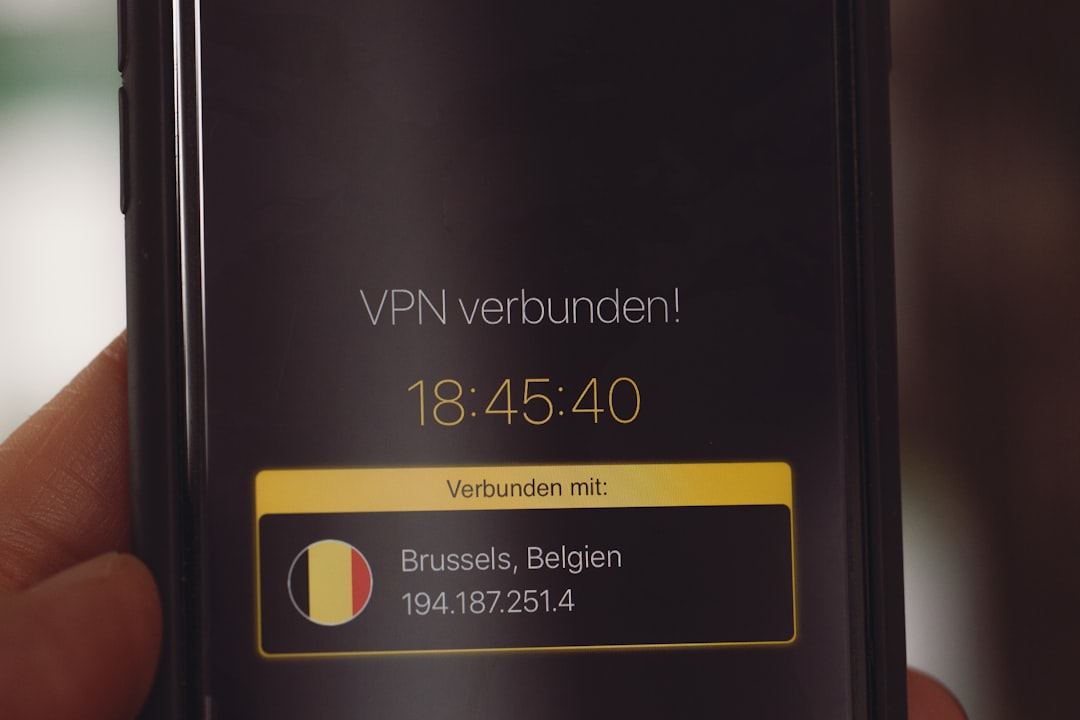
While VPNs can enhance privacy and bypass geo-restrictions, they can also block or disrupt access to certain streaming websites. Cambro.tv may restrict some VPN IP addresses or flag unusual traffic.
If the site is not loading:
- Temporarily disable your VPN.
- Switch to a different server location.
- Turn off proxy settings in your browser.
After disabling these tools, refresh the website to see if access is restored.
6. Turn Off Ad Blockers and Browser Extensions
Ad blockers and privacy extensions sometimes interfere with streaming scripts and embedded video players.
Common extensions that may cause conflicts include:
- Ad blockers
- Script blockers
- Privacy filters
- Firewall extensions
Try disabling extensions one by one and refresh Cambro.tv after each attempt. If the site loads properly after disabling a specific extension, add it to your whitelist.
7. Try a Different Browser or Device
If Cambro.tv still isn’t working, switching browsers or devices can help isolate the problem.
| Option | Best For | Pros | Cons |
|---|---|---|---|
| Google Chrome | Performance & compatibility | Fast, widely supported | High memory usage |
| Firefox | Privacy-focused users | Strong security features | Some plugins may conflict |
| Edge | Windows optimization | Efficient performance | Fewer extensions |
| Mobile Device | Quick testing | Portable and accessible | Smaller screen experience |
If the site works on another browser or device, the issue is likely isolated to your original setup.
8. Check for Server Downtime
Sometimes the issue is not on the user’s end. Cambro.tv servers may be temporarily down for maintenance or experiencing unexpected outages.
Signs of server issues include:
- The site doesn’t load for multiple users.
- Social media reports of outages.
- Error messages like 502, 503, or 504.
In this case, the only solution is to wait until the service is restored.
9. Flush DNS Cache
DNS issues can prevent your computer from properly connecting to certain websites.
How to flush DNS (Windows):
- Open Command Prompt.
- Type ipconfig /flushdns.
- Press Enter.
On Mac:
- Open Terminal.
- Type sudo dscacheutil -flushcache; sudo killall -HUP mDNSResponder.
This refreshes your DNS records and can fix hidden connectivity issues.
10. Adjust Firewall or Antivirus Settings
Some security programs flag streaming platforms as suspicious, blocking connections or scripts.
To test this:
- Temporarily disable antivirus protection.
- Turn off firewall protection briefly.
- Add Cambro.tv as an allowed site.
Always re-enable protection after testing to maintain security.
11. Use Incognito or Private Mode
Private browsing disables most extensions and ignores stored cache. Opening Cambro.tv in incognito mode is a fast way to test whether browser data is causing the issue.
If the site works in private mode but not in normal browsing, clearing cache or disabling extensions will likely solve the problem permanently.
12. Contact Support
If none of the above steps work, the problem may be account-specific or related to regional restrictions. In such cases:
- Check Cambro.tv’s official support page.
- Look for community forums discussing the issue.
- Submit a support ticket if available.
Providing clear details—such as browser type, device, and error messages—will speed up the resolution process.
Preventing Future Issues
To minimize disruptions in the future, users should:
- Keep browsers updated.
- Regularly clear cache and cookies.
- Avoid installing unnecessary extensions.
- Maintain a stable internet connection.
Consistent maintenance significantly reduces the likelihood of streaming interruptions.
Frequently Asked Questions (FAQ)
1. Why does Cambro.tv keep buffering?
Buffering usually happens because of slow internet speeds, network congestion, or background downloads consuming bandwidth.
2. Is Cambro.tv down or is it just me?
If multiple users report issues or the website displays server error messages, it’s likely a platform-wide outage. Otherwise, the issue may be local to your device or connection.
3. Does a VPN block Cambro.tv?
Some VPN servers may be blocked by streaming platforms. Try disabling the VPN or switching to another server location.
4. Why does Cambro.tv work on my phone but not my computer?
This usually indicates a browser-related issue on your computer, such as cached data, extensions, or outdated software.
5. Can antivirus software prevent Cambro.tv from loading?
Yes, certain security programs may block streaming scripts. Whitelisting the website or adjusting firewall settings can resolve this.
6. How often should I clear my browser cache?
Clearing cache every few weeks helps prevent data conflicts and improves overall browsing performance.
7. What should I do if nothing fixes the problem?
If all troubleshooting steps fail, contact Cambro.tv support and provide detailed information about your setup and the error you’re experiencing.
By systematically working through these troubleshooting steps, most users can quickly restore access to Cambro.tv and return to uninterrupted streaming.