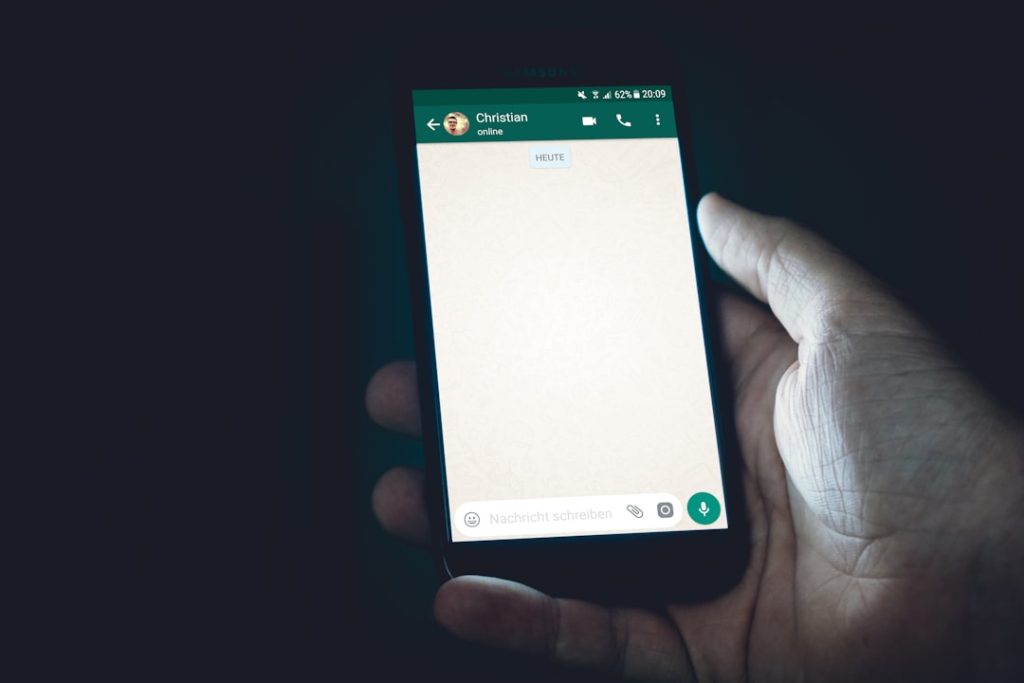
WhatsApp has become one of the most widely used messaging platforms in the world, allowing people to communicate through text, voice messages, images, documents, and videos. With so much information flowing through conversations daily, users often need to copy WhatsApp messages for work, legal documentation, study purposes, or simply to save important details. Fortunately, copying messages on WhatsApp is simple once the user understands the available options across different devices.
TLDR: Copying WhatsApp messages is straightforward on Android, iPhone, and WhatsApp Web. Users can copy individual messages, multiple messages, or entire chats using built-in features like long-press selection or chat export. For advanced needs, third-party tools can help, but built-in methods are usually sufficient and safer. Understanding the right method for each device ensures quick and secure copying.
Why Someone Might Need to Copy WhatsApp Messages
There are many reasons someone may need to copy WhatsApp messages:
- Saving important information such as addresses, meeting details, or account numbers.
- Legal or business documentation of conversations.
- Academic or research purposes.
- Transferring information to email, notes apps, or documents.
- Backing up sentimental conversations.
Regardless of the reason, WhatsApp provides several built-in options to make copying easy and secure.
How to Copy a Single WhatsApp Message
On Android
For Android users, copying a message requires only a few taps:
- Open the WhatsApp conversation.
- Press and hold the message that needs to be copied.
- Tap the Copy icon at the top of the screen (usually represented by two overlapping rectangles).
- Paste it into any app such as Notes, Email, or a document.

On iPhone
The process on iOS is just as straightforward:
- Open the desired chat.
- Tap and hold the specific message.
- Select Copy from the pop-up menu.
- Paste it wherever needed.
Both systems allow users to copy text instantly without affecting the original message.
How to Copy Multiple WhatsApp Messages at Once
Sometimes copying one message is not enough. Users may want to copy several messages in a single action.
On Android
- Press and hold the first message.
- Tap additional messages to select them.
- Tap the Copy icon.
- Paste the combined text into another application.
On iPhone
- Tap and hold one message.
- Select Forward.
- Choose multiple messages.
- Tap the Share icon and paste or send to another app.
It is important to note that when copying multiple messages, timestamps and sender names may appear depending on how they are pasted.
How to Copy an Entire WhatsApp Conversation
When a full chat is needed, the best method is to export the conversation.
Using Chat Export Feature
Both Android and iPhone users can export chats:
- Open the chat.
- Tap the three dots (Android) or contact name (iPhone).
- Select Export Chat.
- Choose whether to include media or not.
- Send the exported file to email, cloud storage, or notes.

The exported file usually comes in a .txt format, making it easy to copy or share the content.
How to Copy WhatsApp Messages on WhatsApp Web/Desktop
For those who prefer working on a computer, WhatsApp Web provides perhaps the easiest copying method.
- Open WhatsApp Web in a browser.
- Select the conversation.
- Use the mouse to highlight the desired text.
- Right-click and choose Copy, or press Ctrl + C (Windows) or Command + C (Mac).
- Paste into any application.
This method feels similar to copying text from any webpage or document, making it ideal for professional use.

Copying Media Captions and Special Content
Users sometimes struggle when trying to copy captions, links, or formatted content.
- Captions: These can usually be copied the same way as text messages by long-pressing.
- Links: Long-press and select copy.
- Voice messages: Cannot be copied as text unless transcribed.
- Status updates: Text statuses can be manually copied; media may require screenshots.
If text cannot be directly copied, users may consider enabling WhatsApp’s built-in transcription features (if available).
Using Third-Party Tools to Copy WhatsApp Messages
While WhatsApp’s built-in features are usually sufficient, there are cases where users need advanced export options such as formatted PDFs, spreadsheets, or complete backups. In these situations, third-party tools may help.
Popular Tools for Advanced Export
| Tool Name | Best For | Supported Platforms | Output Formats | Ease of Use |
|---|---|---|---|---|
| iMazing | Full chat backups | Windows, Mac | PDF, TXT, CSV | High |
| Dr.Fone | Data recovery and export | Windows, Mac | HTML, PDF | Medium |
| MobileTrans | Chat transfer between devices | Windows, Mac | TXT, Backup files | Medium |
Caution: Users should always verify the credibility of third-party tools. Granting access to chat data can pose privacy risks if the software is not trustworthy.
Best Practices for Copying WhatsApp Messages
To ensure safety and efficiency, users should follow these best practices:
- Respect privacy laws and consent. Avoid copying and sharing private chats without permission.
- Use built-in features first. They are the safest options.
- Backup chats regularly. This prevents loss of important data.
- Remove sensitive information before sharing exported chats.
- Store copied content securely in password-protected files if needed.
By following these guidelines, users can minimize risks while preserving important information.
Common Issues and Troubleshooting
Despite how easy it is to copy messages, some users may face difficulties:
- Copy option not appearing: Ensure the app is updated to the latest version.
- Formatting issues after pasting: Paste into a plain text editor first to remove unwanted formatting.
- Media not copying: Use Export Chat instead.
- Messages missing: Verify backup settings.
Updating WhatsApp regularly resolves most technical issues.
Conclusion
Copying WhatsApp messages is a simple task that can serve many practical purposes, from saving important details to preserving meaningful conversations. Whether using Android, iPhone, or WhatsApp Web, built-in features make single and multiple message copying quick and efficient. For exporting entire conversations, the chat export function is highly effective and user-friendly. While third-party tools provide advanced options, users should prioritize privacy and security whenever handling personal data.
By understanding the right method for each situation, anyone can copy WhatsApp messages easily and confidently.
Frequently Asked Questions (FAQ)
1. Can someone copy WhatsApp messages without the other person knowing?
Yes. WhatsApp does not notify users when someone copies messages from a chat.
2. Is it possible to copy an entire WhatsApp group chat?
Yes. The Export Chat feature works for both individual and group conversations.
3. Can voice messages be copied as text?
Not directly. However, transcription features or third-party transcription apps can convert voice messages into text.
4. Does copying a message delete it from WhatsApp?
No. Copying a message does not remove or alter the original content.
5. What is the safest way to copy WhatsApp chats?
Using WhatsApp’s built-in Copy and Export Chat features is the safest approach.
6. Can deleted messages be copied?
Only if they were backed up before deletion or recovered through backup restoration.
7. Are exported chats legally valid?
In many regions, exported chats may serve as evidence, but legal standards vary. It is advisable to consult a legal professional if documentation is required for formal proceedings.