
Adware is annoying. It pops up at the worst times. It slows your device down. It can even peek at what you do online. The good news? You can get rid of it. And you do not need to be a tech genius to do it.
TLDR: Adware is unwanted software that shows ads and may track your activity. You can remove it by uninstalling suspicious apps, running trusted security tools, and resetting your browser. Keep your device clean by updating software and avoiding shady downloads. Prevention is easier than cleanup.
What Is Adware?
Adware is short for advertising software. It sneaks onto your device. Then it shows ads. Lots of them.
Some adware is just annoying. Other types are more dangerous. They may:
- Track what websites you visit
- Collect personal data
- Slow down your device
- Redirect you to fake websites
If your screen is full of pop ups, you probably have adware.

Signs You Have Adware
Not sure if it is adware? Look for these signs:
- Your browser homepage changed by itself
- New toolbars appear in your browser
- You see ads even when offline
- Your device feels slow
- Battery drains faster than usual
If you notice two or more of these, it is time to act.
How to Remove Adware on Windows
Windows computers are common targets. Here is what to do.
Step 1: Uninstall Suspicious Programs
- Open the Control Panel.
- Click Programs and Features.
- Look for apps you do not remember installing.
- Right click and uninstall them.
Trust your gut. If it looks strange, remove it.
Step 2: Use Built In Security
Windows has built in protection.
- Open Windows Security.
- Select Virus and Threat Protection.
- Run a full scan.
This may take some time. Let it finish.
Step 3: Reset Your Browser
Adware often hides inside your browser.
- Open browser settings
- Find Reset settings
- Confirm reset
This removes unwanted extensions and restores defaults.
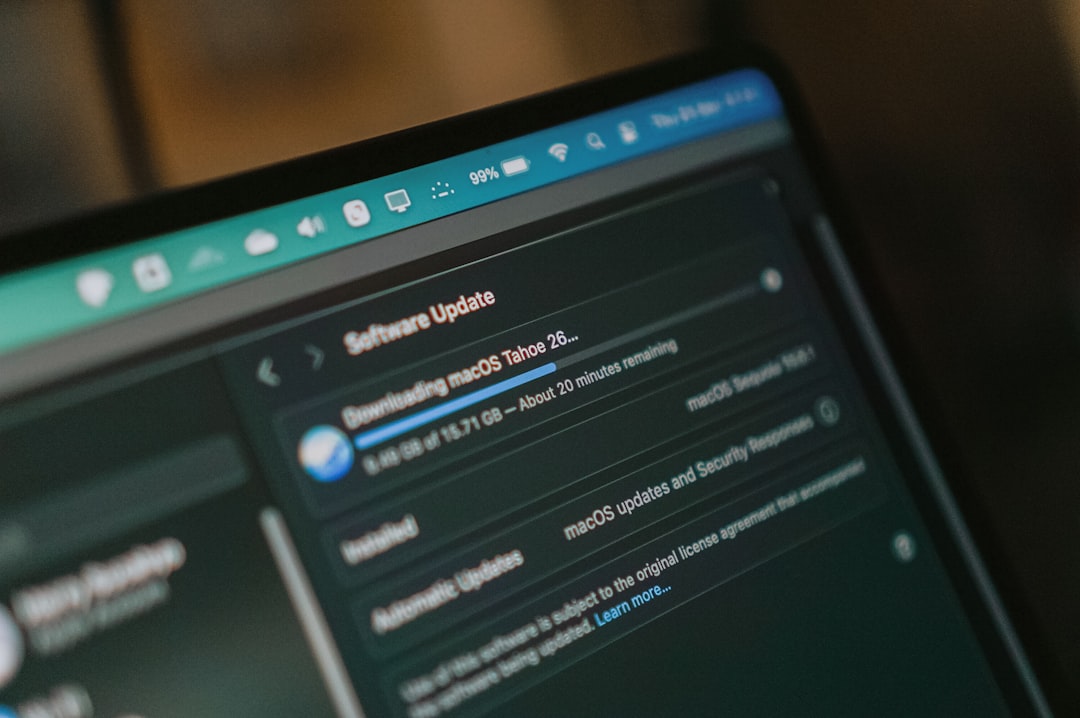
How to Remove Adware on Mac
Mac devices can get adware too. They are not immune.
Step 1: Check Applications
- Open Finder.
- Go to Applications.
- Drag unknown apps to Trash.
- Empty the Trash.
Step 2: Remove Login Items
Some adware starts automatically.
- Open System Settings.
- Click General, then Login Items.
- Remove suspicious entries.
Step 3: Reset Your Browser
Check extensions in Safari, Chrome, or Firefox.
- Remove extensions you do not recognize
- Reset homepage
- Clear cache and cookies
How to Remove Adware on Android
Phone acting weird? Seeing ads on your home screen? That is not normal.
Step 1: Uninstall Suspicious Apps
- Open Settings.
- Tap Apps.
- Look for unknown apps.
- Tap and uninstall.
Think about when the issue started. Remove apps installed around that time.
Step 2: Enable Play Protect
- Open the Play Store.
- Tap your profile icon.
- Select Play Protect.
- Run a scan.
Step 3: Reset Browser
Clear browsing data in Chrome or your default browser.
- Clear cache
- Delete cookies
- Remove unknown extensions
If things are still bad, consider a factory reset as a last resort.
How to Remove Adware on iPhone and iPad
iOS is strict. That helps. But adware can still sneak in through profiles and apps.
Step 1: Delete Suspicious Apps
- Press and hold the app
- Tap Remove App
- Confirm delete
Step 2: Check for Unknown Profiles
- Open Settings.
- Tap General.
- Select VPN and Device Management.
- Remove unfamiliar profiles.
Step 3: Clear Safari Data
- Go to Settings.
- Tap Safari.
- Select Clear History and Website Data.
If problems continue, update iOS. Updates patch security holes.
Best Tools to Remove Adware
Sometimes manual cleanup is not enough. A dedicated tool helps.
Here are popular options:
| Tool | Platform | Free Version | Real Time Protection | Ease of Use |
|---|---|---|---|---|
| Malwarebytes | Windows, Mac, Android, iOS | Yes | Yes (Premium) | Very Easy |
| Avast Security | Windows, Mac, Android, iOS | Yes | Yes | Easy |
| Bitdefender | Windows, Mac, Android, iOS | Limited | Yes | Very Easy |
Tip: Download tools only from official websites. Never from pop up ads.
How to Stop Adware From Coming Back
Removal is step one. Prevention is step two. This part is important.
1. Download Carefully
Free software often bundles adware.
- Use official websites
- Avoid third party download sites
- Choose Custom Install instead of Express
- Uncheck extra offers
2. Keep Software Updated
Updates fix security flaws. Turn on automatic updates if possible.
3. Use an Ad Blocker
A trusted ad blocker reduces risky ads. Fewer ads means fewer chances to click something bad.
4. Do Not Click Suspicious Links
If a popup screams, “Your device is infected!” do not click it.
Close the browser instead.
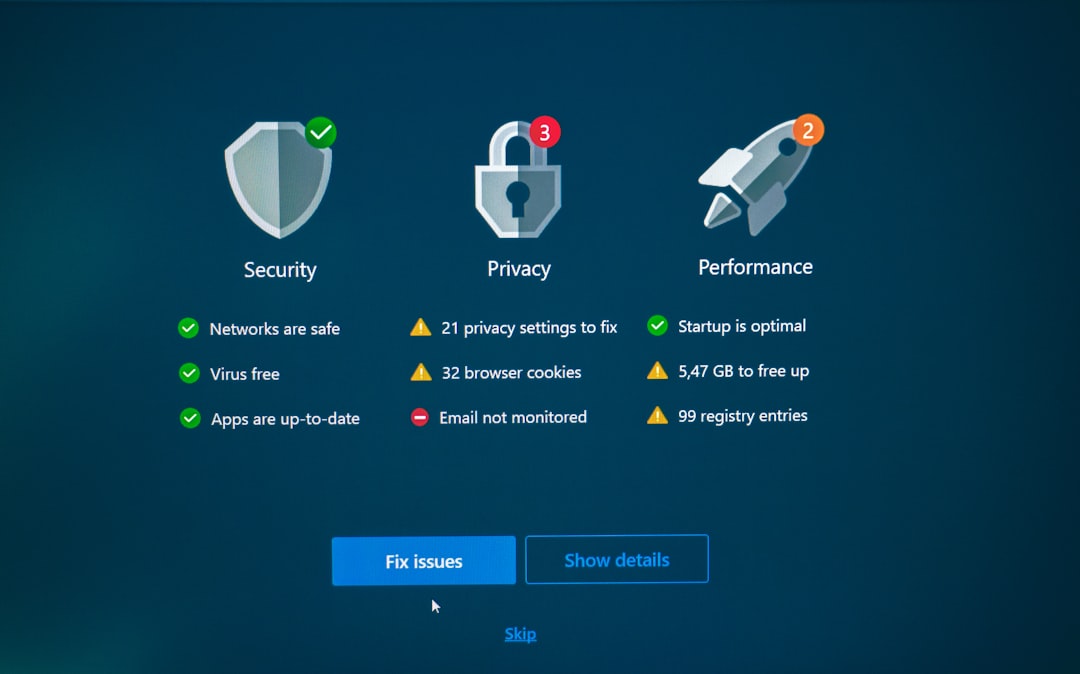
5. Install a Trusted Security App
Let it run in the background. Quiet protection is the best kind.
When to Do a Factory Reset
Sometimes adware refuses to leave. It hides deep in the system.
Consider a factory reset if:
- Ads keep coming back
- Your device is extremely slow
- Security tools cannot remove the infection
Important: Back up your data first.
A reset erases everything. But it also gives you a fresh start.
Common Myths About Adware
“Only Windows gets adware.”
False. All platforms can be targeted.
“Macs cannot get viruses.”
Also false. They are safer, not invincible.
“Pop ups mean my device is broken.”
No. It usually means software was installed without care.
“Free antivirus is useless.”
Not true. Many free tools are very effective.
Final Thoughts
Adware is frustrating. But it is beatable.
The key steps are simple:
- Remove suspicious programs
- Scan with trusted security tools
- Reset your browser
- Update your device
- Be careful with downloads
You do not have to live with constant pop ups. You do not have to accept a slow device.
A clean device feels amazing. It runs faster. It is safer. And it lets you browse in peace.
Take a few minutes today. Check your apps. Run a scan. Clean things up.
Your future self will thank you.