
Microsoft’s Surface Book is a beautifully unusual laptop: part premium notebook, part detachable tablet, and full of custom hardware that was originally designed with Windows in mind. Installing Linux on it is absolutely possible, but the experience depends on your model, kernel version, and willingness to apply a few Surface-specific tweaks. With the right distro and drivers, you can turn a Surface Book into a fast coding machine, writing laptop, or lightweight creative workstation.
TLDR: For most users, Fedora Workstation or Ubuntu with the linux-surface kernel is the easiest route. Expect excellent performance, good touchscreen support, and working Wi-Fi, but features like the detachable clipboard, discrete GPU switching, or cameras may require extra effort. For example, a developer using a Surface Book 2 with 16 GB RAM can typically get a clean Linux desktop running in under 90 minutes, with roughly 80–90% of daily laptop features working after setup. If you want the fewest surprises, test everything from a live USB before installing.
Which Surface Book Models Work Best?
The Surface Book line includes the original Surface Book, Surface Book 2, and Surface Book 3. All can run Linux, but support varies. The Surface Book 2 is often considered the sweet spot because many users have documented fixes for Wi-Fi, suspend, touch, pen input, and NVIDIA graphics. The Surface Book 3 is powerful, but its newer hardware can require more recent kernels and additional troubleshooting.
Before installing, check your exact configuration: Intel-only models are simpler, while models with an NVIDIA GPU in the keyboard base can be more complicated. The detachable screen is another unique challenge, since Linux does not always handle the tablet-to-laptop transition as smoothly as Windows.
Image not found in postmetaBest Linux Distros for a Surface Book
Choosing the right Linux distribution matters because kernel freshness, driver availability, and community documentation can save you hours.
- Fedora Workstation: A great first choice for Surface Book users. Fedora ships newer kernels, modern GNOME, and good Wayland support. It is ideal if you want updated hardware support without building everything manually.
- Ubuntu or Linux Mint: Ubuntu has broad documentation and excellent third-party support. Mint is comfortable for Windows switchers, but you may need to install a newer kernel for better Surface hardware support.
- Arch Linux: Best for advanced users who want maximum control. The Arch wiki and AUR packages make it easier to install Surface-specific patches, but setup is more hands-on.
- openSUSE Tumbleweed: A strong rolling-release option with recent kernels and solid system tools. It is less commonly discussed for Surface devices, but technically capable.
If you are new to Linux, start with Fedora or Ubuntu. If you enjoy tuning your system, Arch is excellent. If you just want the Surface Book to become a reliable daily driver, avoid niche distros until you have confirmed your hardware works.
What Is the linux-surface Kernel?
The standard Linux kernel supports a lot of Surface hardware, but not everything. The linux-surface project provides a custom kernel and tools with patches for Surface-specific features. These patches may improve touchscreen behavior, battery reporting, suspend, function keys, tablet mode, and other device quirks.
On many Surface Book setups, installing the linux-surface kernel is the difference between “Linux boots” and “Linux feels integrated.” It is not magic, though. Some features, especially cameras and detachable behavior, may still be incomplete depending on your model.
Before You Install: Prepare Properly
Good preparation prevents painful recovery work. First, back up your Windows installation and personal files. If you plan to dual boot, open Windows Disk Management and shrink the Windows partition to create free space for Linux. A practical minimum is 50 GB, though 100 GB or more is better if you install development tools, games, or large creative apps.
Next, create a bootable USB drive using a tool such as Rufus, Fedora Media Writer, or balenaEtcher. Download the ISO from your distro’s official site. If your Surface Book has BitLocker enabled, suspend or decrypt it before resizing partitions, or you may be asked for a recovery key.
You should also have a USB keyboard or mouse available, just in case touchpad or keyboard input behaves strangely during installation. Most of the time it works, but having backup input can save the day.
UEFI and Boot Settings
To boot from USB, shut down the Surface Book. Hold the volume up button, press the power button, and keep holding volume up until the UEFI screen appears. From there, you can adjust boot order and Secure Boot settings.
Some distributions support Secure Boot, but custom kernels can complicate it. If you plan to install linux-surface and want the simplest setup, you may choose to disable Secure Boot. More advanced users can keep Secure Boot enabled by enrolling keys, but that adds complexity.

Installation Steps
- Boot the live USB: Select the USB device from the Surface UEFI boot menu. Test Wi-Fi, display scaling, keyboard, trackpad, and touchscreen before installing.
- Start the installer: Choose dual boot or full disk installation. Dual boot is safer if you still need Windows for firmware updates or Surface-specific software.
- Partition carefully: Use the free space you created earlier. Most installers can automatically create root and swap areas. Advanced users may add a separate home partition.
- Install and reboot: Remove the USB drive when prompted. Boot into your new Linux system.
- Update immediately: Run system updates before troubleshooting. A newer kernel or firmware package may fix issues automatically.
Installing Surface Drivers and Kernel Support
After the first boot, install all distro updates. On Ubuntu-based systems, that typically means using the Software Updater or running package updates in the terminal. Fedora users can update through GNOME Software or the command line.
Then, consider installing the linux-surface kernel. The exact commands differ by distro, so use the project’s current documentation rather than copying outdated commands from random forums. In general, the process involves adding the linux-surface package repository, importing its signing key, installing the Surface kernel and related packages, then rebooting into the new kernel.
After rebooting, check whether touchscreen, pen, battery status, suspend, keyboard backlight, and function keys behave better. If something breaks, most boot menus let you choose the previous kernel, which is one reason not to remove your original kernel too quickly.
Wi-Fi, Bluetooth, Touch, and Pen
Wi-Fi and Bluetooth support are usually good on modern distros, but some Surface Book units use firmware that benefits from updated Linux firmware packages. If Wi-Fi is missing during installation, use a USB Ethernet adapter or tether from a phone temporarily.
The touchscreen often works well after installing a recent kernel, especially with GNOME. Pen input can also work, although pressure sensitivity and button behavior depend on the application. Apps like Xournal++, Krita, and Rnote are worth testing if you want handwritten notes or sketching.
NVIDIA Graphics and Battery Life
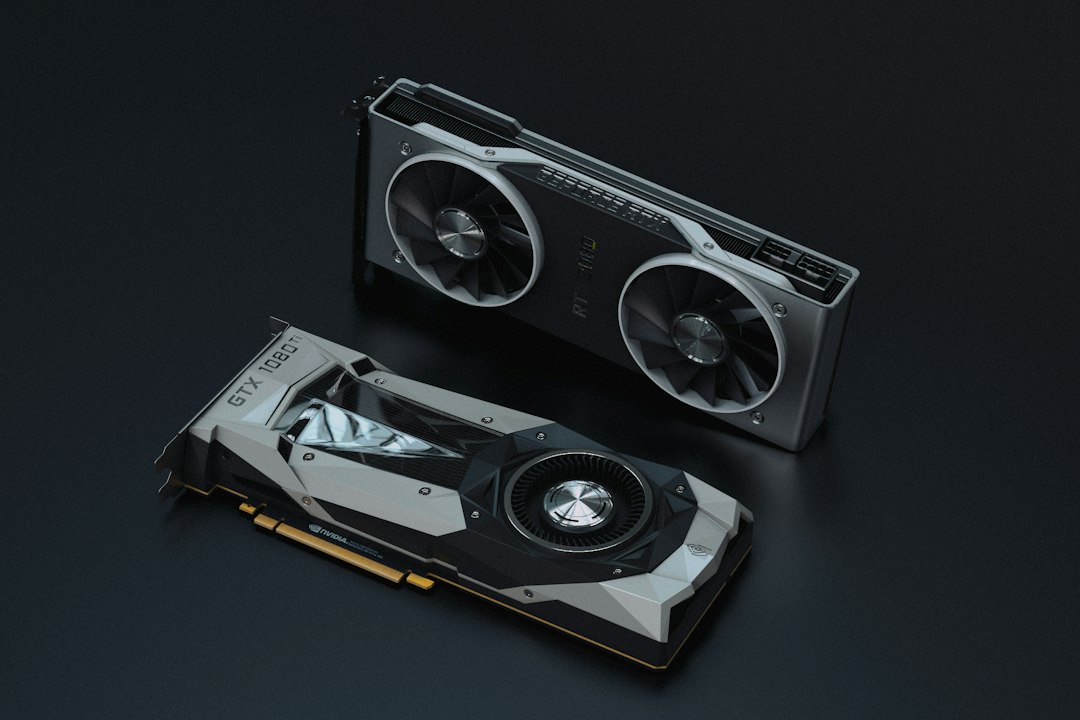
Some Surface Book models include an NVIDIA GPU in the keyboard base. Linux can use it, but hybrid graphics may require extra configuration. Ubuntu users often rely on proprietary NVIDIA drivers and PRIME profiles, while Fedora users may install NVIDIA drivers from a third-party repository.
If you do not need the NVIDIA GPU all the time, keeping the system on Intel graphics can improve battery life and reduce heat. For coding, writing, browsing, and media playback, Intel graphics are usually enough. For Blender, CUDA workloads, or gaming, configure NVIDIA carefully and monitor power usage.
Common Problems and Fixes
- Suspend drains battery: Try a newer kernel, check sleep mode settings, and disable unnecessary wake devices.
- Touchscreen is inaccurate: Test under Wayland and X11; GNOME on Wayland often performs better for touch.
- Camera does not work: Surface cameras are among the least reliable features on Linux. Use an external webcam if video calls are essential.
- Detaching the screen is unreliable: Treat detach support as experimental. Save your work before switching modes.
- High display scaling looks odd: Try 150% or 200% scaling in GNOME or KDE. Fractional scaling may affect performance in some apps.
Recommended Post-Install Setup
Once the system is stable, install useful tools: TLP or power-profiles-daemon for power management, fwupd for firmware updates where supported, and your preferred desktop apps. Developers may want Git, Docker, VS Code or Neovim, and language toolchains. Writers may enjoy LibreOffice, Obsidian, or FocusWriter.
Also create a recovery USB and keep your Windows recovery key if dual booting. Surface firmware updates are still easiest through Windows, so many users keep a small Windows partition even if Linux is their main operating system.
Final Thoughts
Installing Linux on a Surface Book is not as effortless as installing it on a business-class ThinkPad, but it is far more practical than it used to be. With Fedora or Ubuntu, a current kernel, and the linux-surface project, the Surface Book becomes a sleek and capable Linux machine. The key is to approach it realistically: expect a few quirks, test before committing, and keep notes on what you change. If you enjoy premium hardware and do not mind a bit of tinkering, Linux on a Surface Book can be both productive and surprisingly fun.