WhatsApp automatically follows the time format set on a user’s device, which means there is no direct in-app toggle for switching between 12-hour and 24-hour formats. Many users search for this setting within WhatsApp itself, only to realize that the control lies within their phone’s system settings. Understanding how time settings work across Android and iPhone devices makes it simple to customize the display according to personal preference.
TLDR: WhatsApp does not have its own time format setting; it mirrors the system time format of the phone. To change WhatsApp from 12-hour to 24-hour time (or vice versa), users must adjust their device’s date and time settings. The steps vary slightly between Android and iPhone. Once the system format is updated, WhatsApp automatically reflects the change.
Understanding How WhatsApp Displays Time
WhatsApp displays timestamps for messages, voice notes, calls, and status updates. These timestamps follow the system-wide clock format configured on the smartphone. For instance, if a device is set to display time in a 24-hour format (14:00), WhatsApp will mirror that style. If the device uses a 12-hour clock (2:00 PM), WhatsApp will reflect that instead.
There are two primary time formats used globally:
- 12-hour format: Displays time with AM and PM indicators (e.g., 7:30 PM).
- 24-hour format: Displays time using numbers from 00:00 to 23:59 (e.g., 19:30).
The preference for one format over the other often depends on regional standards or personal habits.
Changing WhatsApp Time Format on Android
Android devices provide an easy way to switch between 12-hour and 24-hour formats through system settings. Because WhatsApp relies entirely on these settings, adjusting the device clock will automatically change WhatsApp timestamps.
Step-by-Step Guide for Android
- Open the Settings app on the Android device.
- Scroll down and tap on System (on some phones, this may be labeled General Management).
- Select Date & Time.
- Find the option labeled Use 24-hour format.
- Toggle the switch on or off, depending on the preferred format.
Once this setting is changed, users can open WhatsApp to see the updated time format applied immediately in chats and call logs.
Note: The exact wording of menu items may vary depending on the Android version or manufacturer (Samsung, Google Pixel, Xiaomi, etc.), but the general steps remain similar.
Changing WhatsApp Time Format on iPhone
On iPhones, the time format is also controlled entirely through iOS system settings. Like Android, WhatsApp mirrors whatever format is chosen at the system level.
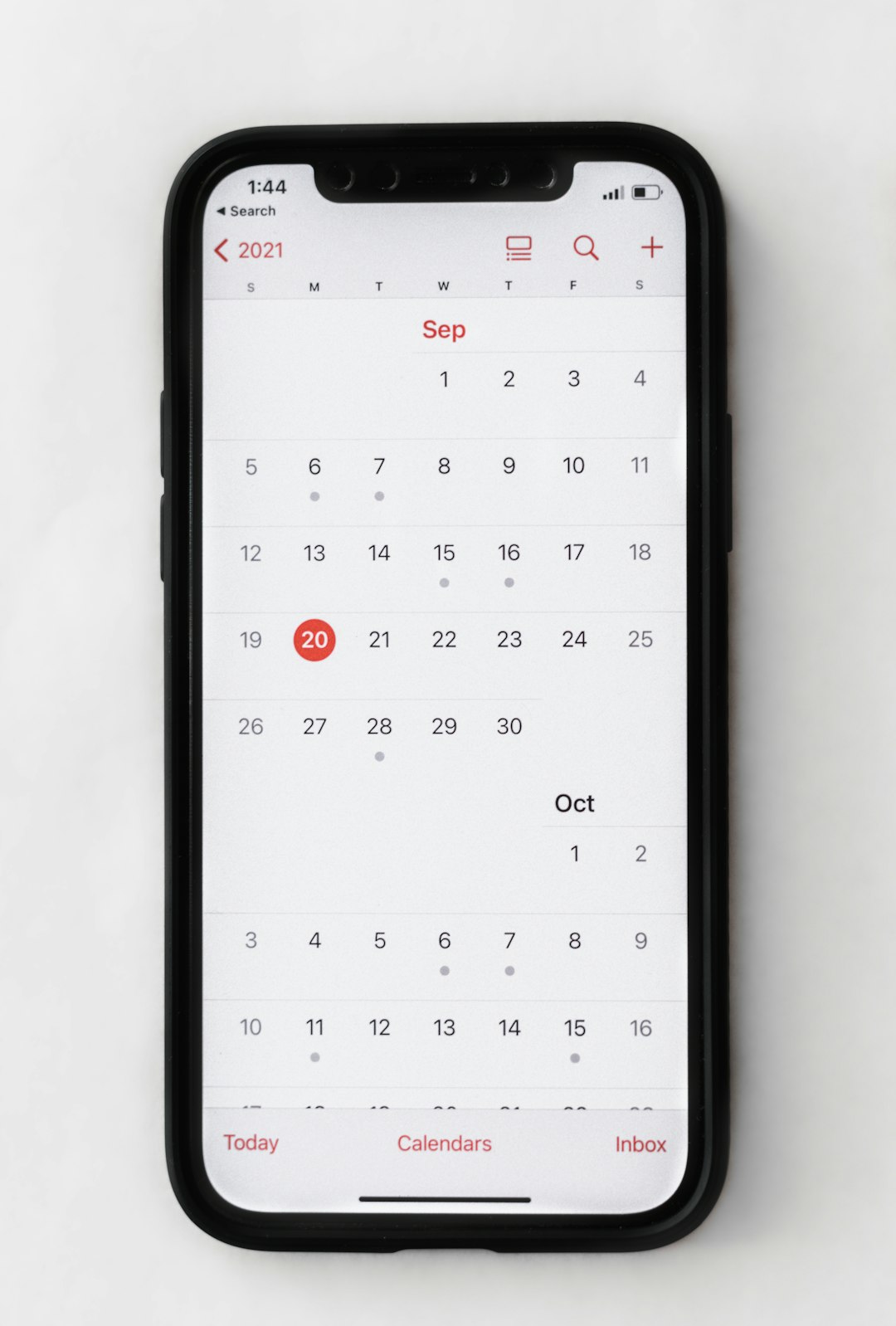
Step-by-Step Guide for iPhone
- Open the Settings app.
- Scroll down and tap General.
- Select Date & Time.
- Toggle 24-Hour Time on or off.
After adjusting this setting, WhatsApp will instantly adopt the newly selected format without requiring a restart.
What If the Time Format Doesn’t Change?
In rare cases, users may not see the change reflected immediately. When that happens, several quick troubleshooting steps can help:
- Close and reopen WhatsApp.
- Restart the device.
- Ensure system region settings are correct.
- Update WhatsApp to the latest version.
Region settings can sometimes influence time display conventions. For example, certain regions default to 24-hour time automatically.
How Regional Settings Affect Time Format
Smartphones often use regional settings to determine default time preferences. If a device is set to a country where the 24-hour clock is standard, it may automatically revert to that format.
To adjust region settings:
- On Android, go to Settings > System > Languages & Input > Region.
- On iPhone, go to Settings > General > Language & Region.
Changing the region may impact other elements such as date format, currency symbols, and temperature units.
12-Hour vs 24-Hour Format: Which Is Better?
The choice between 12-hour and 24-hour time formats often comes down to convenience and familiarity. Each has its advantages.
Advantages of 12-Hour Format
- Commonly used in the United States and some other countries.
- Easy to distinguish morning and evening with AM/PM.
- Familiar for users accustomed to analog clocks.
Advantages of 24-Hour Format
- Avoids confusion between AM and PM.
- Widely used internationally.
- Common in military, aviation, and healthcare settings.
For business or international communications, the 24-hour format often reduces ambiguity.
Comparison Chart: Android vs iPhone Time Format Settings
| Feature | Android | iPhone |
|---|---|---|
| Location of Setting | Settings > System > Date & Time | Settings > General > Date & Time |
| Toggle Name | Use 24-hour format | 24-Hour Time |
| Requires App Restart | No | No |
| Region Influences Default | Yes | Yes |
Does WhatsApp Web Follow the Same Format?
Yes, WhatsApp Web also follows the time format of the device it is synced with. If accessed via a browser, it may additionally align with the computer’s system time settings.
If a mismatch occurs, users should verify:
- The smartphone’s time format.
- The computer’s clock settings.
- The browser’s regional format settings.
Why WhatsApp Doesn’t Offer a Built-In Time Format Setting
WhatsApp is designed to integrate seamlessly with system settings instead of duplicating them. This simplifies the app’s interface and ensures consistent formatting across applications. If individual apps maintained separate time configurations, it could create inconsistency and confusion.
By relying on system settings, WhatsApp ensures:
- Uniformity across apps.
- Simplified user experience.
- Reduced configuration complexity.
Privacy and Time Settings
Changing the time format does not impact message timestamps’ accuracy or privacy. It only alters the display format, not the stored time data. WhatsApp timestamps are based on coordinated system time and remain unaffected beyond visual presentation.
Final Thoughts
Changing the WhatsApp time format is straightforward once users understand that the adjustment happens at the system level. Whether using Android or iPhone, the process takes less than a minute. By navigating to the device’s date and time settings and toggling the preferred clock format, users can immediately customize how timestamps appear in chats and call logs.
This small adjustment can greatly improve readability and reduce time confusion, particularly for those who communicate across different time conventions. With no complicated menus or in-app adjustments required, the process is both simple and efficient.
Frequently Asked Questions (FAQ)
1. Can the time format be changed directly inside WhatsApp?
No. WhatsApp does not provide a built-in setting to change the time format. It follows the system clock format of the device.
2. Why is WhatsApp showing 24-hour time suddenly?
This usually happens because the device’s system settings were changed or the region was updated, triggering a default 24-hour format.
3. Will changing the time format affect message history?
No. Changing the clock format only affects how time is displayed. It does not alter existing messages or timestamps.
4. Does WhatsApp Web use the same time format?
Yes. WhatsApp Web typically reflects the smartphone’s time format and may also align with the computer’s system settings.
5. Do I need to restart my phone after changing the time format?
Usually, no restart is required. However, closing and reopening WhatsApp can help refresh the display if the change does not appear immediately.
6. Can region settings override manual time format selection?
In some cases, regional defaults may influence the time format. Users can manually adjust both region and time settings to ensure their preferred display.